Why is my PC uploading data when I'm not using it?
Usually it's cloud sync, a backup, Windows Update sharing pieces of updates, telemetry or a forgotten browser tab. Sort your apps by upload rate to find the one responsible.
NetSecWall for Windows
On this page
- Why a PC uploads while you're away
- How to find the uploading app with Windows' own tools
- Task Manager
- Resource Monitor
- Delivery Optimization's own counter
- Data usage in Settings
- How NetSecWall shows what your PC uploaded while idle
- Live: sort by upload rate
- History: what uploaded while you were away
- Get told next time
- What to do once you've found it
- The short version
A PC uploading data when idle is almost always doing something you agreed to at some point: syncing files to the cloud, running a backup, sharing Windows updates with other PCs, or sending diagnostic data. Sometimes it's a browser tab or an app you forgot was open. Rarely, it's a program that shouldn't be there. The only way to know which is to find the program that is sending, rather than guessing from a graph.
Why a PC uploads while you're away
Idle time is when Windows and your apps do their housekeeping. Many background jobs wait until you stop using the PC so they don't slow you down. The usual suspects:
- Cloud sync. OneDrive and other sync clients upload any file that changed in a synced folder. Photos arriving from a phone, a large video export, or a game writing save files into Documents can each start a long upload.
- Backups. Online backup software uploads on a schedule, often at night. The first full backup after installing one can run for days.
- Windows Update sharing. Delivery Optimization can send pieces of updates you've already downloaded to other PCs, on your local network or, depending on the setting, on the internet.
- Telemetry and crash reports. Windows and many apps send diagnostic data in the background. This is usually small and periodic, not a sustained stream.
- Browser tabs and chat apps. A web app left open, a video call that didn't fully close, or a messaging app syncing its history can keep sending.
- Something unwanted. Malware that steals data has to upload it somewhere. It's the rare case, but it's the reason the question deserves a real answer.
How to find the uploading app with Windows' own tools
Task Manager
Press Ctrl+Shift+Esc and look at the Network column on the Processes page. It shows each process's current network use, with sending and receiving added together. The Performance page splits your adapter's traffic into Send and Receive, but not by program. Good for "is something busy right now", weak for "who is uploading".
Resource Monitor
Resource Monitor separates upload from download per program:
- Press Win+R, type
resmonand press Enter. - Open the Network tab.
- In Processes with Network Activity, click the Send (B/sec) column header to sort by upload.
- Tick the checkbox next to the top process. The Network Activity and TCP Connections panes below now show only that program and the addresses it's talking to.
Resource Monitor only shows what is happening while it's open, and it keeps no history. An upload that runs at 3 a.m. and stops at 4 a.m. is gone by breakfast, which is exactly when you'd want to look.
Delivery Optimization's own counter
Open Settings ▸ Windows Update ▸ Advanced options ▸ Delivery Optimization ▸ Activity monitor to see how much this PC uploaded to other PCs this month. If that number is large, turn off Allow downloads from other devices, or limit sharing to devices on your local network. The Advanced options on the Delivery Optimization page also let you cap upload bandwidth and set a monthly upload limit.
Data usage in Settings
Settings ▸ Network & internet ▸ Advanced network settings ▸ Data usage lists how much data each app used over the last 30 days. It combines upload and download and has no timestamps, so it tells you who used data, not who uploaded while you were asleep.
How NetSecWall shows what your PC uploaded while idle
NetSecWall watches every program's traffic and keeps a local history, so an upload that happened while you were away is still there when you come back.
Live: sort by upload rate
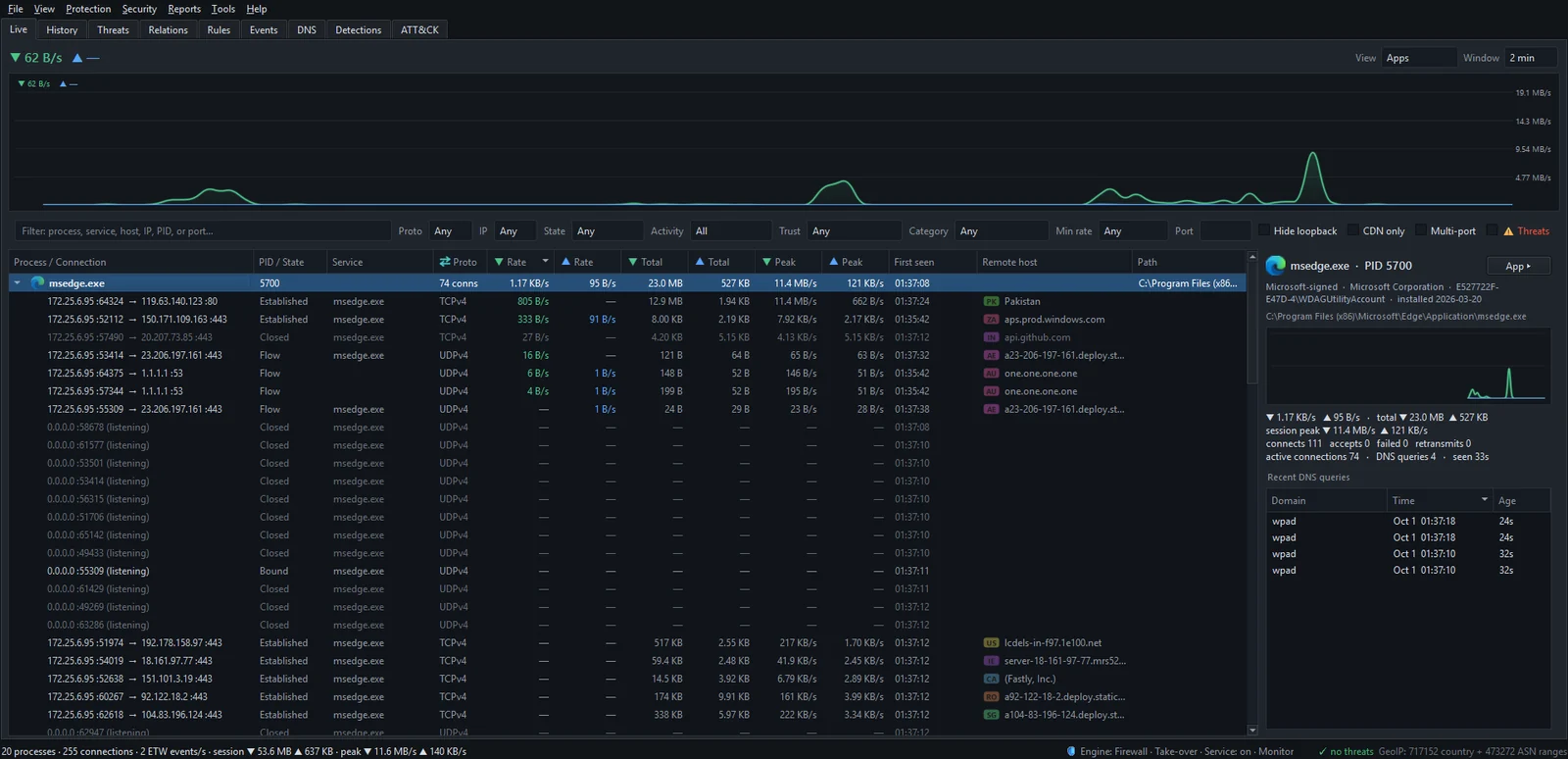
- Open the Live tab with View set to Apps.
- Click the second Rate column header, the one with the up arrow (▲), to sort by upload rate.
- Or set Activity in the filter bar to Uploading to hide everything that isn't sending.
- Select the top row. The details pane shows whether the program is signed, who published it, and when it was installed.
If the top row is svchost.exe, read the Service column. It names the Windows service behind each connection, so Delivery Optimization or Windows Update doesn't hide behind the generic process name.
History: what uploaded while you were away
- Open the History tab.
- Set Range to Today or Yesterday, and Group by to Apps.
- Click the ↑ Total column to sort by upload.
- Use the timeline bar chart above the list. Clicking a bar zooms the range to that hour, so you can see which app was sending at 3 a.m.
- Double-click an app to open its app dashboard, with daily bars and the hosts it sent the most to.

History is recorded while NetSecWall is running. With the background service installed, which the installer does by default, that includes when the window is closed and nobody is signed in. See the background service and the tray.
Get told next time
- Open Security ▸ Alerts & detection….
- Tick App uploads more than the threshold.
- Set Upload alert threshold: to a size that makes sense for you. The default is 100 MB.
When a single app passes that amount in the current session, a High upload tray notification names the app and how much it sent. For a whole-PC figure, Tools ▸ Set session data cap… alerts at 80% and 100% of a total you choose. More options are in choosing your alerts.
On Plus and higher plans, the detection engine also scores a program that has uploaded at least 100 MB and five times more than it downloaded. That shape is worth reading about in the upload pattern that should worry you.
What to do once you've found it
- A sync or backup client: let it finish, or use its own settings to schedule or throttle uploads.
- Delivery Optimization: limit or switch off sharing as described above.
- A Windows service you don't recognize: read what svchost.exe is doing on your network before blocking anything. Blocking
svchost.exewholesale breaks Windows Update, time sync and activation. - An app that has no business uploading: block its internet access. Blocking is part of the Family and Pro plans and the trial.
- An unsigned program you don't know, running from a temp or downloads folder, sending steadily: take it seriously. Note its path, block it, and run a full scan with Microsoft Defender or your antivirus. NetSecWall watches the network; it doesn't scan or remove files.
The short version
Idle uploads have ordinary causes most of the time, and each one has a name you can find. The trick is having a record of what happened while you weren't watching. If you'd like that record, download NetSecWall and try it for 7 days with every feature unlocked, no card and no account.
Frequently asked questions
Is it normal for a PC to upload data when idle?
Yes, in modest amounts. Telemetry, sync status checks and update checks send a little data all day. Large, sustained uploads always have a specific cause, and it's usually a sync or backup client.
How much upload is too much?
There is no universal number. Compare the amount with what the program is for: a backup client uploading gigabytes is doing its job, while a PDF reader uploading hundreds of megabytes is not.
Can Windows Update upload to strangers on the internet?
Only if Delivery Optimization is allowed to share with devices on the internet. Set Allow downloads from other devices to local network devices only, or turn it off, and Windows stops sending update pieces to the internet.
Can NetSecWall limit how much an app uploads?
No. NetSecWall doesn't throttle bandwidth. It can show, record, alert and block. To limit upload speed, use the app's own settings or Delivery Optimization's upload limits.
Does NetSecWall record uploads when the window is closed?
With the background service installed, yes, around the clock. Without it, NetSecWall records while the app is running, including when it's minimized to the tray.
Keep reading
 Which countries are your apps sending data to?
Group your PC's connections by country to see where each app's servers are. Expect surprises that aren't problems: CDNs and cloud regions put servers far from the company that owns them.
Which countries are your apps sending data to?
Group your PC's connections by country to see where each app's servers are. Expect surprises that aren't problems: CDNs and cloud regions put servers far from the company that owns them.
 How to monitor network traffic per app on Windows
Task Manager and Resource Monitor show a live per-app figure. To see where each app connects, how much it sends, and what it did yesterday, you need a per-app monitor that keeps history.
How to monitor network traffic per app on Windows
Task Manager and Resource Monitor show a live per-app figure. To see where each app connects, how much it sends, and what it did yesterday, you need a per-app monitor that keeps history.
 The upload pattern that should worry you
Worry when one program uploads far more than it downloads, in bulk, to a place you can't explain. That's the shape of data theft. Backups and sync look the same, so context decides.
The upload pattern that should worry you
Worry when one program uploads far more than it downloads, in bulk, to a place you can't explain. That's the shape of data theft. Backups and sync look the same, so context decides.
 Encrypted DNS (DoH): what it hides, and from whom
DNS over HTTPS encrypts the names your PC looks up, so the Wi-Fi owner and your ISP can't read them. The resolver you use still sees every name, and the addresses you then connect to stay visible.
Encrypted DNS (DoH): what it hides, and from whom
DNS over HTTPS encrypts the names your PC looks up, so the Wi-Fi owner and your ISP can't read them. The resolver you use still sees every name, and the addresses you then connect to stay visible.