GeoIP, threat or category lists aren't updating
Run Tools ▸ Feeds ▸ Update … now and watch the status line in Settings. Most failures come from a pending "Verify this PC" check, a changed source URL, or a network that blocks the download.
NetSecWall for WindowsOn this page
Feeds not updating? Start a manual update from Tools ▸ Feeds and read the status line in Tools ▸ Settings…, which says exactly what happened. Most failures have one of three causes: a one-time "Verify this PC" check nobody finished, a source URL that was changed and now points nowhere, or a network that won't let the download through. Until an update succeeds, NetSecWall keeps using the lists it already has.
The three feeds and where to check them
| Feed | What it powers | Update it by hand | Where to see its state |
|---|---|---|---|
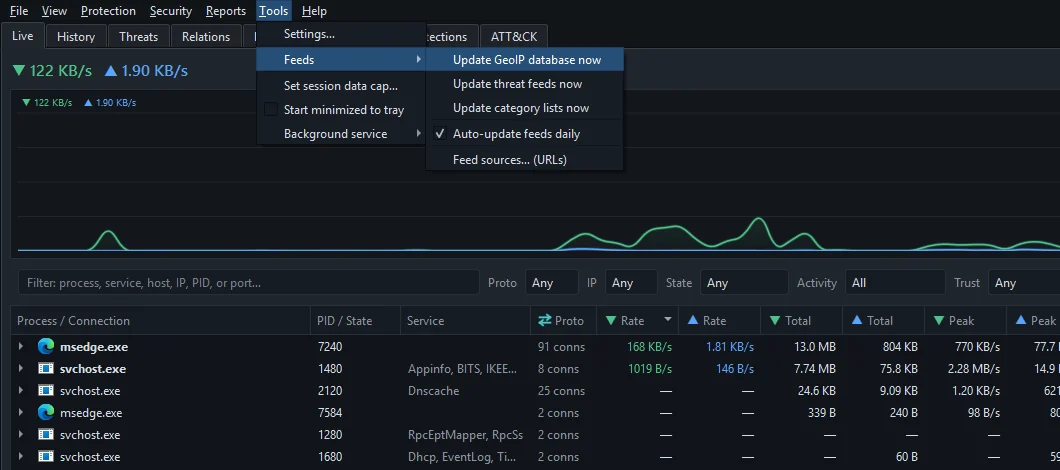
| GeoIP (country and network-owner tables) | Flags, countries, ASN/CDN names, country blocking | Tools ▸ Feeds ▸ Update GeoIP database now | Settings ▸ GeoIP & Flags: status and "updated N ago". The right end of the status bar too. |
| Threat feeds (six public IP lists) | Threat badges, the Threats tab | Tools ▸ Feeds ▸ Update threat feeds now | Settings ▸ Threat feeds: "updated N ago" for each feed, plus a status line |
| Category lists (13 website categories) | Category badges and category blocking | Tools ▸ Feeds ▸ Update category lists now | Settings ▸ Content categories: status line |
Update the lists by hand
- Choose Tools ▸ Feeds ▸ Update GeoIP database now (or the threat or category item).
- Open Tools ▸ Settings… and go to the matching tab.
- Watch the status line. For GeoIP it goes from "downloading GeoIP data…" to "download complete — loading…" and then "GeoIP: N country + N ASN ranges", and "updated" changes to "just now".
- If the line starts with "download failed:" or "feed download error:", the rest of it gives the reason, such as an HTTP code or a network error. Use the sections below.
Auto-update feeds daily in the same submenu is on by default. The app checks every three hours and refreshes all three kinds of list when the last automatic refresh was about 20 hours ago. It runs from the NetSecWall app, so it only happens while the app is open or sitting in the tray.
Feeds not updating? Check for a waiting "Verify this PC"
NetSecWall's hosted feeds can ask for a one-time check that a person is using the PC before threat feeds download. The dialog is called "Verify this PC" and says "One quick check before threat feeds download." Until someone finishes it, the Threat feeds status reads "threat feeds paused — this PC needs verifying", and detection runs on whatever lists are already on the PC.
- Click Verify in browser… and complete the check in your browser. It lasts for weeks.
- Back in NetSecWall, choose Tools ▸ Feeds ▸ Update threat feeds now.
The dialog appears at most once each time NetSecWall runs. If you clicked Later, restart NetSecWall and run Update threat feeds now to get it again. The check only applies to threat feeds. GeoIP and category lists don't ask for it.
Where the lists come from
Since version 1.2.0, all three come from NetSecWall's own mirror at netsecwall.com on every plan. If the mirror doesn't have a particular list, NetSecWall downloads it from the public source instead. That fallback covers a missing list. It doesn't help when your PC can't reach netsecwall.com at all. The threat feeds article lists every source.
A source URL was changed
Tools ▸ Feeds ▸ Feed sources… (URLs) opens Settings ▸ GeoIP & Flags, where "Source URLs (editable)" lists the four GeoIP files. The Threat feeds tab has an editable URL under each feed. A URL you type replaces the default, mirror included. If it's wrong or the server is gone, that list stops updating.
- Find the row whose URL you changed. Its ⟲ button ("Restore the default URL") is only enabled on rows you've edited.
- Click ⟲.
- Run the matching Update … now item again.
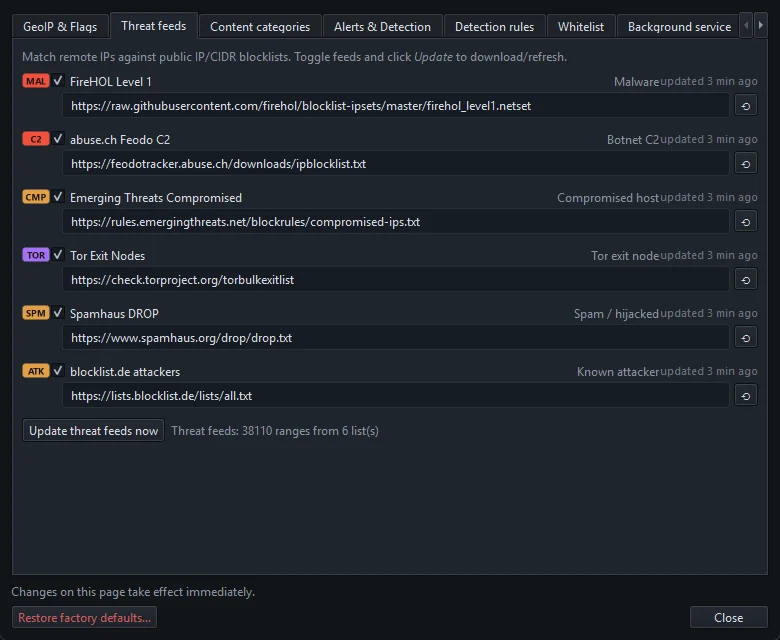
Category list sources are shown as links and can't be edited. If you changed GeoIP data dir: on the GeoIP & Flags tab, make sure that folder exists and is writable. Otherwise the status reads "download failed: cannot write …".
Offline, proxy and filtered networks
- No connection. Nothing is lost. The lists on disk keep working, and the next update after you reconnect refreshes them.
- Proxy-only or filtered networks. NetSecWall has no proxy setting of its own. On a network that only lets traffic out through a proxy, or that blocks unfamiliar downloads, the updates fail with an error on the status line. Try another network, or ask your network admin to allow netsecwall.com.
- Another firewall. If a different firewall tool asks about or blocks new programs, check that it allows NetSecWall.
- Isolated networks. You can point the editable GeoIP and threat-feed URLs at copies hosted on a web server inside your own network.
If you're still stuck, open a ticket and paste the status line.
Frequently asked questions
Am I unprotected while the feeds are out of date?
No. NetSecWall keeps matching against the lists already on the PC. They're just less current until the next successful update.
How often do the lists update on their own?
With Auto-update feeds daily on, roughly once a day while the app is running. The app checks every three hours and refreshes lists that are about 20 hours old.
Does updating the lists send my traffic anywhere?
No. The lists are downloaded to the PC and matched there, so nothing about your connections is sent out to be looked up. The download request identifies the device to NetSecWall's server. See what NetSecWall sends.
Can I switch off a threat feed I don't want?
Yes. Untick it on the Threat feeds tab in Settings. For how the lists feed into website category blocking, see that article.