The "another firewall manager" and "Windows Firewall is off" banners
The amber banner means another program also manages Windows Firewall, so pick Take over or Companion mode. The red banner means Windows Firewall is off, so click Enable Windows Firewall.
NetSecWall for WindowsOn this page
NetSecWall shows two warning banners above its tabs. The amber one reports a firewall manager conflict: another program is also managing Windows Firewall and may undo NetSecWall's rules. You choose Take over or Companion mode. The red one means Windows Firewall itself is switched off, so NetSecWall's default blocking can't work. Enable Windows Firewall switches it back on.
The amber banner: a firewall manager conflict
The banner reads: "⚠ Product is also managing Windows Firewall — NetSecWall rules may be overridden. Run one firewall manager at a time." It names whatever NetSecWall found. There are three things it checks for:
- A firewall product registered with Windows Security, which replaces Windows Firewall.
- A known firewall-management tool running on the PC. These tools often switch off or delete firewall rules they didn't create themselves.
- Windows Firewall's default outbound action set to Block. NetSecWall never sets that, so the banner names "Another tool", which may be another manager or a Group Policy.
With the default Windows Firewall (rules) engine, every NetSecWall block is a Windows Firewall rule. If another manager keeps reverting those rules, your blocks quietly stop working. The banner is there so that doesn't happen without you knowing.
What each button does
| Button | What happens |
|---|---|
| Take over | NetSecWall manages Windows Firewall. To stop the other program undoing NetSecWall's rules, set it to "No Filtering" or exit it. |
| Companion mode | NetSecWall removes its own Windows Firewall rules and leaves blocking to the other manager. Monitoring, detection and alerts carry on. |
| What to do | Opens advice for the specific product or condition that was detected. |
| ✕ | Hides the banner for that product until the conflict clears or changes. |
Take over and Companion mode both ask for the settings password if one is set.
Which one to choose
- You want NetSecWall to enforce your blocks. Choose Take over, then turn off the other tool's firewall control or exit it. You can also switch on Protection ▸ Protect NetSecWall rules from tampering, which re-enables any NetSecWall rule another program disables, checking every 20 seconds.
- You want to keep the other tool as your firewall. Choose Companion mode. Be clear about what that costs you: NetSecWall's app, category, country, Block all and parental blocks are no longer enforced through Windows Firewall. They still apply only if you use the Packet filter (WFP) or Both engine (Pro plan and the trial), because the packet filter works even when another product owns Windows Firewall. See enforcement engines.
- A product registered with Windows Security is your firewall. NetSecWall's Windows Firewall rules may not apply at all while it's active. Either manage blocking in that product, or turn it off to hand control back to Windows Firewall.
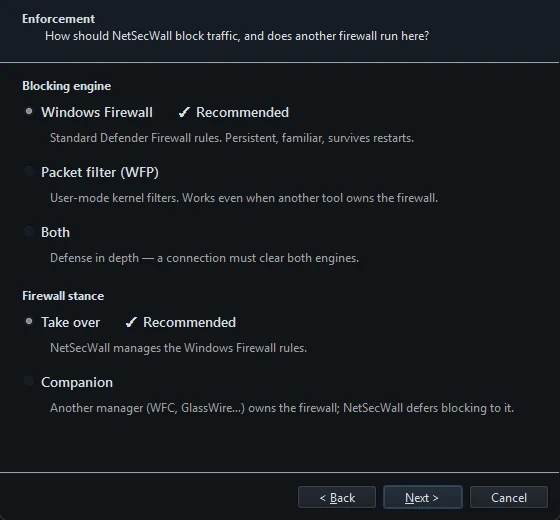
The status bar's mode chip shows your current stance as Take-over or Companion. After you've closed the banner, you can change it on the Enforcement page of Help ▸ Setup wizard…. For running two tools side by side, see using NetSecWall alongside another firewall manager.
The red banner: Windows Firewall is turned off
The banner reads: "⚠ Windows Firewall is turned OFF — NetSecWall blocking relies on it." It appears when Windows Firewall is off on all three network profiles (Domain, Private and Public). With the Windows Firewall engine, none of NetSecWall's blocks apply while the firewall is off.
- Click Enable Windows Firewall in the banner. Enter the settings password if asked.
- NetSecWall switches the firewall on for Domain, Private and Public, checks again, and the banner disappears.
The ✕ button hides the banner until the firewall's state changes.
A variant of the red banner ends in "— content blocking will not work", for example "Windows Firewall API unreachable" or "Windows Firewall service not responding". In that case NetSecWall can't talk to Windows Firewall at all. Check that the Windows Defender Firewall service is running, or restart the PC.
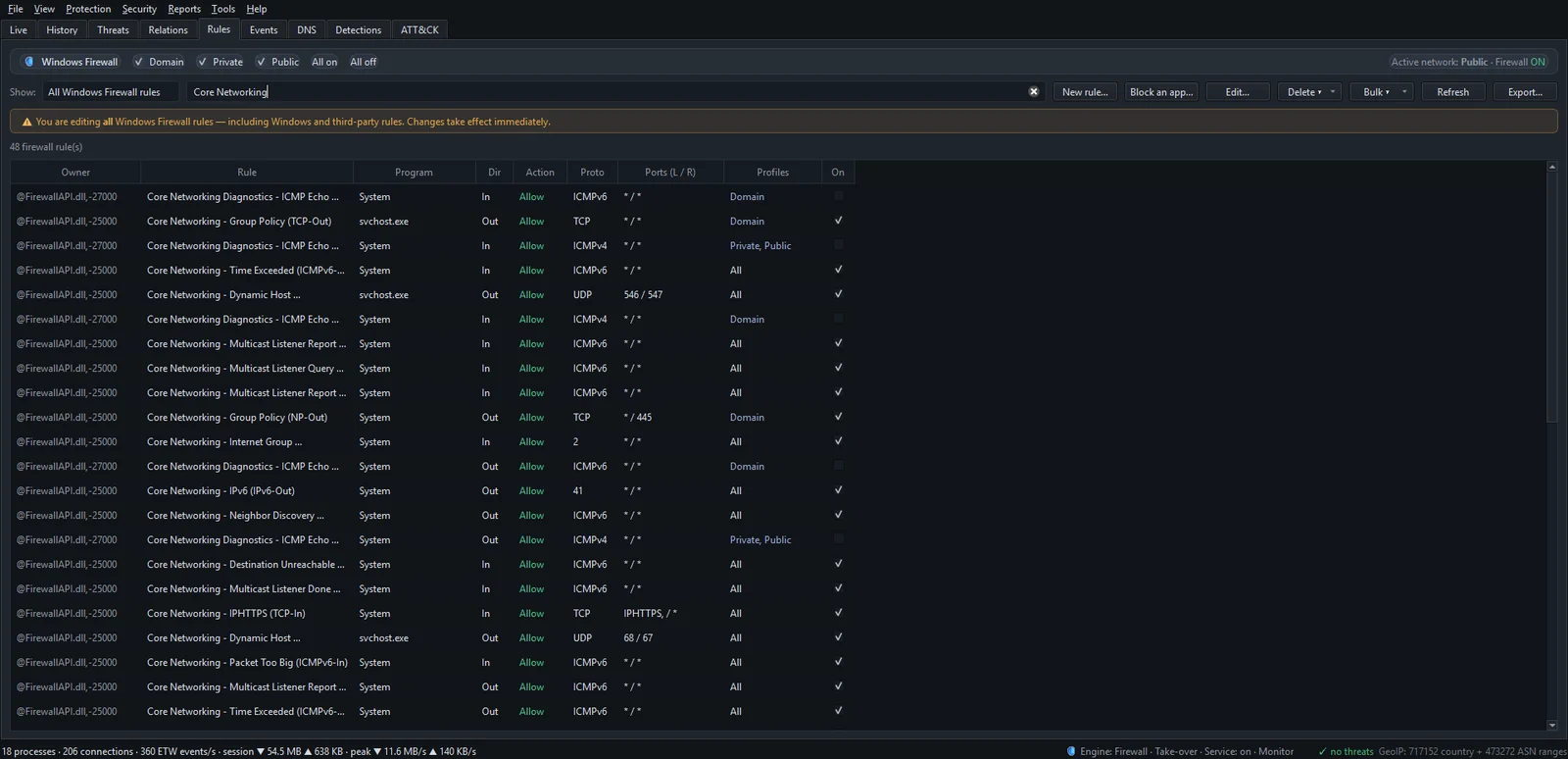
The banner only appears when all three profiles are off. If just one is off, check the Rules tab header. It shows "Active network: profile · Firewall state" and a switch for each profile. A block rule only applies while the firewall is on for the network you're connected to. See the Rules tab.
Frequently asked questions
Can I run NetSecWall alongside another firewall manager?
Yes, in Companion mode. NetSecWall keeps monitoring, detecting and alerting, and leaves Windows Firewall rules to the other tool. Its own blocks then apply only if the Packet filter (WFP) engine is selected.
Does Companion mode stop monitoring or alerts?
No. Companion mode only changes who writes Windows Firewall rules. The Live tab, history, threat checks, detections and alerts all keep working.
I clicked the ✕. Will the banner come back?
Not for the same product. It returns if the conflict clears and then comes back, or if NetSecWall detects a different product.
Why does NetSecWall care whether Windows Firewall is on?
Its default engine enforces every block as a Windows Firewall rule, and those rules do nothing while the firewall is off. See blocking: rules and what they actually do.