Introducing the NetSecWall Help Center and blog
The NetSecWall Help Center at /kb/ has step-by-step guides with real screenshots, sorted by topic and product and searchable. The blog at /blog/ explains the problems behind them.
NetSecWall for Windows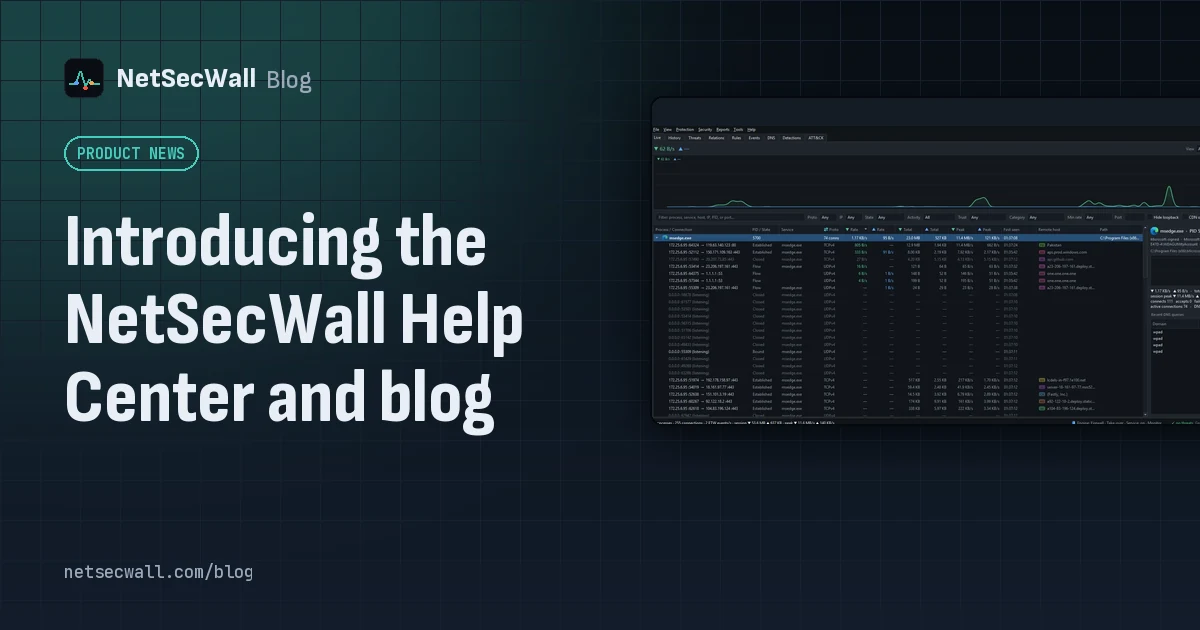
On this page
- What's in the NetSecWall Help Center
- Where to start, by what you need
- You've just installed NetSecWall
- You want to know what your PC is sending
- You want to block something
- You're a parent
- You think something is wrong
- You run IT for an office
- You have a license or payment question
- You're on Android
- What the blog is for
- When an article doesn't answer your question
- What we won't do in these articles
NetSecWall now has a Help Center at /kb/ and a blog at /blog/. The NetSecWall Help Center holds step-by-step guides for each task, with screenshots from the real app, sorted by topic and product and searchable. The blog explains the problems behind those tasks: why a PC uploads data when you're not using it, what beaconing is, how to cut an infected PC off the network. If an article doesn't answer your question, open a ticket and a person replies Monday to Friday, within one business day.
What's in the NetSecWall Help Center
The Help Center is organized three ways, so you can come at a question from whichever end you know.
- By topic. Ten sections: Getting started; Monitoring & visibility; Blocking & firewall rules; Threat detection & alerts; Parental controls; Plans, licenses & billing; Troubleshooting; Privacy & your data; Android app; Enterprise & Management Server.
- By product. "Choose your product" narrows everything to NetSecWall for Windows, NetSecWall for Android, or the Management Server.
- By search. The search box at the top of the Help Center searches every help article and blog post.
Each article follows the same shape. It gives the short answer first, then the detail. Procedures are numbered steps that use the app's exact labels and menu paths, like Protection ▸ Filtering mode ▸ Learning — ask when a new app connects. Longer articles have an "On this page" list, and each one ends with a short FAQ.
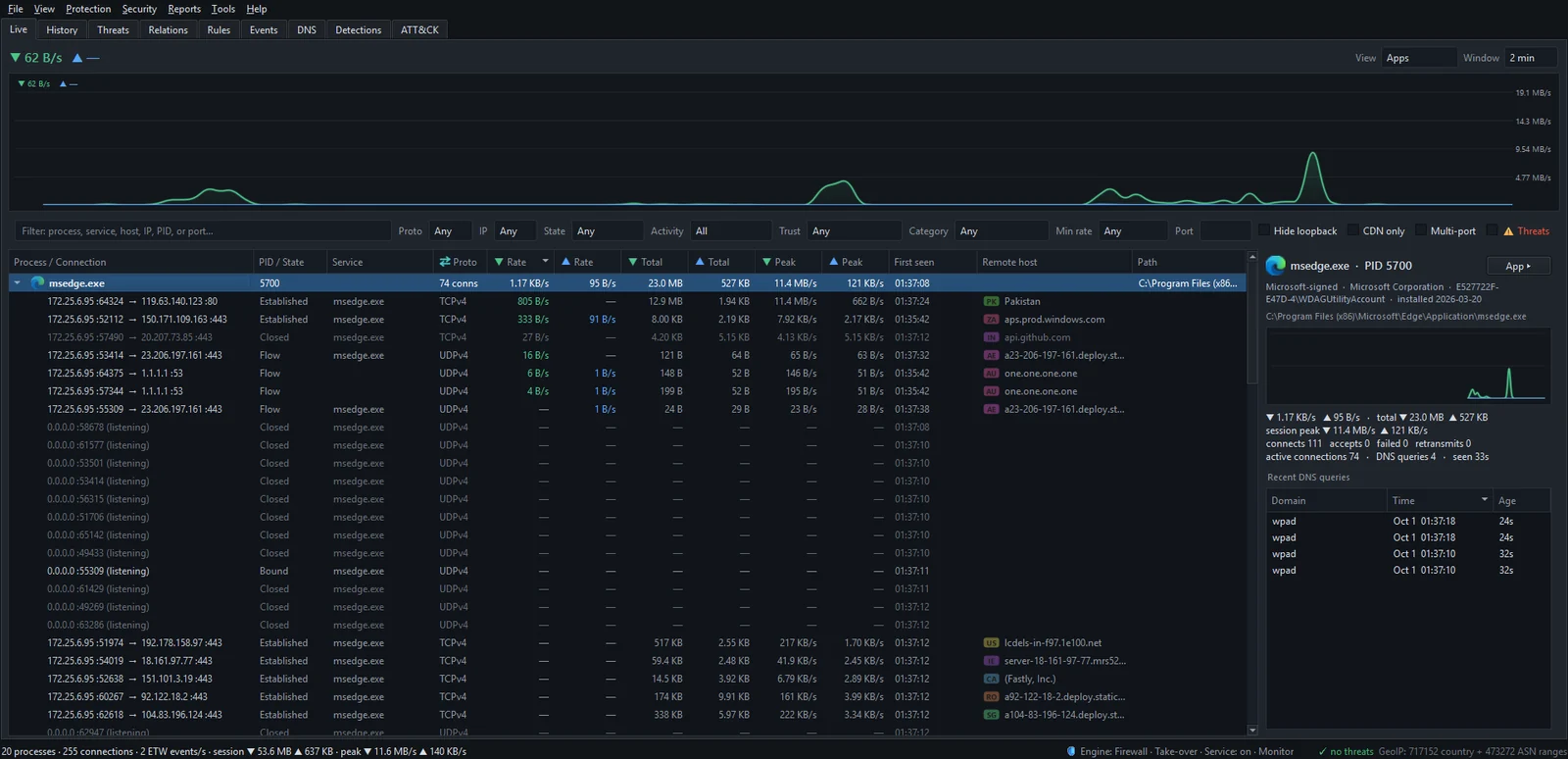
The screenshots come from NetSecWall 1.2.1, the current version, running in a clean Windows Sandbox. They show what you'll see, not a mock-up.
Where to start, by what you need
You don't have to read the Help Center front to back. Pick the line that sounds like you.
You've just installed NetSecWall
Start with how NetSecWall works, which covers what it watches, what it can block, and what it never touches. Then read the welcome screen and setup wizard and your first week with NetSecWall. The first-week guide shows what normal traffic looks like before you block anything. How the 7-day free trial works answers the "what happens on day eight" question.
You want to know what your PC is sending
See which apps are using the internet right now is the quickest answer. See which domains each app looks up goes one level deeper. If the question is about NetSecWall itself, exactly what NetSecWall sends over the internet lists every connection the app makes. On the blog, why is my PC uploading data when I'm not using it? walks through a common worry.
You want to block something
How to block an app from accessing the internet takes two clicks. Learning mode holds each new program until you approve it. Block website categories covers ads, adult sites, gambling, social media and more. If something stopped working afterwards, no internet after blocking something? gets you back online.
You're a parent
Set up parental controls on a child's PC goes step by step. Then set an internet bedtime and lock NetSecWall with a settings password. For an honest read on the limits, see can kids get around parental controls?.
You think something is wrong
Threat intelligence and detection explains what NetSecWall flags and why. The Detections tab: what a risk score means helps you read a score without panicking. Choose your alerts, and get them on your phone makes sure you hear about the next one.
You run IT for an office
Install the NetSecWall Management Server and enroll PCs with an onboarding file cover the Enterprise side, which is in beta. On the blog, silently deploying NetSecWall and network visibility for a small office cover the practical side.
You have a license or payment question
Which plan do I need?, sign in or activate a license key, paying with USDC or USDT and move your license to another PC cover most of what people ask.
You're on Android
NetSecWall for Android explains the free on-device DNS firewall. It's in beta and not on Google Play yet, so the article covers what it does and how it works.
What the blog is for
The blog is where the "why" lives. Posts start from a real problem, explain why it happens in terms that stay true whether or not you use NetSecWall, and then show how to deal with it. That includes the options already built into Windows. Posts are filed under How-to guides, Privacy, Security & threats, Family & kids online, Small business & IT, Networking explained, and Product news.
Release announcements appear under Product news. The full list of changes in every version stays on the changelog. To follow new posts in a feed reader, subscribe to the RSS feed at /blog/feed.xml.
When an article doesn't answer your question
- Search using the words on your screen, such as an error message or a menu name.
- Check the troubleshooting guide, which covers the problems people actually run into.
- Open a support ticket. You don't need an account. You get a reference number, and you can check a ticket's status later.
- Include your app version (Help ▸ About NetSecWall), your Windows version, and what you tried. For a failed installation, attach the install log.
A person reads every ticket and replies Monday to Friday, within one business day. There's no phone line and no live chat. You can also email support@netsecwall.com.
At the bottom of each article, "Was this article helpful?" takes one click. The answer is counted anonymously, with no identifier stored, and it tells us which articles need rewriting.
What we won't do in these articles
The guides say where NetSecWall stops, because a guide that hides the limits costs you more time than it saves. NetSecWall is not an antivirus. Category and domain blocking work on IP addresses, so they're reactive and can over-block shared networks. Parental controls can be bypassed by someone with Windows administrator rights. The Android app isn't on Google Play yet, and Enterprise is in beta. You'll find those limits stated plainly wherever they matter.
If you haven't tried NetSecWall yet, the guides pair well with the 7-day trial.
Frequently asked questions
Do I need an account to read the Help Center?
No. Every article and blog post is open to anyone, with no sign-in.
Which version of NetSecWall do the guides describe?
NetSecWall 1.2.1, the current version. If your menus look different, update first. On 1.1.0 or 1.2.0, download 1.2.1 from the website.
How do I follow new blog posts?
Subscribe to the RSS feed at /blog/feed.xml in any feed reader. Product news posts also link to the changelog.
Can I ask for an article that doesn't exist yet?
Yes. Open a support ticket and describe what you were trying to do. Requests like that help decide what gets written next.
How fast does support reply?
Monday to Friday, within one business day. Privacy requests about your data are answered within 30 days, as the law requires, and usually far sooner.
Keep reading
 How to find which app is using a port on Windows
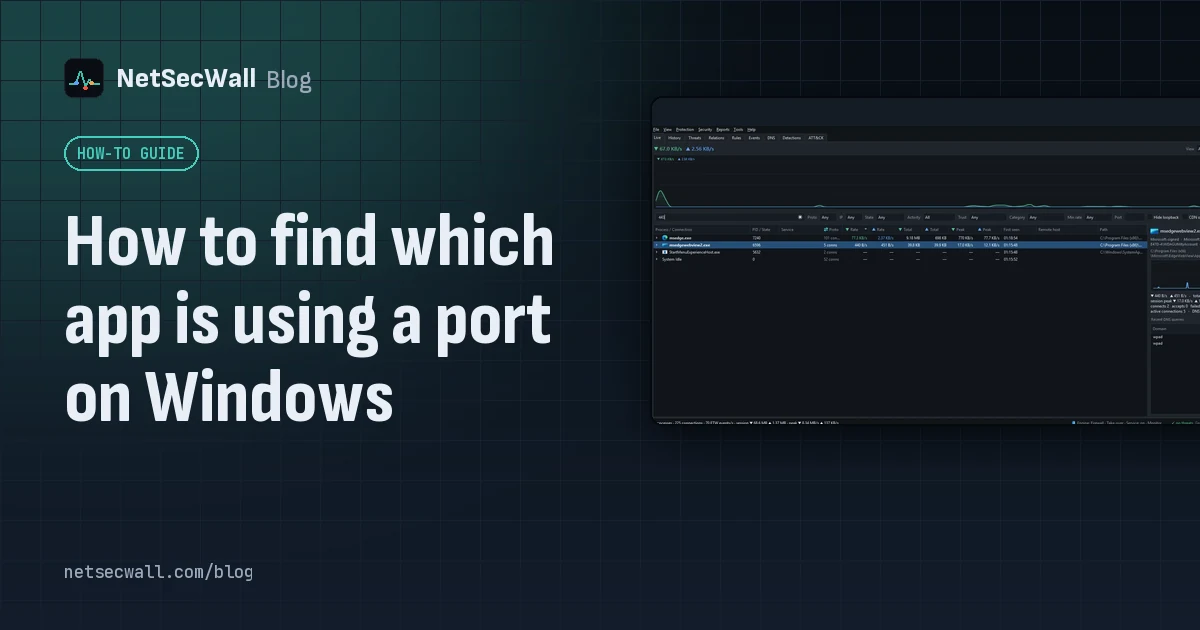
Run netstat -ano to get the process ID (PID) that owns the port, then look that PID up in Task Manager. PowerShell's Get-NetTCPConnection and Resource Monitor give the same answer.
How to find which app is using a port on Windows
Run netstat -ano to get the process ID (PID) that owns the port, then look that PID up in Task Manager. PowerShell's Get-NetTCPConnection and Resource Monitor give the same answer.
 How to see which apps are using your internet on Windows 11
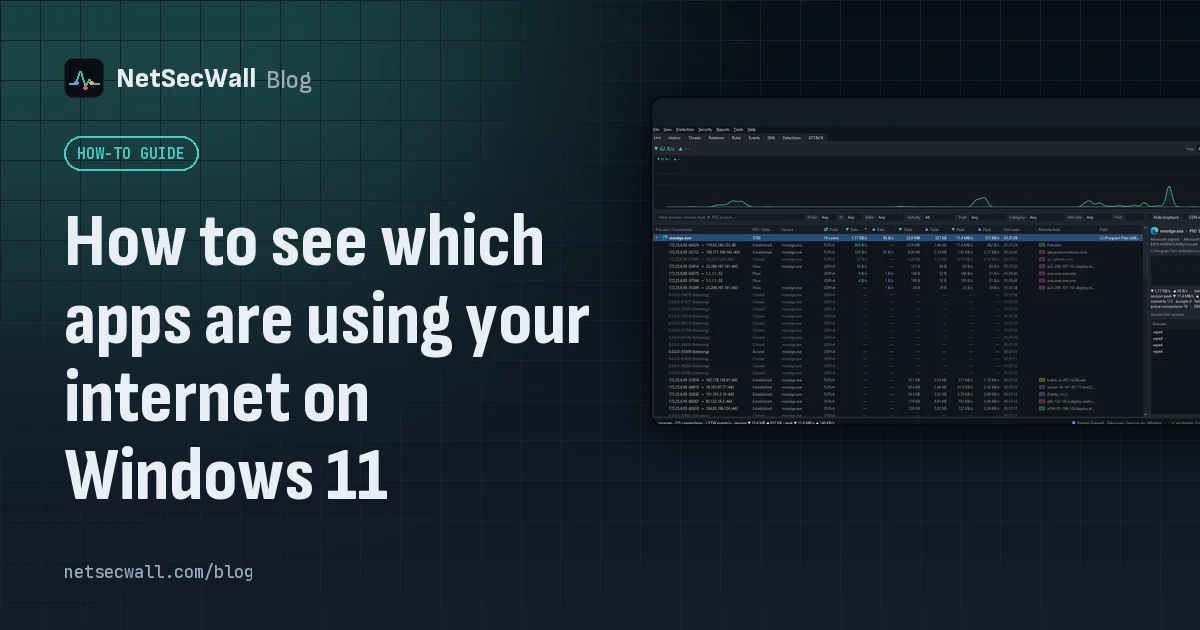
Task Manager's Network column shows which apps are busy right now; Resource Monitor and netstat show where each one connects. For history, countries and alerts you need a per-app monitor.
How to see which apps are using your internet on Windows 11
Task Manager's Network column shows which apps are busy right now; Resource Monitor and netstat show where each one connects. For history, countries and alerts you need a per-app monitor.
 ESTABLISHED, TIME_WAIT, LISTENING: TCP states decoded
TCP states show where a connection is in its life: LISTENING waits, SYN_SENT is dialing, ESTABLISHED is talking, CLOSE_WAIT and TIME_WAIT are the goodbye. Most are harmless; piles of some are clues.
ESTABLISHED, TIME_WAIT, LISTENING: TCP states decoded
TCP states show where a connection is in its life: LISTENING waits, SYN_SENT is dialing, ESTABLISHED is talking, CLOSE_WAIT and TIME_WAIT are the goodbye. Most are harmless; piles of some are clues.
 NetSecWall 1.2.0: Family and Pro leave beta
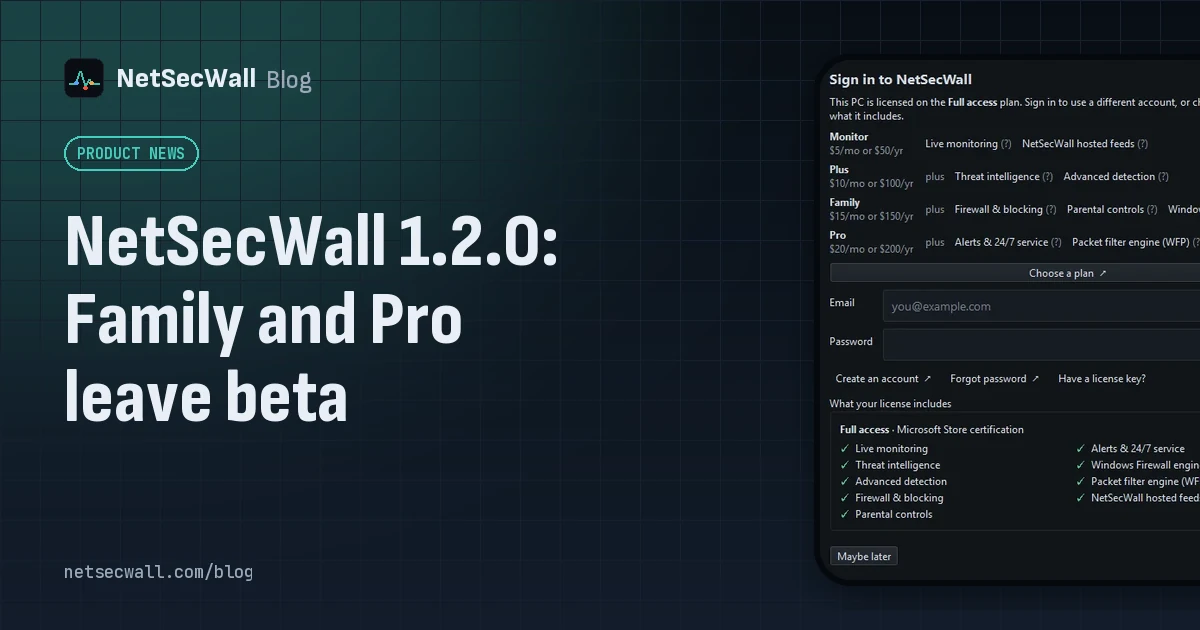
NetSecWall 1.2.0 takes Family and Pro out of beta, signs the installer and app, downloads every list from NetSecWall's servers on all plans, and brings license-key entry back into the app.
NetSecWall 1.2.0: Family and Pro leave beta
NetSecWall 1.2.0 takes Family and Pro out of beta, signs the installer and app, downloads every list from NetSecWall's servers on all plans, and brings license-key entry back into the app.