The Live tab is empty or shows no transfer rates
Usually a filter is still on, monitoring is paused, or the background service has stopped. Each cause leaves a visible sign in the status bar or the Live tab header, so check there first.
NetSecWall for WindowsOn this page
When the Live tab is empty or every rate stays at zero, NetSecWall is almost always running fine and something is hiding or pausing the data. The usual causes are a filter left on, monitoring paused from the tray, a stopped background service, or a capture problem that stops byte counts. Each one leaves a visible sign, so you can find it in under a minute.
Live tab empty? Read the status bar first
The left end of the status bar shows "N processes · N connections · N ETW events/s". Those numbers tell you where to look:
- Processes and connections are above zero, but the tree is empty. A filter is hiding the rows.
- ETW events/s stays at 0 while you're downloading something. Byte counting isn't working, so rates stay at zero. See the capture section below.
- The mode chip says Service: stopped. The window is waiting for a background service that isn't running.
Remember that the Live tab only lists programs that have a connection open right now. An app that went quiet a minute ago won't be there. Its traffic is in the History tab (see history and search).
A filter is hiding the rows
The filter bar above the tree narrows the list, and it's easy to forget one is on. The ⚠ Threats checkbox is the usual culprit. With it ticked, the tree only shows connections to threat-listed addresses, which normally means nothing. Activity, Min rate and State can also hide quiet apps.
- Clear the text box ("Filter: process, service, host, IP, PID, or port…") and the Port box.
- Set Proto, IP, State, Trust, Category and Min rate back to Any, and Activity to All.
- Untick Hide loopback, CDN only, Multi-port and ⚠ Threats.
- Set View back to Apps if you were in a grouped view.
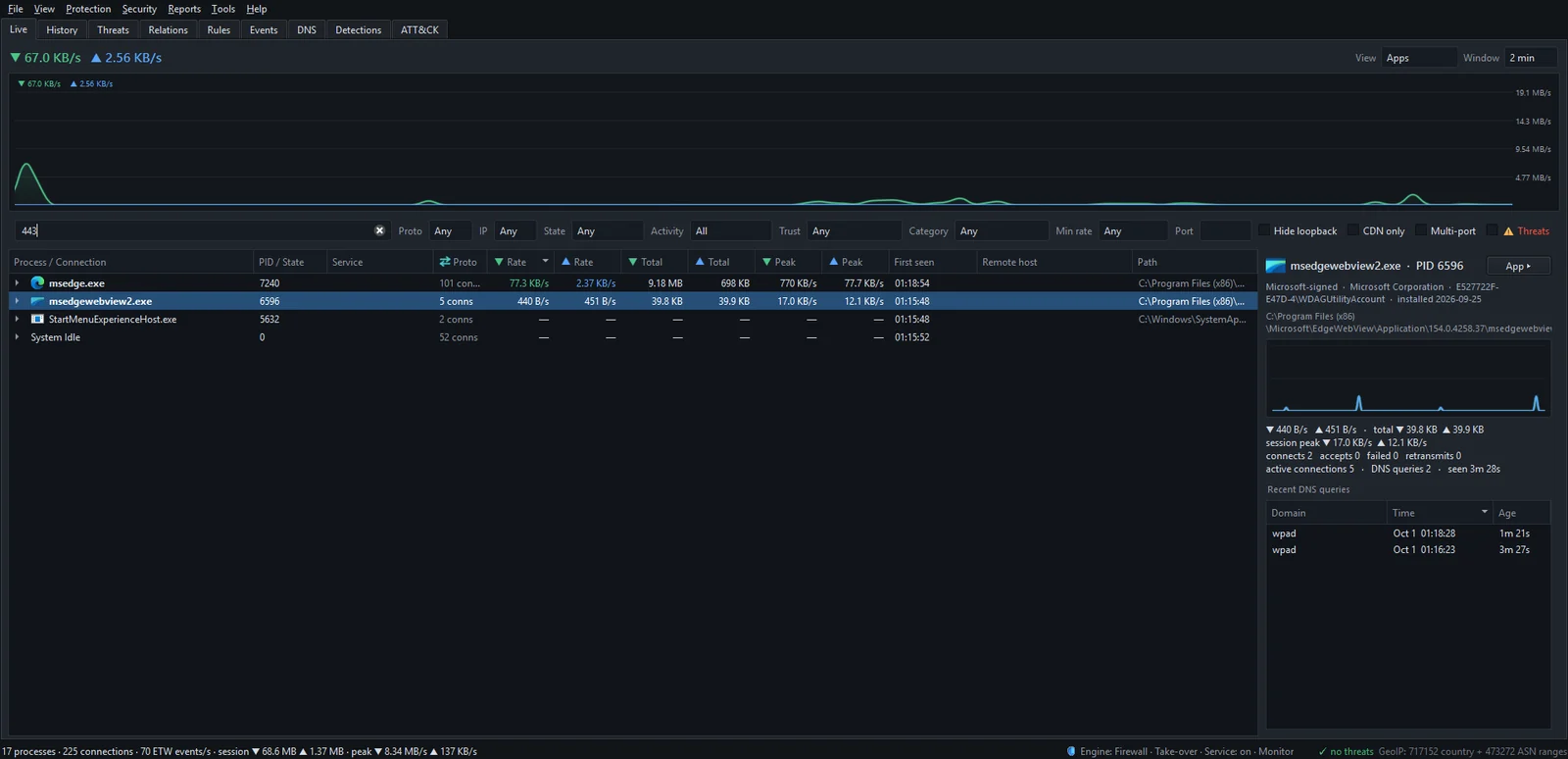
Filters aren't saved, so restarting NetSecWall also clears them. For a guide to using the filters on purpose, see filtering the Live tab.
Monitoring is paused
The tray menu has a Pause monitoring checkbox. It stops recording and freezes the live view. Your blocks keep working while it's on. The tray icon's tooltip shows "(paused)" when it's on. Right-click the tray icon and untick Pause monitoring. If a settings password is set, pausing asks for it, but resuming doesn't.
The background service is stopped
With the background service installed, the window is a thin client. It shows what the service captures and does no capturing of its own. If the service stops, the Live tab has nothing to show, and the mode chip in the status bar reads Service: stopped.
- Open Tools ▸ Background service. The first line shows the state, for example "● Installed · stopped".
- Click Start.
- Give it a few seconds. The chip should change to Service: on and rows should appear.
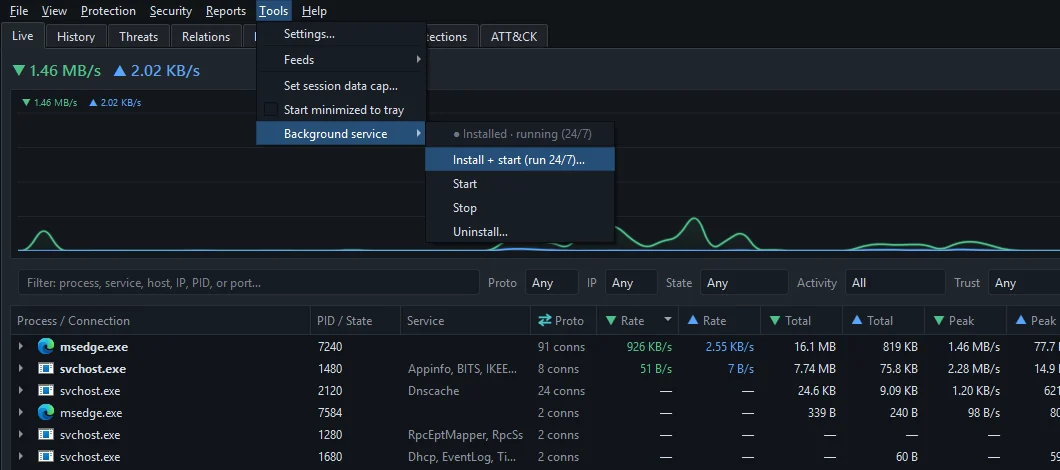
If you've just added the service with Install + start (run 24/7)…, restart NetSecWall so the window connects to it. More in the background service and the tray.
Rows appear but rates stay at zero
Live byte counts come from a Windows kernel event trace (ETW), which only works with administrator rights. NetSecWall asks for those rights every time it starts (the UAC prompt). If Windows still refuses the trace, a yellow line starting with ⚠ appears in the Live tab header with the reason, for example "StartTrace failed (5) — run as Administrator". Connections can still be listed from Windows' connection table, but without rates.
- Right-click the tray icon and choose Quit, so NetSecWall is fully closed.
- Start it again from the Start menu and accept the UAC prompt.
- If the background service is installed, the service does the capturing. Stop and start it from Tools ▸ Background service.
If the warning is still there, open a ticket and include the exact text.
No flags, countries or network owners
Countries, flags and network owners (ASN/CDN) come from the GeoIP database. The right end of the status bar shows its state: "GeoIP: N country + N ASN ranges" when it's loaded, or "no GeoIP data loaded" or "download failed: …" when it isn't. Choose Tools ▸ Feeds ▸ Update GeoIP database now, then see feeds not updating if the download fails.
Two things are normal and don't need fixing. Addresses on your own network never have a country. And without a flag image pack, NetSecWall draws two-letter country badges instead of flags.
Frequently asked questions
Does NetSecWall need administrator rights to show traffic?
Yes. Per-app byte counts come from a kernel trace that Windows only allows for administrators, which is why NetSecWall shows a UAC prompt when it starts.
Why is an app I know is online missing from the Live tab?
Either a filter is hiding it, or it has no connection open at this moment. Closed connections stay dimmed for a few seconds and then disappear. The History tab keeps everything.
Does pausing monitoring switch off my blocks?
No. Pause monitoring stops recording and live updates only. Blocks, Block all and parental limits keep working.
What if I see "NetSecWall is locked" instead of the tabs?
That's a licensing screen, not a monitoring problem. See license key errors and the lock screen.