Filter the Live tab to find a process, port or threat
Use the filter bar above the Live tab's list. Type a name, IP or port, or pick Trust, State, Activity or Min rate; every filter you set must match, and clearing them brings the rows back.
NetSecWall for WindowsOn this page
The filter bar sits between the graph and the list on the Live tab. Type in its text box, or pick from its lists and checkboxes, and the list shrinks to the rows that match. You can filter connections by port, program, trust, state or activity, and the filters combine: every one you set has to match. Clear them to see everything again. Filtering only changes what you see; it doesn't block anything or change what NetSecWall records.
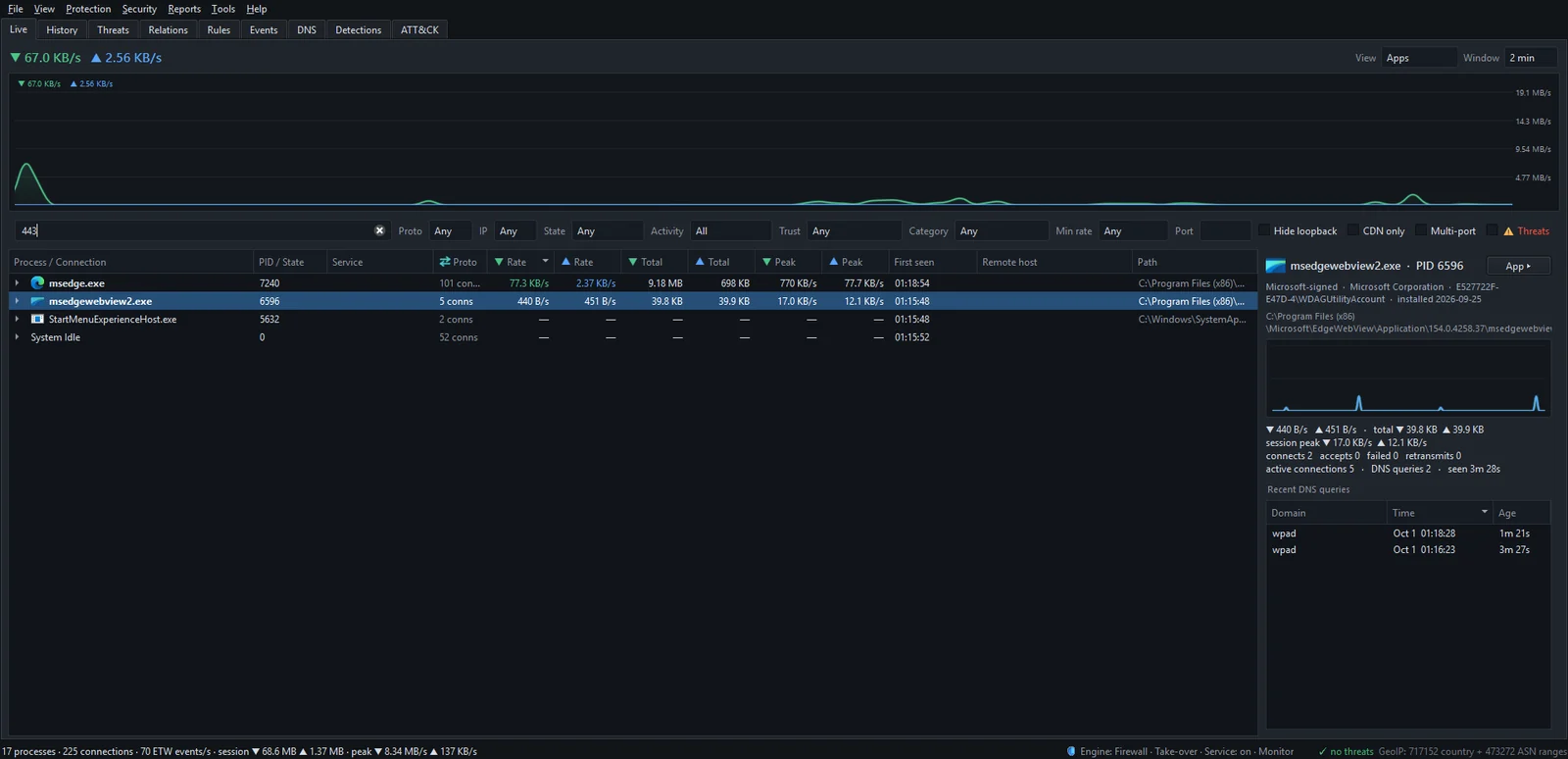
The text box
The box reads Filter: process, service, host, IP, PID, or port…. It matches:
- a program's name or path, or its PID (type the whole number);
- a service name, for the services running inside
svchost.exe; - on a connection, the remote IP, the host name, the owning service, or the local or remote port.
Matching ignores case and works on any part of the text, so edge finds msedge.exe. Because the box also matches names and addresses, a number can match more than a port. When you want one exact port, use the Port box.
The lists and checkboxes
| Control | Options | What it keeps |
|---|---|---|
| Proto | Any · TCP · UDP | Connections using that protocol. |
| IP | Any · v4 · v6 | IPv4 or IPv6 connections. |
| State | Any · Established · Listening · Time-Wait · Close-Wait · Other | TCP connections in that state. Listening keeps sockets waiting for incoming connections; Other is everything else, such as UDP flows. |
| Activity | All · Active · Downloading · Uploading · Idle | Active means data moved in the last 10 seconds; Idle means it didn't. |
| Trust | Any · Signed · Unsigned · Microsoft · Part of Windows · System acct · User apps | Programs by signature and origin. Unsigned includes invalid signatures, Microsoft includes Windows' own files, and User apps is everything that is neither Microsoft's nor running under a system account. |
| Category | Any, or one of the 13 content categories | Connections to domains on that category's list. |
| Min rate | Any · ≥ 1 KB/s · ≥ 10 KB/s · ≥ 100 KB/s · ≥ 1 MB/s | Download and upload added together. |
| Port | A number | Connections whose local or remote port is exactly that number. |
Four checkboxes finish the bar:
- Hide loopback hides traffic between programs on this same PC (127.0.0.1 and ::1). It never leaves the machine, and some apps generate a lot of it.
- CDN only keeps destinations on a CDN or cloud edge network.
- Multi-port keeps destinations your PC is talking to on two or more ports.
- ⚠ Threats keeps only connections to addresses on a threat-intelligence feed.
Which filters work in the grouped views
In By IP, By Domain, By Country and By Category, the filters that apply are the text box, Min rate, Hide loopback, CDN only, Multi-port and ⚠ Threats. There, the text box matches the destination, the Domain or Members text, the network owner and the names of the apps underneath. CDN only and Multi-port work only in these views. Proto, IP, State, Activity, Trust, Category and Port work only in the Apps view. Group live traffic by IP, domain, country or category explains the grouped views themselves.
Practical recipes: filter connections by port, trust or activity
Find unsigned programs that are online
- Set View to Apps.
- Set Trust to Unsigned.
- Tick Hide loopback.
- Click each program that remains and read its path in the details pane.
Unsigned does not mean malicious; plenty of small tools and games are unsigned. A program running from a Downloads or Temp folder deserves a closer look, and Unsigned programs on the internet: when to worry walks through how to judge one.
Find what is uploading right now
- Set Activity to Uploading.
- Set Min rate to ≥ 10 KB/s to skip background chatter.
- Click the second Rate header (the upload one) to sort by it.
Cloud backup and sync, video calls and uploads you started yourself are the usual answers. If something keeps uploading and you don't know why, open its app dashboard to see how long it has been doing it.
Find which program uses a port
- Type the port number in the Port box, for example
3389for Remote Desktop. - To see which program is waiting for incoming connections on it, set State to Listening.
- Leave State on Any to include outgoing connections to that port too.
How to find which app is using a port on Windows covers the same question with Windows' built-in tools.
Show only threat-feed hits
Tick ⚠ Threats. What remains is every connection to an address on one of the threat-intelligence feeds, which are part of the Plus, Family and Pro plans. A hit is a lead, not a verdict; Threat intelligence and detection explains how to read one.
Frequently asked questions
How do I find one Windows service, such as Windows Update?
Type part of the service's short name in the text box, the same name the Service column shows, for example wuauserv for Windows Update. If the service is running, the svchost.exe process that hosts it stays in the list and everything else disappears.
Is there a filter for countries?
Not in the Apps view. Switch View to By Country; there, the text box matches the two-letter country code, such as DE or US.
Does filtering stop traffic or remove anything from history?
No. It only hides rows from the list you are looking at. Everything is still monitored, recorded and enforced as before.
Why did a program disappear when I set a State?
State, Proto, IP and Port filter connections, so a program only stays if at least one of its connections matches. A program with nothing open in that state drops out until one appears.