How to uninstall NetSecWall (and keep or remove your data)
Uninstall NetSecWall from Settings ▸ Apps. It always removes the service and its firewall rules, then asks whether to delete your settings, history and downloaded lists too.
NetSecWall for WindowsOn this page
To uninstall NetSecWall, open Settings ▸ Apps, find NetSecWall and choose Uninstall. The uninstaller always stops and removes the background service and every firewall rule NetSecWall created. It then asks whether to delete your settings, history and downloaded lists as well; answer No to keep them for a later reinstall, or Yes to leave nothing behind.
Before you uninstall
- Moving to another PC? Sign out first with Help ▸ Sign in to NetSecWall… ▸ Sign out, which releases the license on this machine. See move your license to another PC.
- Want a copy of your setup? File ▸ Export settings… saves your content-category choices and custom domains as a JSON file. The Rules tab has an Export… button for NetSecWall's rules, and the History tab exports your traffic history as CSV or JSON.
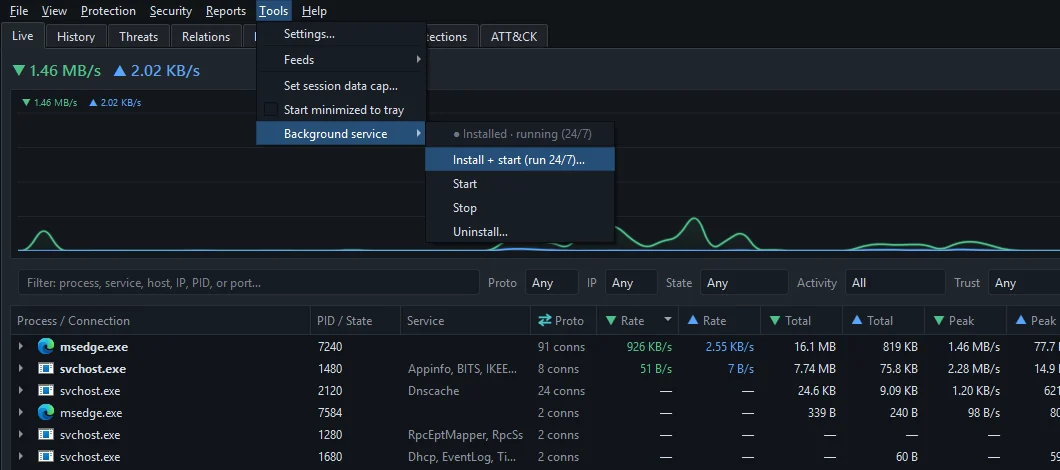
- Only want it to stop running in the background? You don't have to uninstall. Tools ▸ Background service ▸ Uninstall… removes just the service, as described in the background service and the tray.

How to uninstall NetSecWall on Windows 11 or 10
- Quit NetSecWall with File ▸ Quit, or right-click the tray icon and choose Quit. The uninstaller closes it anyway, but quitting first is tidier.
- Open Settings ▸ Apps ▸ Installed apps on Windows 11, or Settings ▸ Apps ▸ Apps & features on Windows 10.
- Find NetSecWall, choose Uninstall (on Windows 11 it is under the ⋯ button), and confirm.
- Approve the Windows administrator prompt, then confirm that you want to remove NetSecWall.
- Answer the question Also delete your NetSecWall settings, history and downloaded lists from this PC? No is the default and keeps them; Yes deletes them.
- Wait for the message that NetSecWall was removed. No restart is normally needed.
You can also use the Uninstall NetSecWall shortcut in the Start menu, or Programs and Features in Control Panel. They run the same uninstaller.
What is removed and what is kept
Always removed:
- The program files in
C:\Program Files\NetSecWall, the shortcuts and the entry in Settings ▸ Apps. - The background service NetLensSvc (NetSecWall Network Monitor), stopped first.
- Every firewall rule NetSecWall owns: the rules in the NetLens group whose names start with "NetLens", including app, category, country and block-all rules. The packet filter's WFP filters disappear as soon as NetSecWall stops.
Removed only if you answer Yes:
- The data folders
C:\ProgramData\NetLensand%LOCALAPPDATA%\NetLens, which hold the traffic history database, the downloaded threat, category and GeoIP lists, and the detection files. - The settings under
HKCU\Software\NetLens, including your preferences, Learning-mode decisions, parental controls and the settings password.
Always kept:
- Your license. It is bound to the PC on NetSecWall's server, so a reinstall on the same PC picks it up again.
- The trial status. Reinstalling doesn't restart the trial.
- Rules you created yourself with New rule… in the Rules tab. They are ordinary Windows Firewall rules. Delete them in the Rules tab before uninstalling, or afterwards in Windows Defender Firewall with Advanced Security (
wf.msc). - Any files you exported.
If you answer No, a later reinstall starts with your history, settings and rules exactly as you left them.
Removing NetSecWall from Windows Settings doesn't ask for NetSecWall's settings password; any Windows administrator can uninstall it. The password protects NetSecWall's own settings, not the program itself; see lock NetSecWall with a settings password.
Uninstalling silently
For IT and scripts, the uninstaller accepts the usual silent switches:
"%ProgramFiles%\NetSecWall\unins000.exe" /VERYSILENT /SUPPRESSMSGBOXES /NORESTART
A silent uninstall keeps your data. Add /PURGE=1 to delete it as well. The full list of switches and exit codes is on the silent install page.
If the internet doesn't work afterwards
The uninstaller removes every rule NetSecWall owns, including a leftover block-all rule from a crash, so the internet should work normally straight away. If it doesn't, work through no internet after blocking something and check for custom rules you made yourself.
Frequently asked questions
Will I lose my license if I uninstall NetSecWall?
No. The license is bound to the PC on NetSecWall's server, not to the files on disk. Reinstall on the same PC and it is picked up again; to use it on a different PC, sign out before you uninstall.
Will the apps I blocked stay blocked after uninstalling?
No. The uninstaller removes every block NetSecWall created. Only rules you made yourself with New rule… remain, because they are ordinary Windows Firewall rules.
Can I uninstall and reinstall to get a new trial?
No. The trial is tied to the device on NetSecWall's server, and reinstalling doesn't reset it.
Where does NetSecWall keep my data if I choose to keep it?
In C:\ProgramData\NetLens (with the background service) or %LOCALAPPDATA%\NetLens\NetLens (without it), plus settings under HKCU\Software\NetLens. The "NetLens" names are an older internal name.