The upload pattern that should worry you
Worry when one program uploads far more than it downloads, in bulk, to a place you can't explain. That's the shape of data theft. Backups and sync look the same, so context decides.
NetSecWall for Windows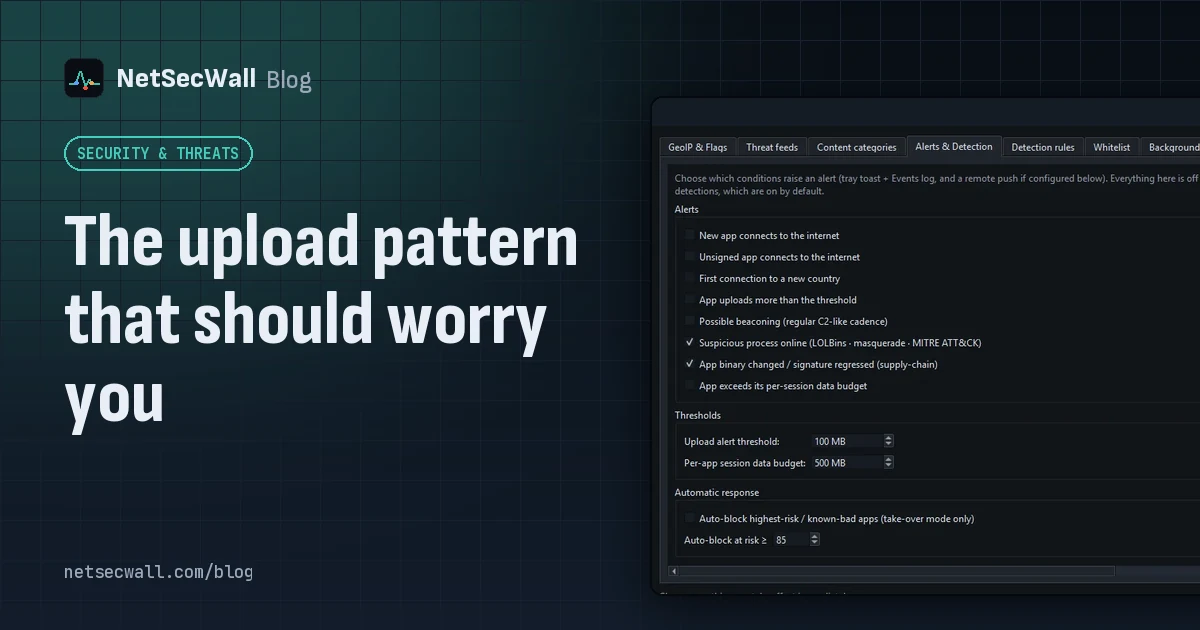
On this page
The clearest of the network signs of data exfiltration is lopsided: one program sending far more data than it receives, hundreds of megabytes going out while little comes back, to a destination you can't explain. Backup and sync tools produce exactly the same shape, so the question is always which program, to where, and whether you asked it to.
What data exfiltration is
Exfiltration is the attacker copying your data off the machine. What they want varies: documents and photos, email archives, saved browser passwords and session cookies, wallet files, anything that can be sold or used for blackmail. Ransomware groups often copy data out before encrypting it, so they can threaten to publish it as well.
MITRE ATT&CK lists the usual routes under its Exfiltration tactic:
- Over the existing command channel (T1041 Exfiltration Over C2 Channel), the same connection the malware uses for instructions.
- To a cloud storage service (T1567.002 Exfiltration to Cloud Storage), which blends in with normal traffic.
- Over some other protocol (T1048 Exfiltration Over Alternative Protocol).
- In small pieces or on a schedule (T1030 Data Transfer Size Limits, T1029 Scheduled Transfer), to stay under volume alarms.
Data is often compressed and encrypted first (T1560 Archive Collected Data), so even someone reading the traffic couldn't see what left.
One honest point up front: a password stealer can send everything it wants in a few kilobytes. Volume-based checks catch bulk theft, not a quick grab of credentials.
Signs of data exfiltration in your traffic
- Upload much larger than download for one program.
- Large totals, hundreds of megabytes or more.
- The wrong program. A document viewer, a game or something you don't recognize has no business uploading gigabytes.
- An unexplained destination: a raw IP address, an unfamiliar network or country, a file-sharing service you never use.
- Odd timing: overnight, or while the PC is idle. See why a PC uploads data when you're not using it.
- Company. A big upload from a program that also beacons on a timer or runs from a temp folder is far more worrying than a big upload alone. What beaconing is covers the timer part.
Uploads that look the same but aren't theft
Plenty of honest software is upload-heavy:
- cloud backup, and sync clients sending a photo or video folder
- uploading videos, or live streaming
- video calls, which upload about as much as they download
- file sharing and torrent seeding
- Windows Update's Delivery Optimization, if it's allowed to share updates with other PCs; that traffic appears under the
svchost.exeservice that runs it
If you set it up and know where it sends data, it's not exfiltration.
What Windows shows you
On Windows 11, Settings ▸ Network & internet ▸ Advanced network settings ▸ Data usage lists each app's data use over the last 30 days, uploads and downloads combined. Resource Monitor (resmon) shows per-process send and receive rates on its Network tab, but only at this moment. Neither separates uploads from downloads over time or tells you where the data went.
How NetSecWall spots the pattern
NetSecWall counts every program's uploaded and downloaded bytes, per remote host, and keeps that history on your PC. Three separate features look at volume.
1. The exfil detection signal. When a program has uploaded at least 100 MB and at least five times what it downloaded, it gets the "exfil" signal: "large upload-dominated transfer", mapped to T1041 Exfiltration Over C2 Channel, weight 30. That's deliberately below the alert threshold of 40, so a backup won't raise an alarm on its own. Combined with anything else, such as running from a temp folder, beaconing or connecting to raw IPs, it pushes the program over the line, onto the Detections tab and into a "Suspicious process" alert.
2. The upload alert. App uploads more than the threshold, off by default, sends a tray notification ("High upload", naming the app and how much it uploaded this session) the first time one program's uploads pass the Upload alert threshold:, 100 MB by default. It's a notification only and isn't kept in the Events tab.
3. The per-app data budget. App exceeds its per-session data budget, also off by default, raises an alert when one program's combined download and upload passes Per-app session data budget:, 500 MB by default. This one is recorded in the Events tab. It only warns; nothing is slowed or blocked.
To turn them on:
- Open Security ▸ Alerts & detection….
- Tick App uploads more than the threshold and, if you want it, App exceeds its per-session data budget.
- Under Thresholds, set the upload threshold and budget to suit your PC. A machine that backs up nightly needs higher numbers than one that doesn't.

There's also a whole-PC limit: Tools ▸ Set session data cap… warns at 80% and 100% of the total you set. More in choosing your alerts.
Finding the uploader and where the data went
- In the Live tab, set Activity in the filter bar to Uploading and sort by Total ▲.
- For the past, open the History tab, set Range to Last 7 days and sort by ↑ Total. Expand the program to see the hosts it sent to. History, search and reports explains the view.
- Right-click the program and choose Open app dashboard. The daily ▼/▲ bars show when the uploads started, and the top hosts table shows where they went.
- Right-click a destination and choose Open IP dashboard for its owner, country and threat status.

If it doesn't add up
- Right-click the program and choose Block this app (firewall) ▸ Block for 1 hour to stop the flow while you check.
- If you still can't explain it, block it permanently and run a full antivirus scan.
- If you think personal data left the PC, change important passwords from a different, clean device and turn on two-factor authentication where you can.
What the numbers can't tell you
- What was sent. NetSecWall doesn't inspect traffic content. It sees who sent how much to where.
- Small thefts. Stolen passwords and cookies are tiny.
- Uploads through a trusted program. A browser uploading to a cloud storage site looks like you using that site.
- Allowlisted programs aren't scored.
- Fixed thresholds. There's no per-app baseline; you tune the numbers yourself.
NetSecWall watches the network, and isn't an antivirus, so keep Microsoft Defender or your antivirus running too. To see which programs upload the most on your PC, the 7-day trial has every alert above.
Frequently asked questions
How much upload is normal for a home PC?
It depends almost entirely on what you use. Without backup, sync, streaming or calls, uploads are usually a small fraction of downloads. The more useful question is which program is uploading and whether you know why.
Can antivirus detect data exfiltration?
Antivirus looks for malicious files and behavior on the PC; it rarely tracks how much each program sends or where. Watching upload volumes per program covers that gap.
Does the per-app data budget block the app?
No. It raises an alert when a program passes the budget. To stop a program, block it from the Live tab.
Why does my backup software trigger the exfil signal?
Because backups are upload-heavy by design. The signal alone stays below the alert threshold. If you want the backup program left out of scoring entirely, add it under Security ▸ App whitelist… with Add path….
Is a video call a form of data exfiltration?
No. Calls send and receive roughly equal amounts, so they don't match the upload-dominated pattern, and they go to the service you chose to use.
Keep reading
 Why is my PC uploading data when I'm not using it?
Usually it's cloud sync, a backup, Windows Update sharing pieces of updates, telemetry or a forgotten browser tab. Sort your apps by upload rate to find the one responsible.
Why is my PC uploading data when I'm not using it?
Usually it's cloud sync, a backup, Windows Update sharing pieces of updates, telemetry or a forgotten browser tab. Sort your apps by upload rate to find the one responsible.
 How to spot malware by its network traffic
Almost all malware has to talk to someone. Look for unknown or unsigned programs online, odd ports, check-ins on a timer, lopsided uploads, threat-listed addresses and Windows tools going online.
How to spot malware by its network traffic
Almost all malware has to talk to someone. Look for unknown or unsigned programs online, odd ports, check-ins on a timer, lopsided uploads, threat-listed addresses and Windows tools going online.
 When a trusted app's file suddenly changes
A trusted app's file changing usually means an update. Worry when the change brings a lost or broken signature, or new destinations — the marks of a tampered, supply-chain-compromised app.
When a trusted app's file suddenly changes
A trusted app's file changing usually means an update. Worry when the change brings a lost or broken signature, or new destinations — the marks of a tampered, supply-chain-compromised app.
 Unsigned programs on the internet: when to worry
An unsigned program going online isn't proof of malware; plenty of honest software is unsigned. Worry when it also runs from a temp folder, appeared minutes ago, or carries a broken signature.
Unsigned programs on the internet: when to worry
An unsigned program going online isn't proof of malware; plenty of honest software is unsigned. Worry when it also runs from a temp folder, appeared minutes ago, or carries a broken signature.