Network history, search and reports
The History tab keeps your PC's traffic per app and host, minute by minute, for as long as you like. Pick a time range, then filter by app, IP, domain, country or network owner.
NetSecWall for WindowsOn this page
The Live tab only knows what's open right now. For "what happened last night?" you want the History tab: the same traffic, saved to a local database per app and per remote host in one-minute buckets, and searchable over any time range. Next to it, the DNS tab records every name each program looked up, and the Reports menu turns a period into a one-page summary. Together they're NetSecWall's network history and reports.
Using the History tab
- Choose a Range: Today, Yesterday, Last 7 days, Last 30 days, All time or Custom.
- Choose Group by: Apps, IPs, Domains or Countries.
- Type in the filter box to narrow by app, IP, domain, country or network owner.
- Expand a row to drill down, or double-click it to open the app or IP dashboard.

Each row shows downloaded, uploaded and total bytes, the peak rates, and when it was first and last seen. The timeline above the tree uses hourly bars for ranges up to three days and daily bars up to 90 days. Click a bar to zoom the range to it.
Widen the range before you narrow the filter. A host that shows up in every hour of the night is invisible in a one-hour window and obvious over a week. Beaconing is a pattern, not an event.
Searching the right way round
- By app: everything one program has done. Group by Apps and filter on its name.
- By destination: group by IPs or Domains and filter on the address or name. This answers "what else on this PC talks to that?", which is often more telling than one app's history.
- By country or network owner: see what a country block would really affect before you make one.
The Relations graph shows the same "who shares this endpoint" question as a picture, with endpoints used by two or more apps highlighted.
The DNS log
The DNS tab lists, per program, each domain it looked up, how many times, and when it was first and last seen. Filter by app or domain over Today, Last 7 days, Last 30 days or All time. A name is often the only human-readable thing in the whole exchange: an address tells you little, telemetry.vendor.example tells you plenty. It also shows lookups that never turned into a connection, such as a program looking for a server that's gone.
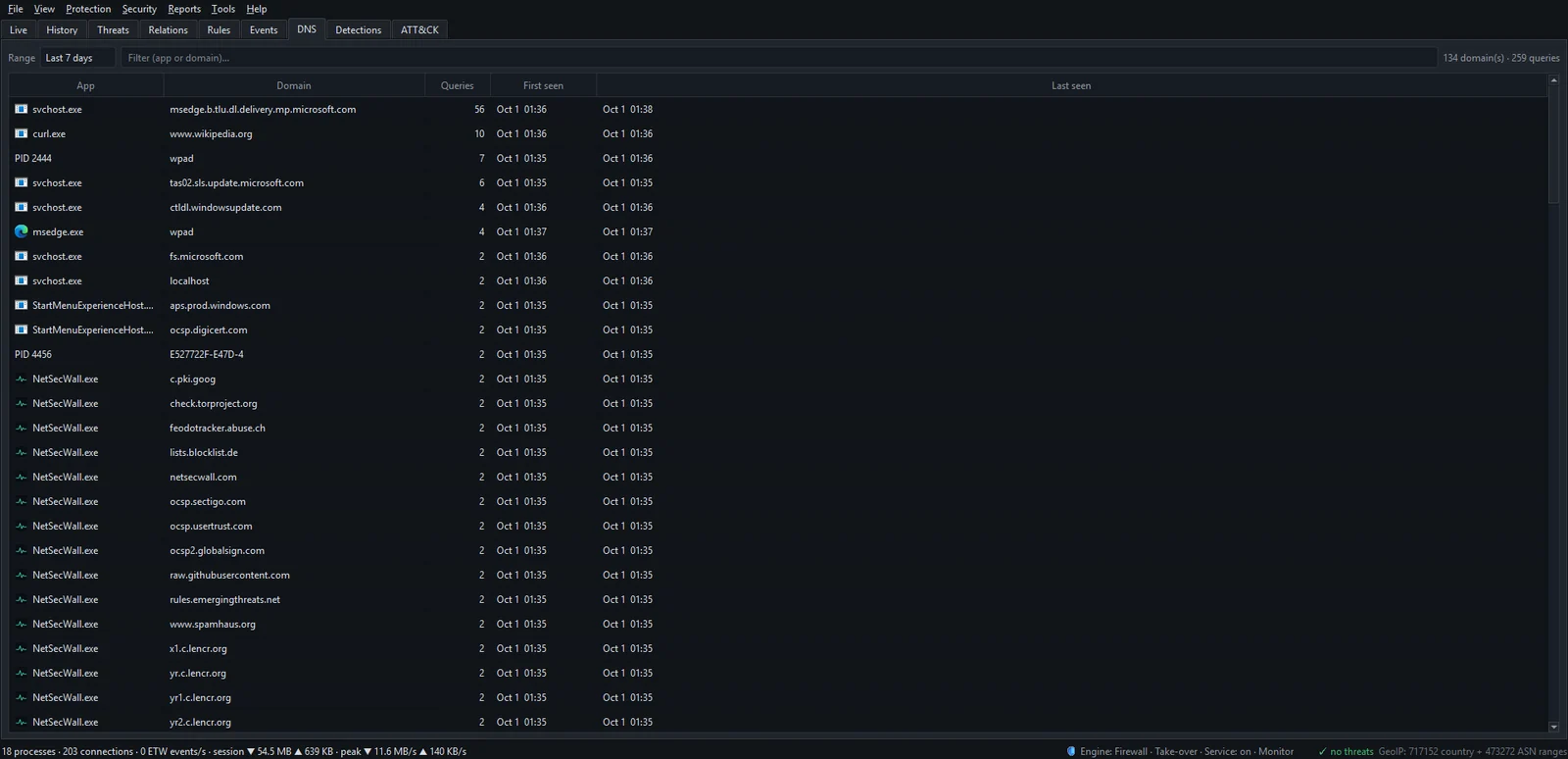
If your browser uses encrypted DNS (DNS-over-HTTPS), its lookups travel inside an HTTPS connection and NetSecWall can't see the names. You'll see the connection to the resolver instead. More in the DNS log.
Exporting history
Click Export… in the History tab to save the current view as CSV or JSON. The default file name is netsecwall-history.csv. It's handy for a spreadsheet, or to attach to a support ticket.
Reports
The Reports menu builds a report for Last 7 days…, Last 30 days… or a Custom range… and opens it in your browser. It shows how much was downloaded and uploaded, how many apps were active, the number of alert events and threat endpoints, and the top 12 apps and top 12 endpoints by data. It's a skim tool: you're looking for the row that surprises you.
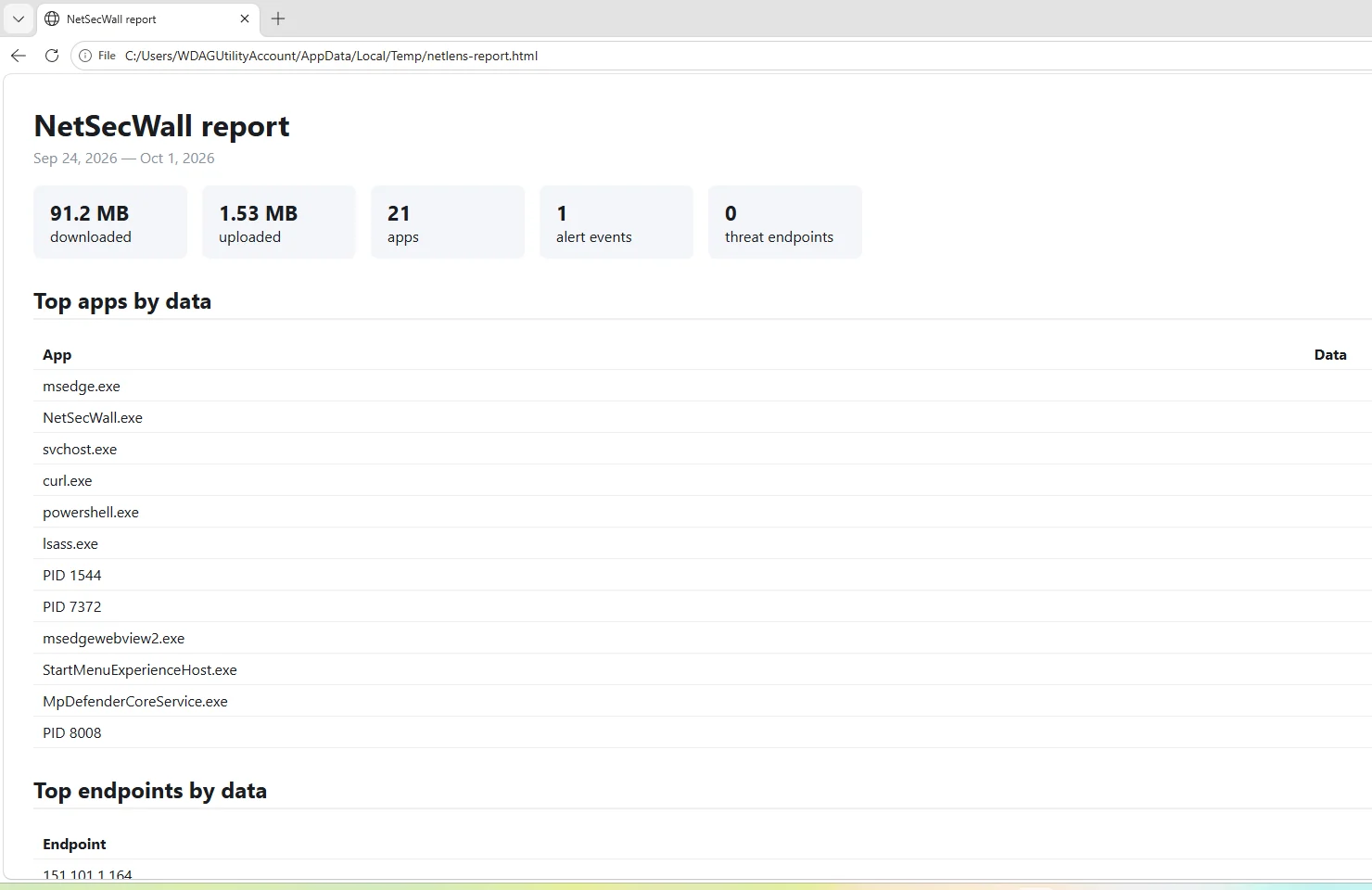
Reports are built on demand from the local database. They aren't emailed or scheduled, and they don't list what was blocked; for that, use Protection ▸ Blocked connections (firewall log)…. See network activity reports.
How long history is kept
History stays on your PC and nowhere else, and there's no retention setting: NetSecWall keeps it until you decide otherwise. At most once a month, if you have data older than 30 days, it tells you how many days of history it holds and how much disk that takes, and offers to prune everything older than 30 days. Click Prune now to trim it, or Keep everything to leave it. First-seen dates for apps and addresses are kept either way.
Pruning can't be undone. If you're investigating something older than 30 days, export it first.
Frequently asked questions
Where is the history database stored?
In a file called netlens.db in NetSecWall's data folder: C:\ProgramData\NetLens when the background service is installed, or %LOCALAPPDATA%\NetLens\NetLens without it. "NetLens" is the product's old internal name.
Does History record every individual connection?
It records traffic per program and remote host in one-minute buckets, with totals, peaks and first and last seen. It doesn't keep a separate entry for each connection.
Can I see the history of a program that has already closed?
Yes. Open its app dashboard from History or the Live tab. It keeps working after the process exits, because the data comes from the database.
Is my history sent anywhere?
No. History, the DNS log and reports are built and stored on the PC. See your data and your privacy.