How NetSecWall sees every connection without a driver
NetSecWall reads what Windows already records: kernel network events through ETW, DNS answers, and the TCP and UDP tables. It sees which app talks to which address without capturing a single packet.
NetSecWall for Windows
On this page
- Three usual ways to watch traffic, and what they cost
- Network monitoring without a driver: the idea
- Kernel network events: how much, and between whom
- DNS answers: turning addresses into names
- The connection table, once a second
- Who is the program?
- What NetSecWall doesn't do
- Why it needs administrator rights
- Where you see it in the app
- The short version
NetSecWall does network monitoring without a driver by reading what Windows already records about its own networking. The Windows kernel reports every send, receive and connection attempt through its built-in event tracing (ETW), the DNS Client reports every completed lookup, and Windows keeps a table of every open connection with the program that owns it. NetSecWall combines those three sources, so it knows which program is talking to which address, and how much, without capturing packets, routing traffic through itself or decrypting anything.
Three usual ways to watch traffic, and what they cost
If you want to know what each program on a PC is sending, there are three classic approaches:
- Packet capture. A capture driver copies every packet so a tool can read it. You see everything, contents included, but packets don't say which program sent them, and capturing everything is heavy.
- A proxy or local VPN. Traffic is routed through the monitoring program, which forwards it on. It knows exactly what passes through, but it adds a step to every connection, and if it stalls, your internet stalls with it. Some also decrypt HTTPS so they can read it.
- A kernel driver. A driver hooks into the network stack and reports or filters from inside the kernel. Powerful, but a bug in a kernel driver can take down the whole PC.
NetSecWall uses none of them.
Network monitoring without a driver: the idea
Windows already keeps careful notes about its own networking, for diagnostics and performance tools. NetSecWall reads those notes instead of standing in the doorway. Think of reading a building's visitor log rather than frisking everyone at the door: you learn who came, when, and to which office, without slowing anyone down or opening their bags.
There are three sets of notes, and each answers a different question.
Kernel network events: how much, and between whom
Event Tracing for Windows (ETW) is a logging system built into Windows. Components called providers emit events, and a program can start a trace session to receive them in real time.
NetSecWall starts a session named NetLensTrace and subscribes to the Microsoft-Windows-Kernel-Network provider. That provider reports TCP and UDP sends and receives, connection attempts, accepted connections, retransmissions and failures, for IPv4 and IPv6. Each event carries the process ID, the local and remote address and port, and the number of bytes.
Two details keep this light:
- NetSecWall tells Windows exactly which event types it wants, and the kernel discards the rest before they're ever delivered.
- Events are buffered by Windows and handed over in batches about once a second. The network stack never waits for NetSecWall to read them.
This is where the live download and upload rates, totals and peaks come from, per program and per connection. If you're curious, logman query -ets in an elevated Command Prompt lists running trace sessions, and NetLensTrace (sometimes with a number added) is among them while NetSecWall runs.
DNS answers: turning addresses into names
An IP address on its own says little. To show names, NetSecWall also subscribes to the Microsoft-Windows-DNS-Client provider, specifically event 3008, which Windows writes when a lookup completes, with the name and the addresses that came back. That gives NetSecWall a map from addresses to the names that led to them, and it fills the DNS tab and each app's Recent DNS queries.
When no lookup was seen for an address, NetSecWall falls back to reverse DNS, and skips private addresses, which rarely have useful reverse names.
This source has honest limits. Names a browser looks up over its own encrypted DNS never pass through the Windows DNS Client, so they don't appear; see encrypted DNS explained. And because Windows' DNS Client service resolves names on behalf of other programs, some lookups can be credited to the svchost.exe that hosts it rather than to the app that wanted the name.
The connection table, once a second
ETW says what moved. The third source says what's open. Once a second, NetSecWall reads Windows' TCP and UDP tables, the same data netstat -ano prints, using the GetExtendedTcpTable and GetExtendedUdpTable functions. Each row gives the addresses, ports, the TCP state (Established, Listening, Time-Wait and so on) and the owning process.
It asks for the owning module too. For a program that's simply the program; for a connection inside svchost.exe it's the name of the Windows service that owns the socket. Combined with Windows' list of which services run in which process, that's how the Service column can say which service inside svchost.exe is talking. What svchost.exe is doing on your network shows why that matters.
A connection that opens and closes between two reads still shows up, because its ETW events arrive anyway.
Who is the program?
For every process with a connection, NetSecWall collects its identity once and caches it:
- the full path of the executable, and its icon;
- its Authenticode signature, checked with Windows' own
WinVerifyTrust, against the file's embedded signature or, for many Windows files, the system's signature catalogs, without going online; - the signer (publisher), the version information (description, company, product), the install date and whether it runs under a system or user account.
Windows reuses process IDs quickly, so NetSecWall also records each process's start time and refreshes its details when an ID changes hands.
Everything is then enriched on your PC: country and network owner from downloaded GeoIP tables, threat-feed matches from downloaded IP lists, and website categories from downloaded domain lists. Nothing about a connection is sent anywhere to be looked up. Exactly what NetSecWall sends lists the few things that do leave the PC.
What NetSecWall doesn't do
- No packet capture and no content inspection. It records which program, which address, which port, how many bytes and when, not what was inside.
- No proxy, no redirection, no TLS decryption. Your traffic never passes through NetSecWall, so monitoring adds no delay to it.
- No kernel driver. Everything it reads is provided by Windows.
- Not even blocking puts it in the path. Blocks are handed to Windows, as Windows Defender Firewall rules or as filters in the Windows Filtering Platform, and Windows enforces them.
- This PC only. It sees the traffic of the Windows PC it runs on, not your phone, TV or other computers.
Why it needs administrator rights
Starting a real-time trace of the kernel network provider is a privileged operation in Windows, so NetSecWall asks for elevation when it starts. Without it, the connection table and service names still work, but there are no live rates. The Live tab is empty or shows no transfer rates covers that case. Creating firewall rules and WFP filters needs administrator rights too.
With the background service installed, the same engine runs as a Windows service (NetLensSvc) from boot, and the window simply displays what the service collects. How NetSecWall works explains the two modes.
Where you see it in the app
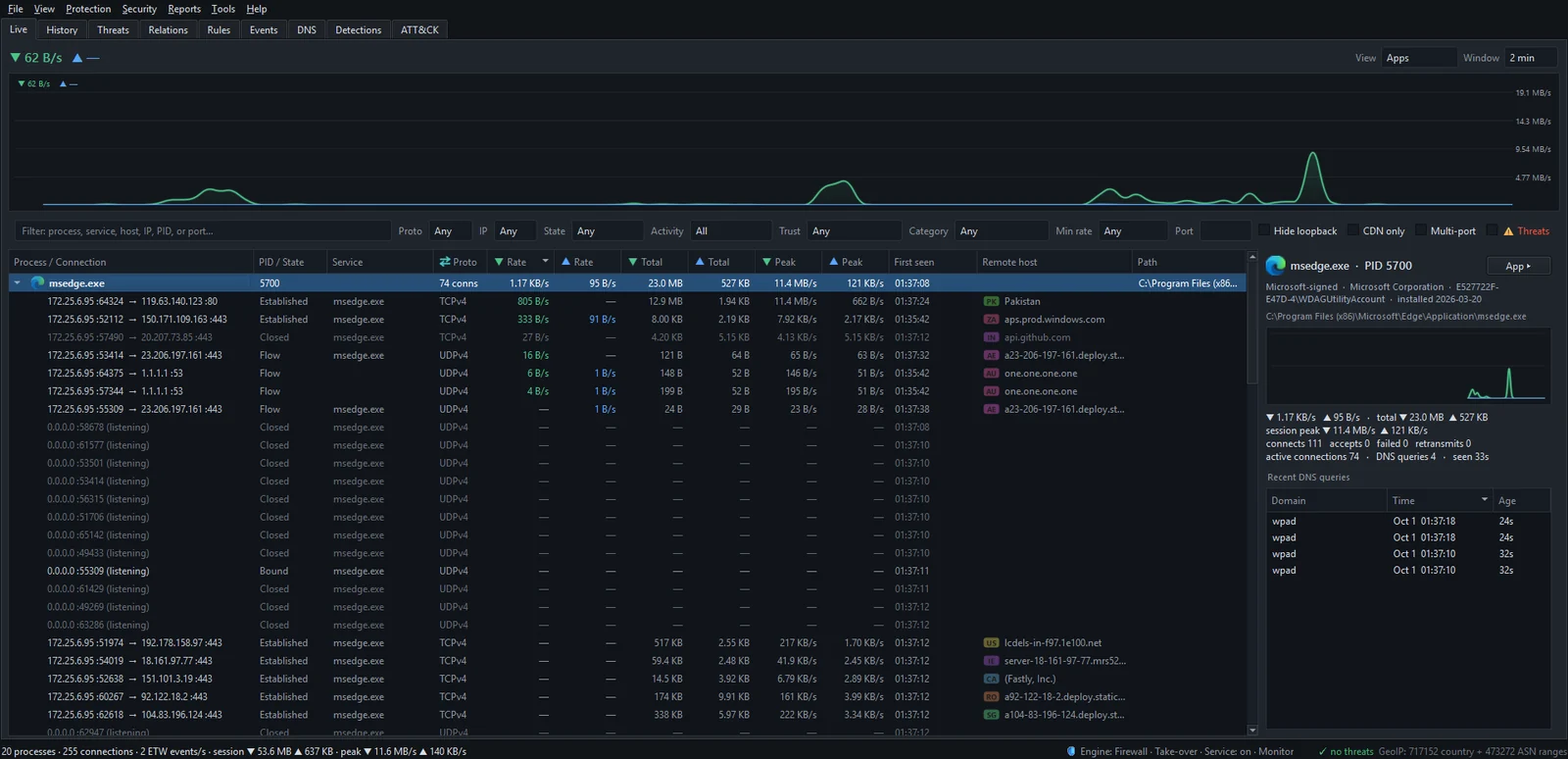
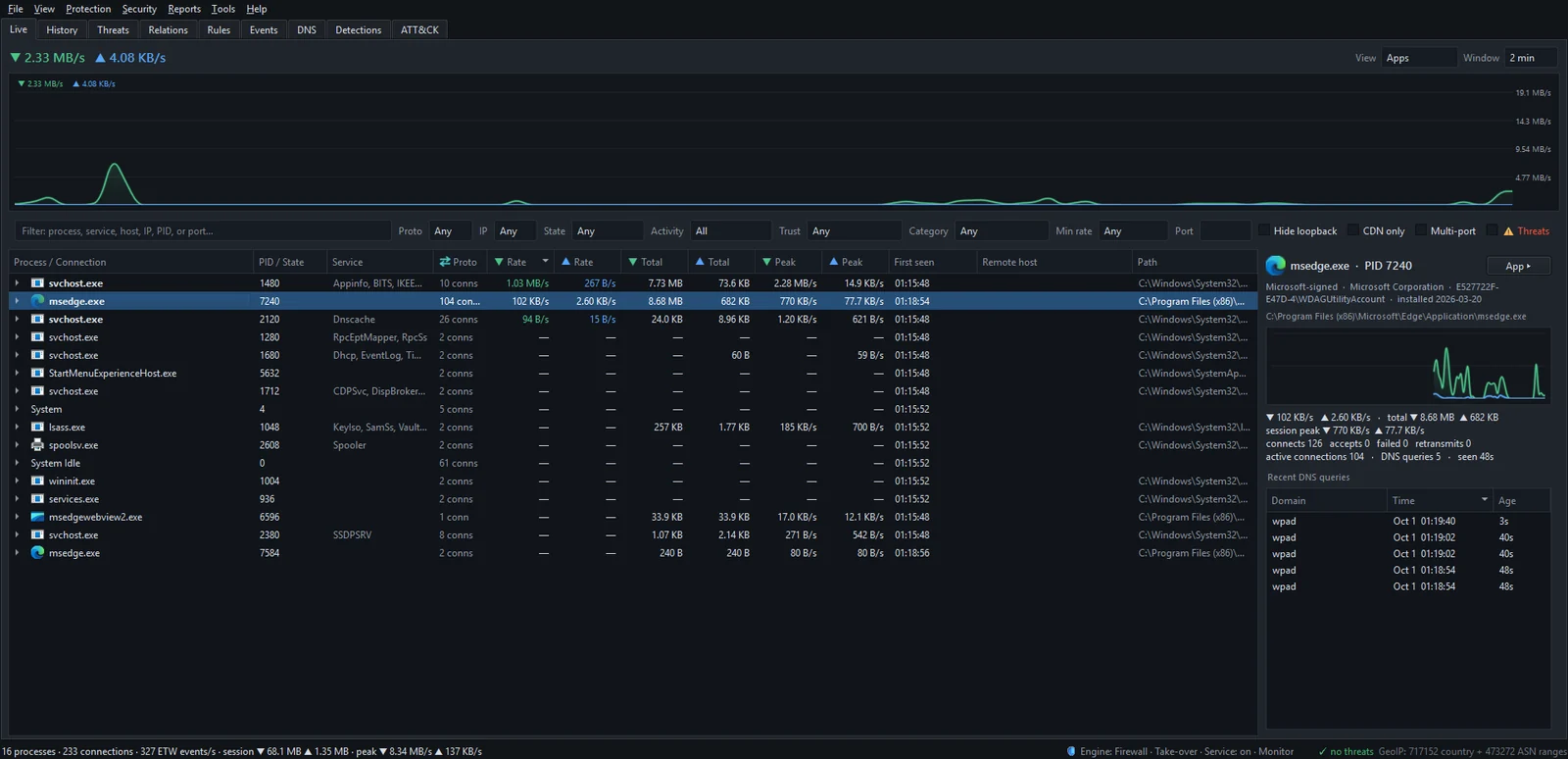
The status bar at the bottom of the main window shows how many processes and connections are being tracked and how many ETW events per second are arriving. Select a program in the Live tab and the details pane shows the identity NetSecWall collected, its per-process graph, and lifecycle counters straight from the kernel events: connects, accepts, failed attempts and retransmits.
The short version
NetSecWall watches from the side, not from the middle: kernel events for bytes, DNS events for names, the connection table for state and ownership, and Windows' signature checks for identity. That's why it needs no driver, adds no delay and never sees what's inside your traffic. To see it on your own PC, download the 7-day trial.
Frequently asked questions
Does NetSecWall slow down my internet connection?
It shouldn't. NetSecWall watches quietly in the background instead of sitting in the middle of your traffic, so monitoring stays light. CPU use grows with how many connections open and close, not with how fast your downloads are.
Can NetSecWall read my passwords or messages?
No. It records metadata only, such as which program connected to which address and how many bytes moved. It doesn't capture packet contents or decrypt HTTPS.
Does NetSecWall install a kernel driver?
No. Monitoring uses Windows' own event tracing and connection tables, and blocking uses Windows Defender Firewall rules or user-mode WFP filters. Nothing is loaded into the kernel.
Why are there no transfer rates when NetSecWall isn't elevated?
The kernel network events that carry byte counts are only available to administrators. Without them NetSecWall can still list connections and services, but not how much data they move.
Can NetSecWall see traffic from other devices on my network?
No. It only sees the Windows PC it's installed on. Traffic from phones, TVs and other computers never passes through that PC's network stack.
Keep reading
 Encrypted DNS (DoH): what it hides, and from whom
DNS over HTTPS encrypts the names your PC looks up, so the Wi-Fi owner and your ISP can't read them. The resolver you use still sees every name, and the addresses you then connect to stay visible.
 What your DNS lookups reveal about the apps on your PC
Before most connections, an app asks DNS for a name. A per-app list of those names shows which services each program uses, what it checks in with, and odd lookups worth a second look.
 Why every app connects to Cloudflare, Akamai and Amazon
Most software companies don't serve their apps from their own servers. They rent content delivery networks and cloud platforms, so the address owner you see is usually the host, not the company.
 Find what's eating your bandwidth in the background
Sort Task Manager's Network column or Resource Monitor's Network Activity to catch what is using your bandwidth right now. To catch what used it an hour ago, you need per-app history.