Live network monitoring: reading the Live tab
The Live tab lists every program with a network connection open, with its connections, rates and remote hosts underneath. Expand a row to see what that program is talking to right now.
NetSecWall for WindowsOn this page
The Live tab is NetSecWall's live network monitoring view, and it's where you'll spend most of your time. Each top-level row is a running program; expand it and you see the connections it has open right now, with addresses, ports, states, rates and the host names they resolve to. Most questions, like "what is this thing talking to?" or "why is my upload busy?", are answered by expanding one row.
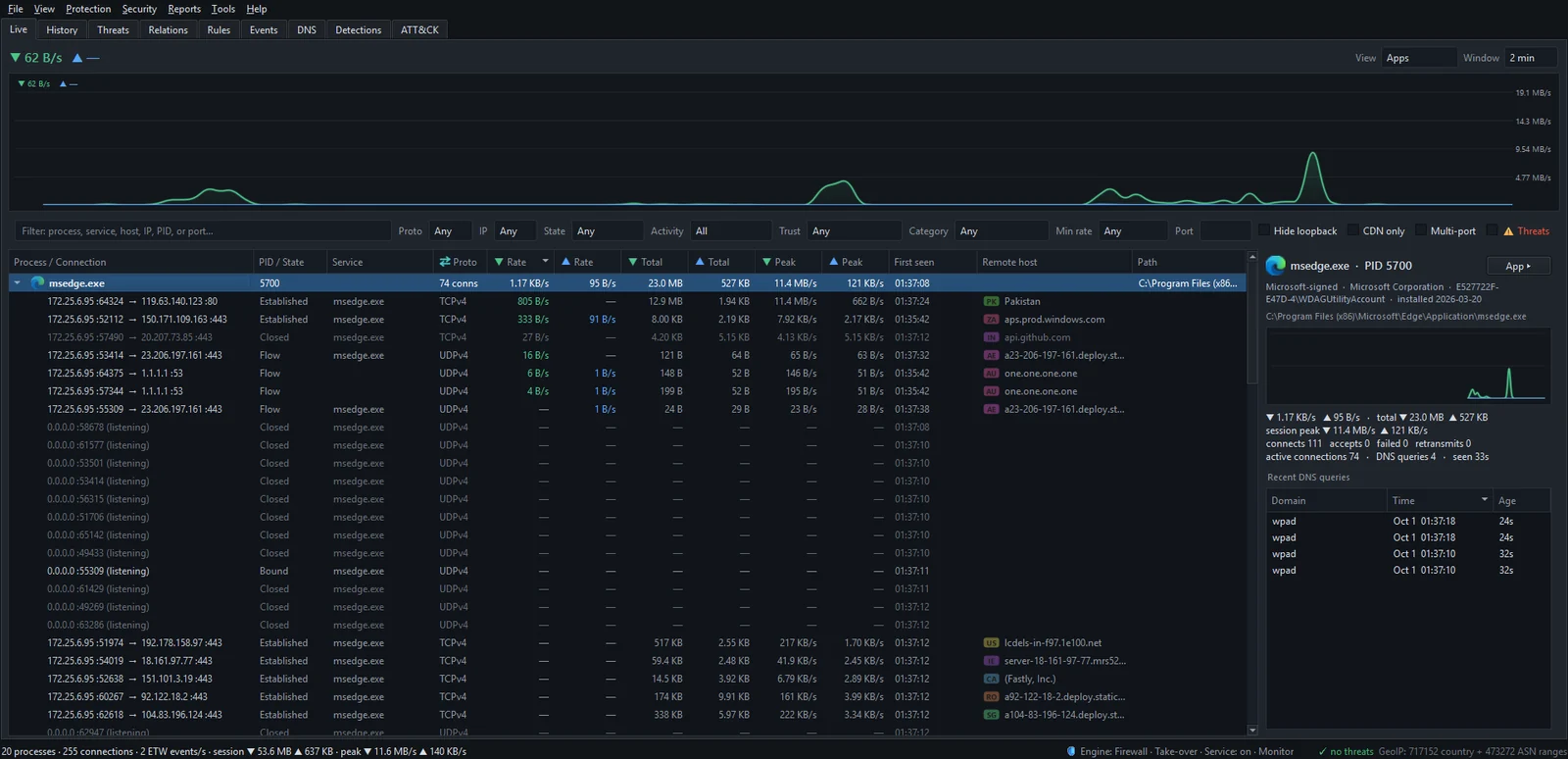
Reading a row
A program row adds up everything that program is doing. Its child rows are the individual connections, written as local ip :port → remote ip :port, or :port (listening) for a program waiting for incoming connections. The columns:
- Process / Connection: the program, then each connection. A small badge marks a website category or a threat-feed match.
- PID / State: the process ID on a program row, and the socket state on a connection (Established, Time-Wait, Listening…). UDP shows Bound or Flow. Connections that just ended stay for a few seconds, dimmed, as Closed.
- Service: for
svchost.exe, which Windows service owns the traffic. It's the difference between "svchost is doing something" and "Windows Update is doing something". - Proto: TCP or UDP.
- Rate, Total and Peak, each split into download ▼ and upload ▲. Peak is the highest rate seen, which catches a burst you weren't watching.
- First seen: when NetSecWall first saw this program or address, from its history database.
- Remote host: the resolved name, with a country flag. When there's no name you see the network owner in brackets for a CDN, or the country.
- Path: where the executable lives.
svchost.exe is not one program. Windows runs many services inside shared host processes. Expand the row and read the Service column before drawing conclusions; it's usually Windows Update, the DNS client or telemetry.
Reading a connection explains what the ports, states and countries mean.
The details pane
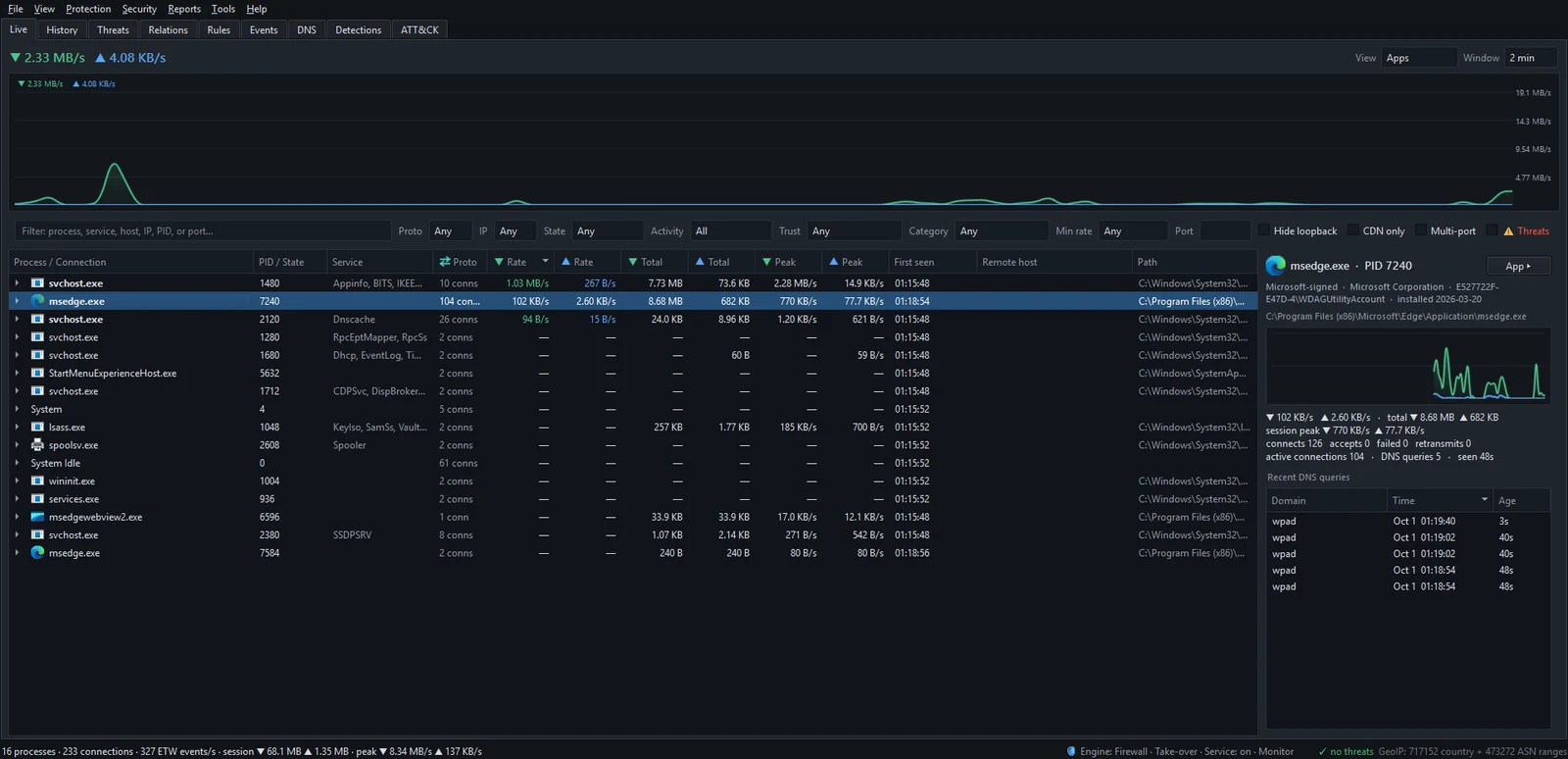
Select a program and the pane on the right shows its trust line (Part of Windows, Microsoft-signed, Signed, Unsigned or Signature INVALID), the publisher, install date and services, a per-process graph and a Recent DNS queries table. App ▸ and IP ▸ open the full app and IP dashboards.
The other views
The View selector regroups the same live data around a different question:
| View | Top-level rows | Answers |
|---|---|---|
| Apps | Programs | What is this program doing? |
| By IP | Remote addresses, with the apps using each | Who is talking to this address? |
| By Domain | Host names | How much traffic goes to this service, across all apps? |
| By Country | Destination countries | Is anything going somewhere I didn't expect? |
| By Category | Website categories (Ads, Tracking, Social media…) | What kinds of sites is this PC reaching? |
Grouped views add columns the process tree has no room for: Network / CDN (who owns the network), Ports, and Conns · Apps. One address on one port used by one program is ordinary; one address on many ports across three programs deserves a look. See grouping live traffic.
The graph and the filter bar
The graph above the tree shows total download and upload over the Window you choose: 60 s, 2 min (the default), 5 min or 10 min. Hover over it for exact values. It's there for shape: a spike tells you when to look, and the tree tells you at what.
The filter bar narrows the tree by text (process, service, host, IP, PID or port) and by protocol, IP version, state, activity, trust, category, minimum rate or port. Tick Threats to see only connections to addresses on a threat feed. More in filtering the Live tab.
Live versus History
The Live tab only knows what's open now. Something that connected for two seconds at 3 a.m. is gone from it. The History tab holds the same traffic, saved to the local database and searchable by app, address, domain, country and time range. Investigating something that already happened? Start in History. Watching something happen now? Stay in Live.
Connections with no transfer rates usually mean NetSecWall isn't running as administrator, because Windows only delivers per-process network events to elevated programs. If the tray icon's tooltip says "(paused)", monitoring was paused from the tray menu. The Live tab is empty walks through both.
Frequently asked questions
Does the Live tab show blocked connections?
No. It shows connections that exist and doesn't mark any as blocked. Use Protection ▸ Blocked connections (firewall log)… to see recent blocks; it needs a Windows audit setting, which the dialog explains.
Why does one browser have dozens of connections?
A single web page pulls content from many hosts, such as CDNs, fonts, analytics and video, and browsers keep several connections open to each. That's normal.
Can I show rates in bits per second?
Yes. Turn on View ▸ Show rates in bits/s (Mbps). The default is bytes per second.
Does leaving the Live tab open slow my PC down?
It refreshes once a second, which is light work. While the window is hidden in the tray, the live views skip that work entirely.