The IP dashboard and one-click IP investigation
Double-click an address in the Live tab's By IP view to open its dashboard: location, network owner, threat status and the apps that used it. Right-click and choose Investigate IP to check it online.
NetSecWall for WindowsOn this page
When an address in your traffic looks unfamiliar, NetSecWall gives you two ways to investigate an IP address. The IP dashboard shows what your own PC knows about it: country, network owner, whether it is on a threat feed, and every program that exchanged data with it. The Investigate IP menu opens the address on VirusTotal, AbuseIPDB, IPinfo or Shodan in your browser when you want an outside opinion.
Open the IP dashboard
Any of these opens a window titled "address — IP dashboard":
- Live tab, Apps view: expand a program, right-click a connection and choose Open IP dashboard. Or select the connection and click IP ▸ in the details pane.
- Grouped views: double-click a row in By IP, By Domain, By Country or By Category, or right-click it and choose Open IP dashboard. For a domain, country or category, which can cover many addresses, it opens the busiest one; the menu item shows which in brackets.
- History tab: double-click a row that shows an IP address.
- Threats tab: double-click a flagged connection.
- Relations tab: double-click an endpoint in the graph.
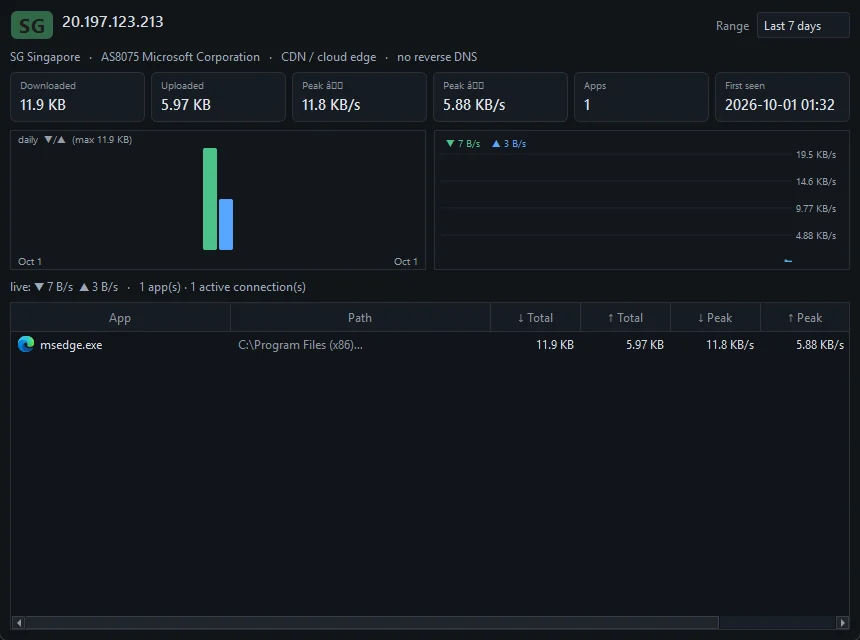
What the IP dashboard shows
- Headline. The country flag, the host name NetSecWall knows for the address, and the address itself. The name comes from the DNS answer your PC received, or from reverse DNS.
- Threat banner. If the address is on one of the threat-intelligence feeds, a colored bar reads "⚠ THREAT — category · source: feed", for example a botnet C2 address from abuse.ch Feodo C2. Threat feeds are part of the Plus, Family and Pro plans.
- Network line. Country code and name, the AS number and owner of the network, "CDN / cloud edge" for CDN addresses, and "no reverse DNS" when there is no name.
- Range and tiles. Today, Last 7 days (the default), Last 30 days or All time, with Downloaded, Uploaded, Peak ↓, Peak ↑, Apps and First seen.
- Daily bars and live graph. Traffic to this address per day, and the last five minutes live, with a line such as "live: ▼ … ▲ … · 2 app(s) · 3 active connection(s)".
- Apps table. Every program that exchanged data with the address in the range: App, Path, totals and peaks.
Read it without jumping to conclusions
An unfamiliar address is usually ordinary. A few things to keep in mind:
- CDN and cloud addresses are shared. An Amazon or Cloudflare address serves thousands of unrelated sites, so "CDN / cloud edge" tells you who runs the server, not whose content it is.
- Country means the server's location, as far as the GeoIP database can tell. It is the weakest clue on the page.
- No reverse DNS is common. Many legitimate servers have no reverse name. On its own it is a mild signal, nothing more.
- A threat-feed hit is a lead, not a verdict. A Tor exit node or a formerly compromised address can appear in a feed. Look at which app made the connection and whether it makes sense for that app.
Reading a connection: ports, states, CDNs and countries goes further, and The threat-intelligence feeds NetSecWall uses explains what each feed lists.
Investigate an IP address on VirusTotal, AbuseIPDB, IPinfo or Shodan
- On the Live tab, right-click a connection row, or a row in one of the grouped views.
- Point to Investigate IP ▸.
- Choose VirusTotal, AbuseIPDB, IPinfo / WHOIS or Shodan.
The site opens in your default browser with the address already filled in.
| Site | What you'll find there |
|---|---|
| VirusTotal | Verdicts from many security vendors, and community comments on the address. |
| AbuseIPDB | Abuse reports, such as scanning, spam or login attempts, submitted by other administrators. |
| IPinfo / WHOIS | Who holds the address, its network (ASN) and its approximate location. |
| Shodan | Which open ports and services internet-wide scans have found on it. |
The menu appears on connection rows and grouped rows only, not on a program row or a listening socket.
Investigating sends the address to that site. It is part of the web address your browser opens, and the site sees your own IP address and browser like any other visit. NetSecWall never looks addresses up on its own; nothing is sent until you choose a site. Think twice before pasting an internal company address into a public lookup site.
Frequently asked questions
Does NetSecWall send my connections to VirusTotal automatically?
No. Investigate IP only runs when you click it. The separate, optional hash check sends a program's SHA-256 hash to VirusTotal, never the file and never your addresses, and only if you enter your own API key. See Check app hashes with VirusTotal.
Can I block an address from the IP dashboard?
There is no block button on the dashboard. To block one address, create a rule with it under Remote addresses in Rules ▸ New rule…; see Create a custom firewall rule.
Why does the dashboard show a different address from the domain I double-clicked?
A domain, country or category row can cover several addresses. The dashboard opens for the busiest one, which the right-click menu shows in brackets. Switch to By IP to pick a specific address.
Why does the dashboard say "no reverse DNS"?
NetSecWall has no name for the address: it saw no DNS lookup that returned it, and a reverse lookup found nothing. That is normal for many cloud servers, peer-to-peer traffic and services that connect by address. It is worth a look together with other clues, not on its own.