Network activity reports and exporting your history
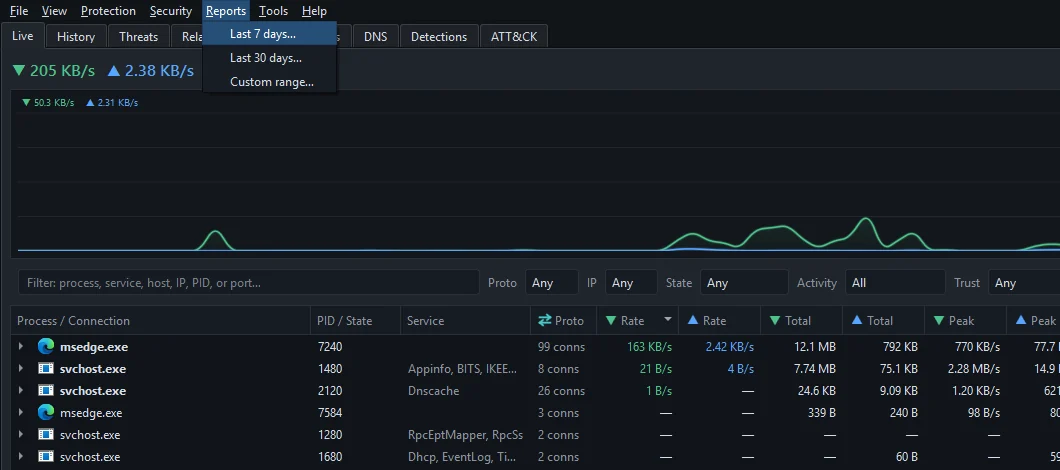
Choose Reports ▸ Last 7 days…, Last 30 days… or Custom range… for an HTML summary in your browser. For the raw rows, use Export… on the History tab to save CSV or JSON.
NetSecWall for WindowsOn this page
NetSecWall builds a network activity report from its local history whenever you ask: open the Reports menu, pick Last 7 days…, Last 30 days… or Custom range…, and a summary page opens in your web browser. When you need the data itself rather than a summary, the History tab exports it to CSV or JSON. Reports and exports are made on your PC; nothing is uploaded.
Create a network activity report
- Open the Reports menu (Alt+R).
- Choose Last 7 days… or Last 30 days…, or Custom range… for another length.
- For a custom range, enter a number at "Include the last N days:" (1 to 3650; 14 by default) and click OK.
- The report opens in your default browser.
What the report contains
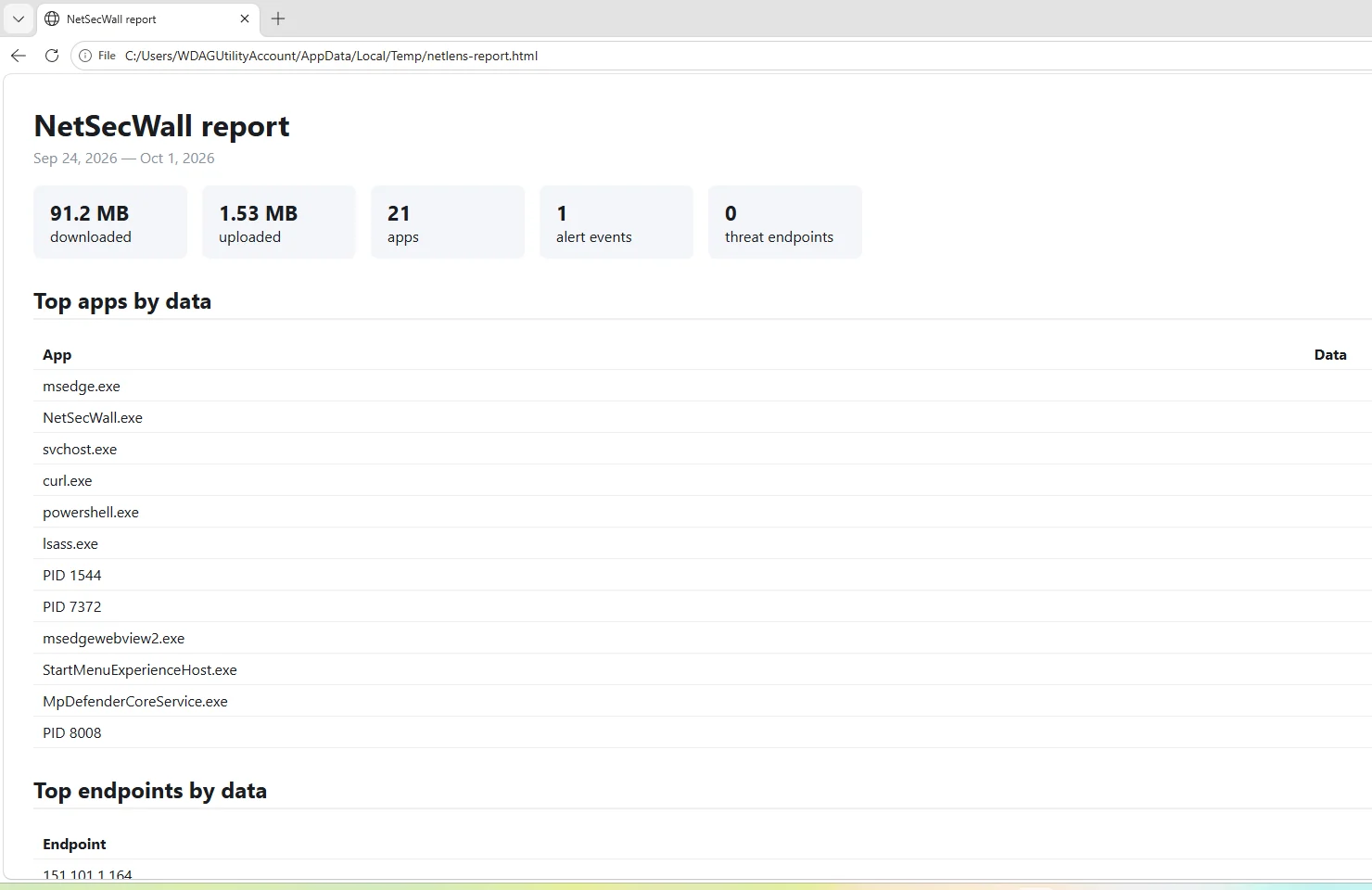
The page is titled "NetSecWall report" and states the date range. Below that:
- Five cards: data downloaded, data uploaded, the number of apps that used the network, alert events recorded, and threat endpoints (distinct addresses on a threat feed that your PC exchanged data with).
- Top apps by data: the 12 programs that moved the most, downloads and uploads combined.
- Top endpoints by data: the 12 destinations that received or sent the most, named by domain where NetSecWall knows it and by address otherwise.
What a report is not
- It is not a list of what was blocked. For blocked connection attempts, use Protection ▸ Blocked connections (firewall log)…; see See what was blocked in the Windows firewall log.
- It is not emailed or scheduled. NetSecWall makes a report only when you choose one from the menu.
- It is not kept. The page is written to your Windows temp folder as
netlens-report.html, and the next report overwrites it. To keep one, save the page from your browser, or print it (including to PDF) from there. - The custom range always ends now. "Last N days" is the only choice. For a specific week in the past, use the History tab with Range set to Custom.
Export your history to CSV or JSON
- Open the History tab.
- Choose Group by: Apps, IPs, Domains or Countries.
- Choose Range: Today, Yesterday, Last 7 days, Last 30 days, All time or Custom (pick the dates).
- Click Export….
- Pick CSV or JSON in the file type list, choose where to save it, and click Save. The suggested name is
netsecwall-history.csv.

The export contains the rows for the grouping and range you picked, each group followed by its child rows, with the columns you see: name, Detail, Network / CDN, ↓ Total, ↑ Total, Total, ↓ Peak, ↑ Peak, First and Last. Values are written as displayed, such as "12.4 MB".
- CSV adds a first column, Parent, that names the group each child row belongs to. The file is UTF-8 with a byte-order mark, so Excel opens names in any language correctly.
- JSON is a list of groups, each with its child rows under
children.
The filter box on the History tab only changes what you see. Export… writes every row for the current Group by and Range, filtered or not.
For more on searching history, see History, search and reports.
Export your rules and settings
- Rules: on the Rules tab, Export… saves NetSecWall's own rules as JSON (
netsecwall-rules.json). See Manage every Windows Firewall rule from the Rules tab. - Content categories: File ▸ Export settings… saves which categories are monitored or blocked, and your custom domains, as JSON (
netsecwall-settings.json). File ▸ Import settings… loads such a file on another PC.
These files stay wherever you save them. NetSecWall doesn't send them anywhere; see Your data and your privacy.
Frequently asked questions
Can NetSecWall email me a weekly report?
No. There are no emailed, scheduled or automatic reports. You create one from the Reports menu whenever you want it.
Does the export include every single connection?
No. History is stored as per-minute traffic totals for each program and host, and the export gives the totals for each row over the range you chose. It is not a connection-by-connection log.
Why does my report show zero for alert events or threat endpoints?
Nothing of that kind was recorded in the range. Threat endpoints need the threat-intelligence feeds, which are part of the Plus, Family and Pro plans, and alert events depend on which alerts you have switched on.
Can I export the Threats or DNS tabs?
Neither has an export button. The History tab export covers traffic totals only.