The app dashboard: one program's complete network history
Right-click a program in the Live tab and choose Open app dashboard. One window shows its traffic day by day, the hosts it talks to, who signed it and its live rate, even after it has closed.
NetSecWall for WindowsOn this page
The app dashboard puts the network history for one app in a single window: how much it downloaded and uploaded each day, which hosts it talked to, who signed it, and what it is doing right now. Open it by right-clicking a program in the Live tab and choosing Open app dashboard. It reads from NetSecWall's local history, so it also works for programs that have already closed.
Open the app dashboard
Any of these opens a window titled "program — app dashboard":
- Live tab, Apps view: right-click a program, or one of its connections, and choose Open app dashboard.
- Details pane: select a program on the Live tab and click App ▸.
- Grouped views: in By IP, By Domain, By Country or By Category, expand a row and double-click one of the apps underneath, or right-click it and choose Open app dashboard.
- History tab: double-click any row that names a program. This is the way in for something that ran yesterday and isn't running now (History, search and reports).
Each dashboard is its own window, so you can open several side by side and compare them.
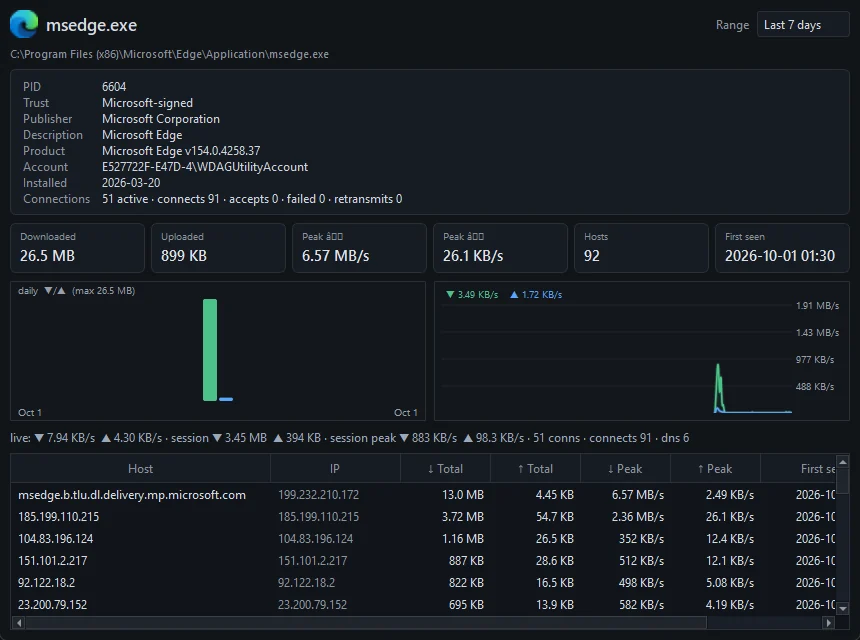
Reading the network history for one app
At the top are the program's icon and name, its full path, and Range: Today, Last 7 days (the default), Last 30 days or All time. Changing the range refreshes the tiles, the bars and the host table.
- Info card. PID, Trust (Part of Windows, Microsoft-signed, Signed (3rd-party), Unsigned or Signature INVALID), Publisher, Description, Product with its version, Account (marked "(system)" for system accounts), Installed, Services, and Connections: how many are open, plus counts of connects, accepts, failed attempts and retransmits. A Threat line appears when an open connection goes to an address on a threat feed.
- Tiles. Downloaded, Uploaded, Peak ↓, Peak ↑ and Hosts (how many different addresses) cover the range you picked. First seen is the first time NetSecWall ever recorded this program.
- Daily bars. The "daily ▼/▲" chart draws a pair of bars per day, download and upload, in your local time. Hover over a day for the date and the exact amounts.
- Live graph and live line. The last five minutes of this program's traffic, and a line with its current rates, session totals and peaks, open connections, connects and DNS queries.
- Top hosts. The addresses the program exchanged data with in the range (up to 200), busiest first: Host, IP, ↓ Total, ↑ Total, ↓ Peak, ↑ Peak and First seen. Host is the domain name when NetSecWall knows it and the address when it doesn't, so a large service can take several rows, one per address.
It still works after the program has closed
The history half of the dashboard is tied to the program's file path, not its process ID, so it adds up every run of that program. When the program isn't running, the live line reads "process exited — history remains available", and the info card and live graph stay empty. The tiles, the daily bars and the host table still fill in from history.
Two things follow from that. Traffic from before NetSecWall was installed isn't there, because it was never recorded. And a program that moves to a new folder (some installers put the version number in the path) starts a fresh history under the new path.
What to use it for
- When did this start? Set Range to All time and look at First seen and the earliest bars.
- Is this normal for it? Compare the days. A backup tool that uploads every night looks different from one that suddenly uploads all afternoon.
- Who is it really talking to? The host table shows the domains behind its connections. To look at one address closely, open its IP dashboard from the Live tab or the History tab.
- Should it be online at all? If not, block the app from the Live tab's right-click menu.
The dashboard's live half follows the one process you opened it from. If a program runs several processes, as browsers do, the history half still counts all of them.
Frequently asked questions
Why is the info card empty?
The card describes the running process. If the program has exited, or you opened the dashboard from the History tab while it isn't running, only the history parts fill in.
Does the dashboard include traffic from before I installed NetSecWall?
No. It shows what NetSecWall recorded on this PC from the moment it started watching. That history stays on your PC until you choose to prune it or uninstall with data removal.
Can I export what the dashboard shows?
The dashboard has no export button. To get the numbers into a file, use Export… on the History tab; see Network activity reports and exporting your history.
Does the dashboard need the background service?
No. Without the service, NetSecWall records history only while the app is open (including when it is hidden in the tray). With the service installed, history is recorded around the clock, so the dashboard has fewer gaps.