Which countries are your apps sending data to?
Group your PC's connections by country to see where each app's servers are. Expect surprises that aren't problems: CDNs and cloud regions put servers far from the company that owns them.
NetSecWall for Windows
On this page
To see which countries your apps send data to, you need two things: the remote address of every connection each app makes, and a GeoIP lookup of where that address is. Windows gives you the first but not the second. NetSecWall does both for every connection and groups your traffic by country, live or over the last 30 days. Read the result with care: the country is where the server is, not where the company is, and much of the time it's a nearby CDN.
Why the country on a connection is often surprising
When people first look at countries per app, two reactions are common: "why is this app talking to a country I've never dealt with?" and "why does everything seem to go to my own country?" Both have ordinary explanations.
- It's the server's location, not the company's. A company based in one country runs servers in many others. A connection to a server near you says nothing about where the data ends up behind it.
- CDNs sit close to you. Content delivery networks such as Cloudflare, Akamai and Amazon CloudFront keep copies of content near their users, so a lot of traffic goes to your own country or a neighbor. Why every app connects to CDNs explains the pattern.
- Cloud regions. Apps built on cloud platforms connect to whichever region the vendor picked, which may be on another continent.
- GeoIP is an estimate. Address ranges move between networks and countries, and a range can be registered in one place and used in another. How accurate IP geolocation is covers the error bars.
- VPNs and proxies. With a VPN or proxy in the path, some destinations show up as the VPN or proxy server, wherever that is.
So a country is a clue, not a verdict. It becomes useful when you combine it with who owns the network and which app made the connection.
Checking countries by hand
Windows can list connections but doesn't say where they go. The manual route:
- Open an administrator terminal and run
netstat -anoto list connections with their remote addresses and process IDs. - Match each process ID to a program in Task Manager's Details page.
- Paste each remote address into an IP lookup or WHOIS service to see its country and owner.
That's fine for one suspicious address. For every app, all day, it doesn't scale, and the list is out of date the moment you finish.
See which countries apps send data to in NetSecWall
Live: the By Country view
- Open the Live tab.
- Set View to By Country.
- Each row is a country, with its network owners in the Network / CDN column, the ports in use, how many connections and apps are involved, and live rates and totals.
- Expand a country to see which apps are talking to it.
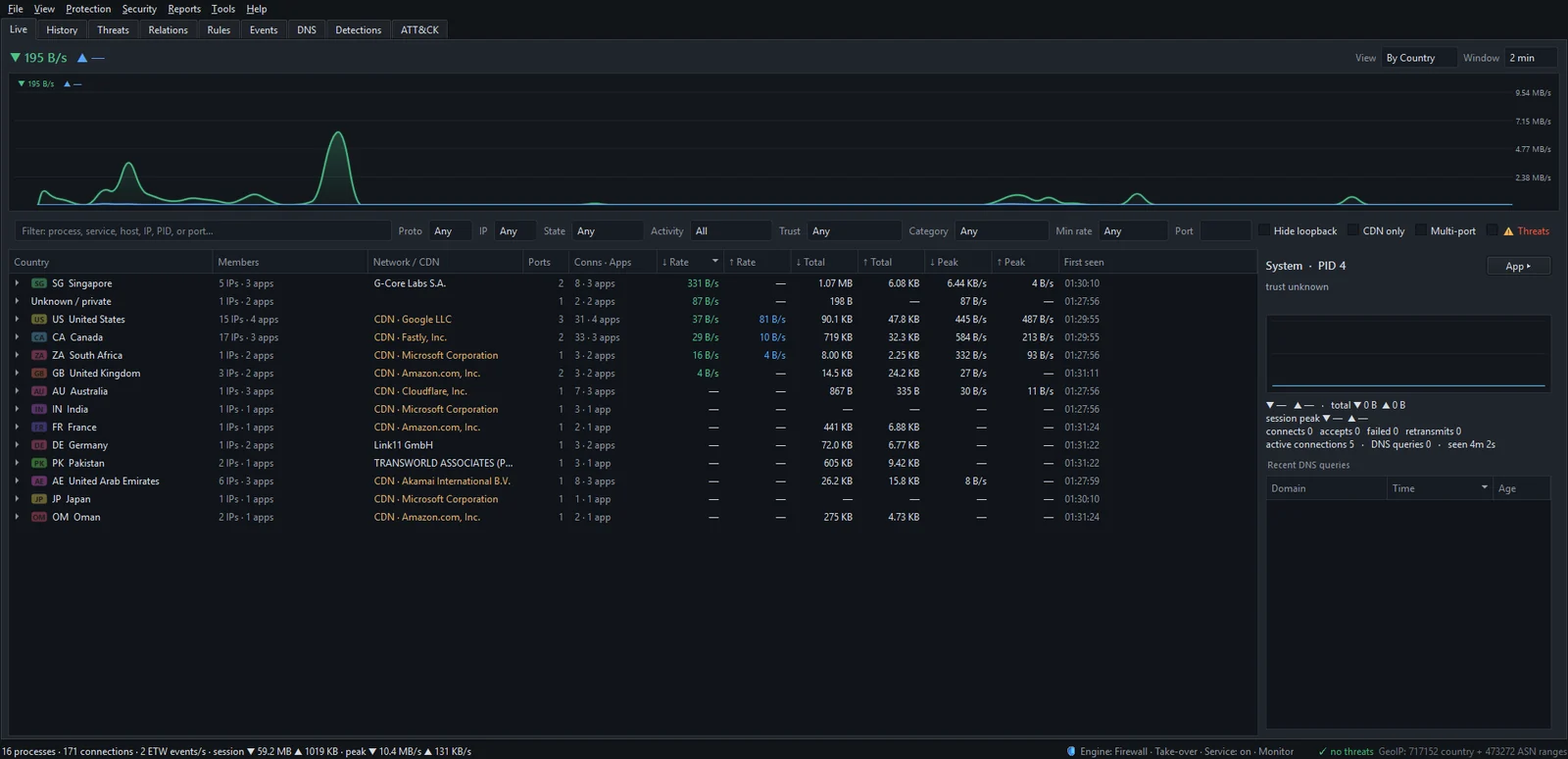
Check the Network / CDN column before drawing conclusions. If a country's traffic goes to a CDN or cloud network, the country tells you where the edge server is and little else. For a single address, switch back to the Apps view, right-click the connection and choose Open IP dashboard: flag, reverse DNS, network owner, and every app that used it. See the IP dashboard.
History: countries over days or weeks
The Live tab shows now. For "where did my data go this month", use the History tab:
- Set Group by to Countries.
- Set Range to Last 7 days or Last 30 days.
- Click ↑ Total to sort by how much was sent to each country.
- Expand a country to see the addresses involved, and double-click an address to see which apps used it.

To go the other way, set Group by to Apps and expand an app: each address it used carries its country's flag. History, search and reports covers the rest of the History tab, including export to CSV.
Get an alert for a new country
- Open Security ▸ Alerts & detection….
- Tick First connection to a new country.
NetSecWall then raises an alert when a connection reaches a country it hasn't seen during the current session, naming the app and the country, and records it in the Events tab. The list of seen countries starts fresh each time NetSecWall starts, so expect a batch of these events in the first minutes after a start. The ones worth reading are the ones that arrive later, when nothing new should be happening.
In the Relations tab, set Relate apps by to Country. It draws each app linked to the countries it reaches and highlights countries shared by several apps, which makes an app with a destination all of its own easy to spot.
When you want to stop a country altogether
If an app keeps reaching a country you have no reason to deal with, the first question is whether to block the app or the country. Blocking the app is usually more precise. If the country is really the point, NetSecWall can block all of its IPv4 ranges from the By Country view with a right-click (Family and Pro plans, and the trial). That comes with real caveats about CDNs and approximate geolocation; they're set out in how to block a country on Windows and the Help Center's blocking a country.
The short version
Countries per app are easy to get and easy to misread. Pair the country with the network owner and the app, and watch for new countries rather than worrying about familiar CDN edges. If you'd like to see the map of your own PC's traffic, download NetSecWall and try every feature free for 7 days.
Frequently asked questions
Does a connection to another country mean my data is stored there?
Not necessarily. It means the server your app reached is located there, according to a GeoIP database. Where the data is stored afterward depends on the company's systems, which your PC can't see.
Why does my PC connect to countries I've never visited?
Update mirrors, CDN edges, cloud regions and ad exchanges are placed wherever the provider chose. Most such connections come from software you use every day.
Where does NetSecWall get country information?
From the free db-ip.com lite GeoIP tables, which NetSecWall downloads to your PC and matches locally. No address is sent anywhere to be looked up.
Can I see which countries one app sent data to last week?
Yes. In the History tab, set Group by to Apps and Range to Last 7 days, then expand the app: each address it used shows its country. Double-clicking the app opens its dashboard with its top hosts.
Is a connection to an unusual country a sign of malware?
On its own, no. Country is one of the weakest signals on a connection. It matters more combined with others: an unsigned program, a steady check-in timer, or an address on a threat list.
Keep reading
 Why is my PC uploading data when I'm not using it?
Usually it's cloud sync, a backup, Windows Update sharing pieces of updates, telemetry or a forgotten browser tab. Sort your apps by upload rate to find the one responsible.
Why is my PC uploading data when I'm not using it?
Usually it's cloud sync, a backup, Windows Update sharing pieces of updates, telemetry or a forgotten browser tab. Sort your apps by upload rate to find the one responsible.
 The upload pattern that should worry you
Worry when one program uploads far more than it downloads, in bulk, to a place you can't explain. That's the shape of data theft. Backups and sync look the same, so context decides.
The upload pattern that should worry you
Worry when one program uploads far more than it downloads, in bulk, to a place you can't explain. That's the shape of data theft. Backups and sync look the same, so context decides.
 Encrypted DNS (DoH): what it hides, and from whom
DNS over HTTPS encrypts the names your PC looks up, so the Wi-Fi owner and your ISP can't read them. The resolver you use still sees every name, and the addresses you then connect to stay visible.
Encrypted DNS (DoH): what it hides, and from whom
DNS over HTTPS encrypts the names your PC looks up, so the Wi-Fi owner and your ISP can't read them. The resolver you use still sees every name, and the addresses you then connect to stay visible.
 How accurate is IP geolocation?
IP geolocation is usually right about the country and often wrong about the city. It's an educated guess from registry records and network measurements, and CDNs, anycast and VPNs throw it off.
How accurate is IP geolocation?
IP geolocation is usually right about the country and often wrong about the city. It's an educated guess from registry records and network measurements, and CDNs, anycast and VPNs throw it off.