Filtering modes, profiles and the panic switch
Filtering mode decides how NetSecWall treats new apps: Monitor only, Learning, or Block all outbound. Profiles are one-click presets for which website categories are blocked.
NetSecWall for WindowsOn this page
NetSecWall has two separate controls that are easy to mix up. Filtering mode (Protection ▸ Filtering mode) decides what happens when a new app connects, and whether everything is blocked. Profile (Protection ▸ Profile) is a one-click preset for which website categories are blocked. Neither one deletes the app, country or custom blocks you've already made.
The three filtering modes
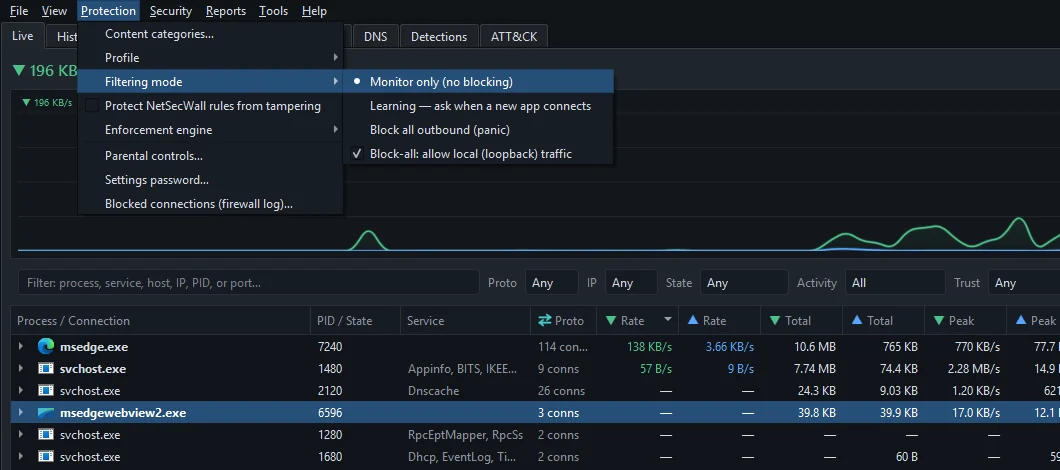
| Mode | New apps | Blocks you've made | Good for |
|---|---|---|---|
| Monitor only (no blocking) (default) | Connect freely | Keep applying | Watching; your first days |
| Learning — ask when a new app connects | Held until you answer Allow, Allow once or Block | Keep applying | Keeping a PC tight without constant prompts |
| Block all outbound (panic) | Blocked, like everything else | Everything is blocked | Cutting a PC off right now |
"No blocking" describes what the mode itself adds, not your existing rules. Monitor only turns off the Learning pop-ups and Block all; app blocks, category blocks, country blocks and custom rules keep applying. The filtering mode is saved, so Learning or Block all is back on as soon as NetSecWall starts again.
In Learning mode, apps already online when you switch it on are trusted automatically; only a genuinely new program is held back. An unanswered pop-up blocks the app for this session after 30 seconds. See Learning mode.
The panic switch
Block all outbound (panic) cuts every outbound connection immediately. Block ALL internet in the tray icon's menu does the same. It's the right response to "I think something is sending data out right now" and the wrong response to almost everything else.
- Anything mid-transfer stops, with no grace period.
- Remote sessions drop, including the one you might be using to reach that PC.
- It isn't a timer. It stays on until you turn it off the same way you turned it on.
Block-all: allow local (loopback) traffic (ticked by default) lets programs on the PC keep talking to each other through 127.0.0.1 during Block all, which local databases, dev servers and app helpers need. It only matters with the Packet filter (WFP) engine, because Windows Firewall never filters loopback traffic. Untick it for a literal block-everything.

Never turn on Block all over Remote Desktop or SSH on a PC you can't physically reach. You'll cut your own connection. See cutting all internet access.
Profiles: website category presets
A profile replaces the whole set of blocked website categories in one click. It doesn't change app, country or custom rules, or the filtering mode.
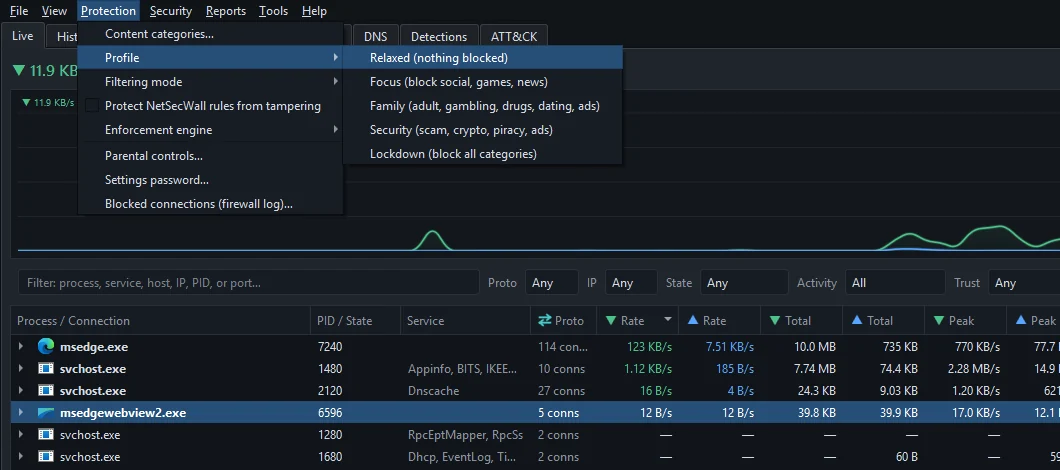
| Profile | Categories it blocks |
|---|---|
| Relaxed (nothing blocked) | None |
| Focus (block social, games, news) | Social media, Games, News / Press |
| Family (adult, gambling, drugs, dating, ads) | Ads, Tracking, Adult / Porn, Gambling, Drugs, Dating |
| Security (scam, crypto, piracy, ads) | Ads, Tracking, Scam / Phishing, Crypto-mining, Piracy |
| Lockdown (block all categories) | All 13 categories |
A profile also replaces categories that parental controls switched on, and it asks for the settings password if one is set. To fine-tune afterwards, open Protection ▸ Content categories… and tick or untick Block per category; see blocking website categories. Category blocking is reactive and IP-based: the first packets to a new address can get through, and a shared CDN address can block more than intended.
What survives what
| Action | Your blocks | History | Enforcement |
|---|---|---|---|
| Change filtering mode or profile | Kept | Kept | Changes as described above |
| Pause monitoring (tray) | Kept | Gap while paused | Continues |
| Close the window | Kept | Kept | Continues; it hides to the tray |
| Quit NetSecWall, service installed | Kept | Kept | Continues; the service enforces |
| Quit NetSecWall, no service | Kept | Gap until you reopen it | Stops until you reopen it |
| Restart the PC, service installed | Kept | Kept | Back from boot |
| Uninstall | NetSecWall's rules removed | Kept unless you choose to delete it | Stops |
NetSecWall removes its own firewall rules when it (or its service) stops, and puts them back when it starts. Allow once answers and timed blocks don't survive that. Rules you made with New rule… are ordinary Windows Firewall rules and stay regardless.
How to really rule NetSecWall out
Switching to Monitor only is not a test, because your blocks keep applying. To find out whether NetSecWall is behind a problem:
- Open the Rules tab and set Show to NetSecWall rules.
- Find a block that matches the broken app or site, delete or disable it, and retest.
- Still unsure? If the service is installed, stop it with Tools ▸ Background service ▸ Stop. Then right-click the tray icon and choose Quit. NetSecWall's rules and filters are removed while it's stopped. Retest.
- Open NetSecWall again, and choose Tools ▸ Background service ▸ Start if you stopped the service. Your blocks come back.
If the problem survives step 3, it isn't a NetSecWall block, unless a custom New rule… rule is involved. No internet after blocking something? covers the usual culprits.
Frequently asked questions
Does Monitor only turn off my blocks?
No. It only stops the new-app pop-ups and Block all. App, category, country and custom blocks keep applying until you remove them in the Rules tab.
Does Pause monitoring stop blocking?
No. Pausing stops recording and live updates; every block keeps applying.
Is the Profile menu the same as the blocking preset on the welcome screen?
It's the same idea. The first-run dialog offers Monitor only, Adblock, Family and Security once; the Profile menu lets you switch presets whenever you like.
Can I make NetSecWall block everything except a few apps?
No. There's no deny-by-default allow-list mode. The closest is Learning mode, which holds back each new program until you allow it.