Manage every Windows Firewall rule from the Rules tab
The Rules tab lists NetSecWall's blocks and, on request, every rule in Windows Defender Firewall. Turn the firewall on or off, filter, create, edit, disable, delete and export rules.
NetSecWall for WindowsOn this page
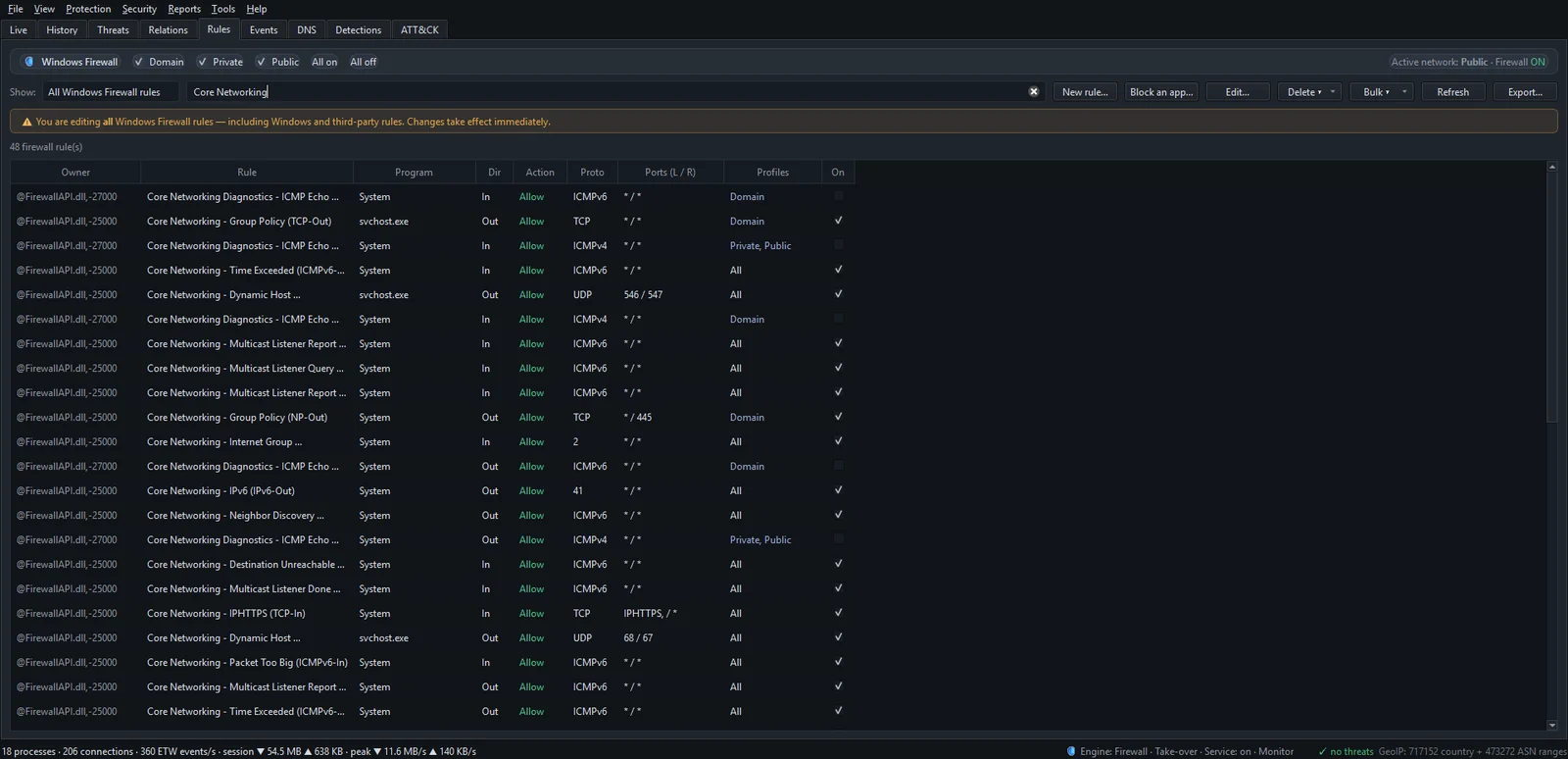
The Rules tab is where you manage Windows Firewall rules in NetSecWall. It lists every block NetSecWall has made and, when you switch Show: to All Windows Firewall rules, every rule in Windows Defender Firewall as well. From one table you can turn the firewall on or off per network profile, filter, create, edit, enable, disable, delete and export rules.
The Rules tab is part of blocking, so it is available on the Family and Pro plans and during the trial.
Windows Firewall on/off switches
The strip at the top, Windows Firewall, has a checkbox for each network profile — Domain, Private and Public — plus All on and All off. All off asks first: "Disable Windows Firewall on all profiles? Your PC will be less protected." Next to them, "Active network: · Firewall ON" tells you which profile you are on now and whether the firewall is on, off or partial.
NetSecWall's default Windows Firewall engine needs the firewall switched on, so leave these on unless you have a reason.
Show NetSecWall rules or all rules
- NetSecWall rules lists NetSecWall's own firewall rules, its packet-filter blocks and your Learning-mode approvals. Rule names drop the
NetLensprefix, so you see App Block: …, Content Block …, Geo Block: … and Block All. - All Windows Firewall rules lists every rule, including Windows' own and other programs'. A warning reminds you: "⚠ You are editing all Windows Firewall rules — including Windows and third-party rules. Changes take effect immediately."
Type in Filter (name, program, port)… to narrow the list. The line above the table counts what is shown, for example "12 firewall rule(s) · 2 WFP block(s) · 5 allowed · 1 invalid". Invalid means the rule's program no longer exists at that path; hover over the rule name to see it.
Columns and Owner values
The columns are Owner, Rule, Program, Dir, Action, Proto, Ports (L / R), Profiles and On.
| Owner | What it is |
|---|---|
| NetSecWall | A Windows Firewall rule NetSecWall created: an app, category, country or Block-all block |
| NetSecWall · WFP | A packet-filter block, including the Block ALL outbound (panic) row |
| NetSecWall · Allowed | An app you allowed in Learning mode |
| NetSecWall · Allowed (once) | An app you allowed for this NetSecWall session only |
| Windows / other | A rule from Windows or another program with no rule group; rules that belong to a group show that group instead |
Buttons to manage Windows Firewall rules
- New rule… creates a custom rule; see create a custom firewall rule.
- Block an app… lets you pick a program's
.exeand blocks it permanently. - Edit… opens the selected rule. For a rule NetSecWall didn't create, it asks first: "… was created by Windows or another program. Edit it anyway?"
- Delete ▾ offers Delete selected, Delete all shown (filtered)… and Delete all NetSecWall rules…. The Delete key deletes the selected rules too.
- Bulk ▾ offers Enable all shown, Disable all shown, Block all shown, Allow all shown, Delete selected… and Delete all shown… — they act on whatever the filter currently shows.
- Refresh reloads the list.
- Export… saves NetSecWall's rules as JSON (
netsecwall-rules.json).
Right-click a row for Edit… and Duplicate… (on a single firewall rule), Enable N rule(s) and Disable N rule(s), Set to Block and Set to Allow, Block N allowed app(s) on an approval, and the delete commands. Every delete asks first, counts any Windows or third-party rules separately, and defaults to No.

Things to know before you change rules
- New rule…, Edit… and Duplicate… aren't available while the background service is running. NetSecWall says so and points you to Windows Defender Firewall. Deleting, enabling and disabling still work.
- NetSecWall's rules follow the settings behind them. Deleting an app block unblocks the app for good. Category rules come back while the category is set to Block, and Block all is lifted from Protection ▸ Filtering mode.
- Disable and Set to Allow are temporary for NetSecWall's app blocks. The block is recreated the next time NetSecWall starts.
- Custom rules are ordinary Windows Firewall rules. They show under All Windows Firewall rules and stay in place whether NetSecWall runs or not.
- Export… is not a backup of Windows' rules. It saves NetSecWall's rules only.
Deleting Windows' own rules can break features such as file sharing, printing or remote access. Check the confirmation carefully before you delete anything in the All Windows Firewall rules view.
When the Rules tab is locked
With a settings password set, the tab shows "Rules are protected — The firewall rules can only be viewed or changed with the parental password." Click Unlock… and enter it. The tab stays open for two minutes and locks again as soon as you switch to another tab.
Frequently asked questions
Can I delete Windows' built-in firewall rules here?
Yes, from the All Windows Firewall rules view, and the confirmation tells you how many of the selected rules belong to Windows or other programs. Be careful: some built-in rules keep Windows features working.
Why can't I create or edit a rule?
The NetSecWall background service is running, and rule editing only works when NetSecWall runs without it. Use Windows Defender Firewall for custom rules meanwhile; you can still enable, disable and delete them in the Rules tab.
What does "invalid" mean in the summary line?
The rule points at a program that no longer exists at that path, usually because the app was moved, updated to a new folder or uninstalled.
Why can't I see a rule I made with New rule…?
Custom rules aren't NetSecWall rules, so they only appear when Show is set to All Windows Firewall rules. Type the rule's name in the filter box to find it.