Using NetSecWall alongside another firewall manager
When another tool manages Windows Firewall, NetSecWall shows an amber banner. Take over lets NetSecWall manage the rules; Companion mode leaves blocking to the other tool.
NetSecWall for WindowsOn this page
If another firewall manager is running on the PC, NetSecWall shows an amber banner with two choices. Take over means NetSecWall manages Windows Firewall, and you set the other tool to stop filtering. Companion mode means NetSecWall removes its own Windows Firewall rules and leaves blocking to the other tool; NetSecWall then still blocks only if you use the Packet filter (WFP) engine. Two tools writing Windows Firewall rules at the same time tend to undo each other, which is why the banner asks you to pick one.
The amber banner
The banner reads: "⚠ <Product> is also managing Windows Firewall — NetSecWall rules may be overridden. Run one firewall manager at a time." It has four buttons: Take over, Companion mode, What to do and ✕.
NetSecWall shows it when it finds one of these:
- a firewall manager it recognizes running on the PC (the banner names it);
- a third-party firewall registered with Windows Security as your active firewall;
- Windows Firewall's default outbound action set to Block by another tool or by Group Policy (shown as "Another tool").
What to do shows advice for the product it found. ✕ hides the banner for that product. The red banner about Windows Firewall being turned off is a different message, covered in the firewall banners article.
Take over
NetSecWall manages the Windows Firewall rules itself. This is the default stance. When you click it, NetSecWall confirms: "NetSecWall will manage Windows Firewall. To stop the other manager from reverting NetSecWall rules, set it to "No Filtering" (or exit it)." Do that in the other tool, or its protection features may keep switching NetSecWall's rules off.
Companion mode
NetSecWall confirms: "NetSecWall will keep monitoring, detecting, and alerting, and will not create firewall rules — the active firewall manager stays in charge of blocking." In practice:
- NetSecWall removes all of its Windows Firewall rules: app blocks, category blocks, country blocks and Block all.
- Monitoring, history, threat intelligence, detection and alerts carry on as normal.
- If Protection ▸ Enforcement engine is Packet filter (WFP) or Both, the packet filter keeps enforcing app blocks, category blocks and Block all. Country blocks, which exist only as Windows Firewall rules, are not enforced.
- If the engine is Windows Firewall (rules) alone, NetSecWall blocks nothing in Companion mode.
- Protect NetSecWall rules from tampering is ignored, and the automatic "Auto-block highest-risk / known-bad apps" response works only in take-over mode.
NetSecWall remembers your blocks, so switching back to Take over puts its rules back.
| Take over | Companion mode | |
|---|---|---|
| Who writes Windows Firewall rules | NetSecWall | The other tool |
| NetSecWall's Windows Firewall rules | Created and kept | Removed |
| NetSecWall blocking | Yes, with any engine | Only with Packet filter (WFP) or Both |
| Monitoring, detection, alerts | Yes | Yes |
| Status bar chip | Take-over | Companion |
Which to choose when another firewall manager is running
- You want NetSecWall to be your firewall: click Take over, then turn off filtering in the other tool or exit it.
- You want to keep the other tool in charge: click Companion mode. If you also want NetSecWall's own blocks, switch the engine to Packet filter (WFP) or Both (Pro plan or trial). Which engine to use explains the difference.
Change your choice later
The banner doesn't appear in Companion mode, so use the setup wizard instead: Help ▸ Setup wizard…, then on the Enforcement page pick Take over or Companion under Firewall stance. Both the banner buttons and the wizard ask for the settings password if one is set. The wizard is described in the setup wizard article.
Protect NetSecWall rules from tampering
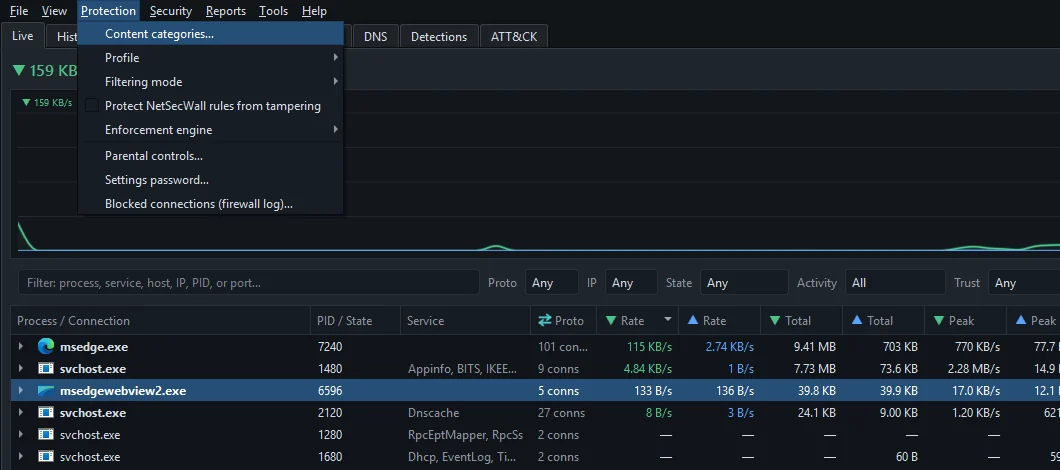
Protection ▸ Protect NetSecWall rules from tampering is off by default. When it is on, NetSecWall checks every 20 seconds and re-enables any NetSecWall firewall rule that another program has switched off. It leaves alone a rule you disabled yourself in the Rules tab, and it does nothing in Companion mode.
Tamper protection is a stopgap. If another tool keeps disabling NetSecWall's rules, the lasting fix is to stop that tool filtering, or to move NetSecWall's blocks onto the packet filter.
Frequently asked questions
Does Companion mode still block apps?
Only if the enforcement engine is Packet filter (WFP) or Both. With the Windows Firewall engine alone, NetSecWall removes its rules and blocks nothing while in Companion mode.
Do I need another firewall besides NetSecWall?
No. NetSecWall manages rules in the Windows Defender Firewall that is already part of Windows. The banner only appears when a second manager is present.
Why do my NetSecWall rules keep switching off?
Another program is probably disabling them. Click Take over and set the other tool to stop filtering, turn on Protect NetSecWall rules from tampering, or use the packet-filter engine, which doesn't depend on Windows Firewall rules.
Do I have to uninstall my other firewall tool?
No. Choose Companion mode to keep it in charge, or Take over and switch off its filtering. What matters is that only one of them writes Windows Firewall rules.