Blocking in NetSecWall: rules and what they actually do
A blocked app isn't killed or changed; it just loses network access. NetSecWall can block an app, a country, a website category or everything, and lists every rule it makes in the Rules tab.
NetSecWall for WindowsOn this page
Blocking is the part of NetSecWall that changes your machine, so it's worth knowing exactly what a rule does before you make one. The short version: a blocked program is not killed, quarantined or modified. It loses network access and behaves as it would on a PC with no internet. All of the blocks NetSecWall creates itself are outbound: they stop programs on this PC from reaching out.
What a blocked app experiences
Its connection attempts fail. When you block an app, NetSecWall also closes its open IPv4 TCP connections straight away, so a transfer in progress stops. What you see next depends on how well the program copes:
- A well-written app shows "no connection" and retries later.
- A badly written one hangs on a timeout, sometimes for 30 seconds, sometimes indefinitely.
- An app that checks its license online at startup may refuse to run.
Don't block svchost.exe wholesale. Dozens of Windows services share that process, so blocking it breaks Windows Update, time sync, license activation and more. If a svchost row caught your eye, read the Service column first.
The kinds of block
| Block | Scope | Where |
|---|---|---|
| An app | Every connection from that program, permanently, for 10 minutes or for 1 hour | Live tab: right-click the program ▸ Block this app (firewall) |
| A country | Every IP range the GeoIP database has for it | Live ▸ By Country: right-click ▸ Block all IP ranges of the country |
| A website category | Sites in that category, such as Ads, Adult / Porn or Gambling | Protection ▸ Content categories…, or a Profile |
| A specific domain | Add it to a category that's set to Block | Protection ▸ Content categories… |
| An IP address, a port, or inbound traffic | Whatever your custom rule says | Rules tab ▸ New rule… |
| Everything | All outbound traffic | Protection ▸ Filtering mode ▸ Block all outbound (panic) |
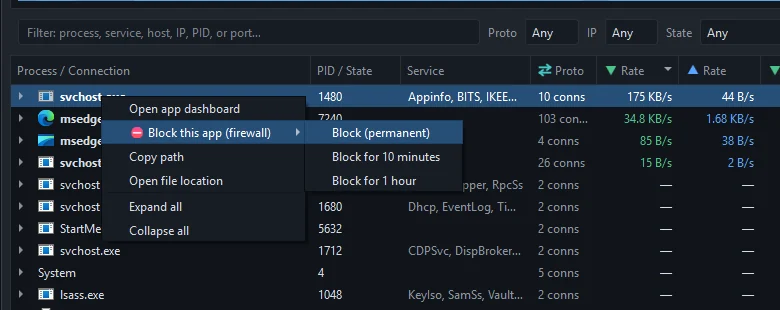
App blocks are keyed to the executable's path, so an update in place keeps the rule, but a program that moves to a new folder isn't matched. Country and category blocks are reactive and IP-based: NetSecWall blocks the addresses a name resolves to, so the first packets to a brand-new address can get through, and a CDN address shared by many sites can block more than you meant. Step by step: block an app, block a country, block website categories.
New rule… isn't available while the background service is running. Use Windows Defender Firewall for custom rules then, or stop the service to manage them in NetSecWall.
Asking before a new app connects
Learning mode holds back any program that has never been online and asks: Allow, Allow once (until NetSecWall restarts) or Block. Apps already online when you switch it on are trusted. It's the most informative way to spend your first week. See Learning mode.
When blocks apply
NetSecWall's blocks are enforced while NetSecWall is running. It removes its own firewall rules whenever it, or its background service, stops, and re-applies every permanent block when it starts. With the background service installed, that means from boot, before anyone signs in. Timed blocks lift themselves; if NetSecWall exits first, they go with it.
Rules you create with New rule… are different. They're ordinary Windows Firewall rules and stay whether NetSecWall runs or not.
Permanent blocks have a flip side: if you block something and forget, nothing reminds you three weeks later when an app misbehaves. The Rules tab is the first place to look.
The Rules tab
Every rule is in one list. Set Show to NetSecWall rules to see only NetSecWall's, or All Windows Firewall rules to see everything on the PC. The Owner column says where each came from: "NetSecWall", "NetSecWall · WFP" for packet-filter blocks, "NetSecWall · Allowed" for apps you allowed in Learning mode, or "Windows / other".

Which engine enforces a block
The Windows Firewall (rules) engine writes rules you can also see in wf.msc. The Packet filter (WFP) engine adds NetSecWall's own filters, which keep working when another program manages Windows Firewall. Both uses the two together. Switching engines re-applies your blocks through the new one and removes the old engine's copies. See which engine to use.
Undoing a block
Select the rule in the Rules tab and press Delete, or use Delete ▾ ▸ Delete selected. It stops applying immediately, with no reboot. A program that was stuck on a timeout may need restarting before it notices. Full steps are in unblock an app.
Frequently asked questions
Is blocking included in every NetSecWall plan?
No. Blocking is part of the Family and Pro plans, and works on every plan during the 7-day trial. The Monitor and Plus plans don't include it.
Does blocking an app also stop incoming connections?
NetSecWall's own blocks are outbound only. To block inbound traffic, create a custom rule with New rule… and set Direction to Inbound.
Can I block a website by its URL?
Not by URL. You can block a domain by adding it to a content category that's set to Block; NetSecWall then blocks the addresses that domain resolves to.
Why is a site I never blocked now broken?
Usually a country or category block caught a shared CDN address the site also uses. Check Protection ▸ Blocked connections (firewall log)… for the address, then remove or adjust the block responsible.