How to install NetSecWall on Windows 10 or 11
Download the installer from netsecwall.com, check its SHA-256 checksum and its SSL.com code signature, then run it and accept the administrator prompt. The 7-day trial starts by itself.
NetSecWall for WindowsOn this page
To install NetSecWall on Windows, download the installer from the download page, check that the file is genuine, run it and accept the administrator prompt. Keep the default options and click Install. There is no key to type and no account to create: the 7-day trial starts by itself the first time NetSecWall reaches the internet.
Before you install NetSecWall on Windows
You need a 64-bit PC with Windows 10 (version 1809 or later) or Windows 11, and a Windows account with administrator rights. The full list is in system requirements. Installing takes a couple of minutes.
Step 1: download the installer
- Open netsecwall.com/download and click Download for Windows.
- Save the file. For the current version it is called
NetSecWall-1.2.1-Setup.exeand is 12.5 MB.
The installer is self-contained. It downloads nothing else while it runs.
Step 2: check the SHA-256 checksum
The download section of the home page shows the full SHA-256 fingerprint of the current installer, along with its version, size and signer. If the fingerprint of your file matches, the file is exactly the one that was published.
- Open PowerShell from the Start menu. It doesn't need to run as administrator.
- Run the command below, adjusting the path if you saved the file somewhere else.
- Compare the long value in the Hash column with the one on the website. Upper or lower case doesn't matter.
Get-FileHash "$env:USERPROFILE\Downloads\NetSecWall-1.2.1-Setup.exe" -Algorithm SHA256
To let PowerShell do the comparison, paste the published value between the quotes. True means the file matches; False means you should delete it and download it again.
(Get-FileHash "$env:USERPROFILE\Downloads\NetSecWall-1.2.1-Setup.exe").Hash -eq "paste-the-published-sha256-here"
In Command Prompt, certutil -hashfile NetSecWall-1.2.1-Setup.exe SHA256 prints the same fingerprint.
Step 3: check the signature
The installer, the app and its uninstaller are code-signed with a certificate from SSL.com, a certificate authority Windows trusts. The certificate is issued to NetSecWall's developer as an individual, so the signer Windows shows is the developer's own name rather than "NetSecWall". The publisher shown in Windows' list of installed apps is NetSecWall; both are correct.
- Right-click the downloaded file and choose Properties.
- Open the Digital Signatures tab and select the signature.
- Click Details. Windows should report that this digital signature is OK.
- Click View Certificate. Under Issued by it should say SSL.com Code Signing Intermediate CA RSA R1.
In PowerShell, this should show the status Valid and the SSL.com issuer:
Get-AuthenticodeSignature "$env:USERPROFILE\Downloads\NetSecWall-1.2.1-Setup.exe" | Format-List Status, @{n='Issuer'; e={$_.SignerCertificate.Issuer}}
A valid signature proves the file has not been changed since it was signed. The SHA-256 check in step 2 is what ties it to the exact file we published, so do both.
Step 4: run the installer
- Double-click the installer. The Windows administrator prompt should show a Verified publisher: the developer's name from the signature in step 3. Click Yes.
- Keep the suggested install folder,
C:\Program Files\NetSecWall, unless you have a reason to change it. - On the tasks page, leave Enable always-on background protection (installs the NetSecWall service) ticked. Tick the desktop shortcut option if you want one; it is off by default.
- Click Install and wait for the files to copy.
- On the last page, leave the option to launch NetSecWall ticked and click Finish.
If the administrator prompt says the publisher is unknown, stop. The file is not the signed release. Delete it and download it again from netsecwall.com.
If NetSecWall is already installed, the installer asks what to do. Choose No to upgrade in place, which keeps your license, history and rules. How to update NetSecWall covers upgrades.
What the installer sets up
- The program files in
C:\Program Files\NetSecWall. - The background service NetLensSvc, shown in Windows Services as NetSecWall Network Monitor. It runs as SYSTEM and starts with Windows, so monitoring and your blocks are in place before anyone signs in. The "NetLens" name is an older internal name, kept on purpose. See the background service and the tray.
- Start menu shortcuts for NetSecWall and for uninstalling it, plus the optional desktop shortcut.
- An entry in Settings ▸ Apps, where Windows lists the publisher as NetSecWall.
The installer adds no kernel driver and creates no firewall rules of its own. Rules only appear when you choose to block something.
First launch
Windows asks for administrator rights each time NetSecWall starts, because it needs them to see per-program traffic and to manage the firewall. On the first launch you then see the Welcome to NetSecWall dialog, followed by a short setup wizard.
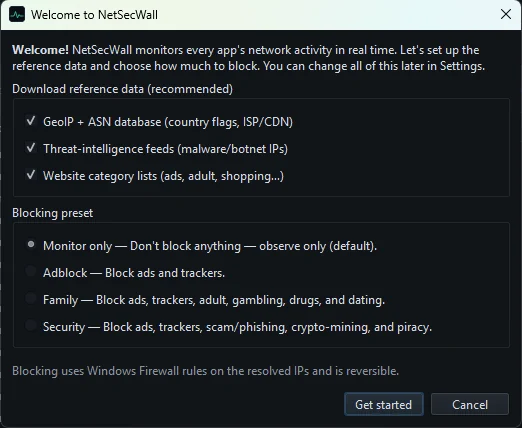
Both are explained in the welcome screen and setup wizard, step by step. The trial starts when NetSecWall first reaches netsecwall.com; how the free trial works explains what happens after 7 days.
Installing on several PCs
The installer supports unattended installs and upgrades for IT use, for example:
NetSecWall-1.2.1-Setup.exe /VERYSILENT /SUPPRESSMSGBOXES /NORESTART /RESTARTEXITCODE=3010
All switches and exit codes are on the silent install page.
Frequently asked questions
Do I need a license key to install NetSecWall?
No. The same installer serves the trial and every plan. Install it, and every feature is unlocked for 7 days; you only activate a key or sign in once you have bought a plan.
Why does Windows show a person's name instead of NetSecWall?
The code-signing certificate, issued by SSL.com, belongs to the developer as an individual, so their name appears on the administrator prompt and in the file's signature. The entry in Windows' list of installed apps shows NetSecWall as the publisher.
Can I install NetSecWall from the Microsoft Store or winget?
From the Microsoft Store, yes: NetSecWall on the Microsoft Store installs the same signed installer as the download page. A winget package is not available yet.
Does the installer need an internet connection?
No. It is self-contained and downloads nothing while it runs. NetSecWall itself needs to reach the internet once afterwards, to start the trial.