Your first week with NetSecWall: a day-by-day plan
Spend the first week learning what normal looks like: start in Monitor only or Learning, put names to the busy rows, answer the new-app pop-ups, then review the Events and Rules tabs.
NetSecWall for WindowsOn this page
On day one a network monitor shows you a hundred things you've never thought about, and almost all of them are fine. The goal of your first week with NetSecWall isn't to block things. It's to learn what normal looks like on your machine, so that later, when something isn't normal, you notice. Conveniently, the first week is also your 7-day free trial, with every feature unlocked.
Resist blocking on day one. A rule made before you know what's normal is a rule you'll spend an evening undoing.
Day 1: pick a starting mode and watch
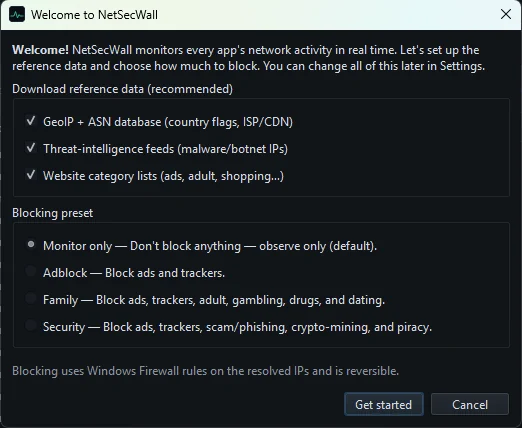
The setup wizard asks how you want to start. You can change it any time under Protection ▸ Filtering mode:
- Monitor only (no blocking): see everything, block nothing. The quietest start.
- Learning — ask when a new app connects: the wizard's recommendation. Apps already online are trusted, and only a genuinely new program raises an Allow / Block pop-up.
Either is fine. Leave Block all outbound (panic) alone; it cuts everything.
Then use the PC as you normally would, and open the Live tab now and then. Things that surprise almost everyone, and are normal:
- Dozens of connections from one browser. A single page can open 20 connections to a dozen hosts.
- Programs you aren't using, talking anyway. Updaters, sync clients and license checks run in the background.
- Windows is chatty. Update, time sync, certificate checks and telemetry, much of it under
svchost.exe. Read the Service column before judging it. - Countries you've never visited. CDNs answer from whichever edge is closest, not from where the company is.
Days 2–3: put names to things
Pick the busiest rows and work out what they are.
- In the Live tab, set View to By Domain. It turns "which 12 addresses is this" into one name you can judge.
- Open the DNS tab to see which names each app looks up, and how often.
- Right-click a program you don't recognize and choose Open app dashboard for its publisher, history and top hosts.
For anything you still can't place, search the executable's name. It's almost always part of something you installed on purpose. Grouping live traffic by IP, domain or country covers the views in detail.
Days 4–5: answer the new-app pop-ups
If you started in Monitor only, switch to Protection ▸ Filtering mode ▸ Learning — ask when a new app connects now. From then on, a program that has never been online is held back until you answer the "New app wants to connect" pop-up:
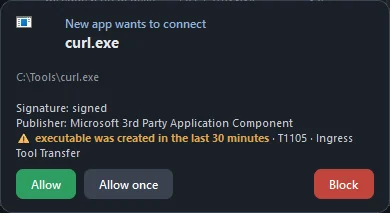
- Allow: you recognize it and want it working. Remembered.
- Allow once: you're unsure. It's allowed until NetSecWall restarts, then you're asked again, which is a second chance to look it up.
- Block: you don't recognize it and nothing you're doing needs it. Remembered.
If you don't answer within 30 seconds, the app stays blocked for this session only, and you'll be asked again later. Expect a burst of pop-ups for a day, then near silence. Learning mode has the fine print.
Day 6: review your decisions
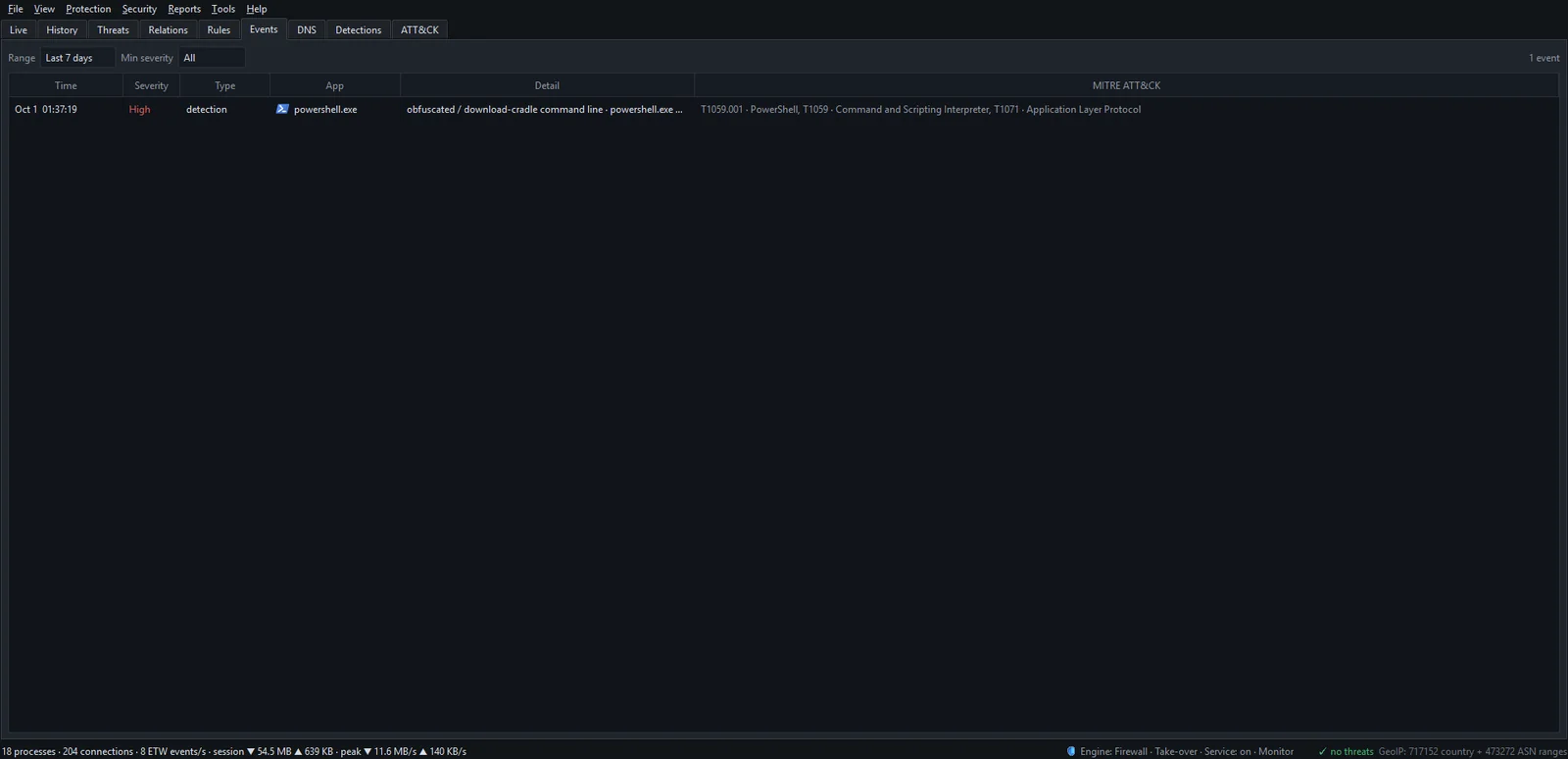
Open the Events tab and set the range to Last 7 days. Every pop-up answer is recorded there ("allowed for this session only", "you blocked it from connecting") next to any alerts, so you can check nothing was answered in a hurry.
If you want website categories blocked as well, try a preset from Protection ▸ Profile. Family blocks ads, tracking, adult, gambling, drugs and dating sites; Security blocks ads, tracking, scam and phishing, crypto-mining and piracy; Relaxed blocks nothing. Filtering modes and profiles lists all five.
Day 7: tidy the Rules tab and decide how to run
- Open the Rules tab and set Show to NetSecWall rules. Apps you allowed appear with the owner "NetSecWall · Allowed"; your blocks are listed with their program.
- Delete anything you allowed or blocked hastily. It's easy now and confusing in three months.
- Choose your steady state: stay in Learning if you like being asked about new programs, or go back to Monitor only. Your existing blocks keep applying in either mode.
- Open Tools ▸ Background service. If it doesn't say "Installed · running (24/7)", choose Install + start (run 24/7)… so protection runs with the window closed.
Blocking, Learning mode and profiles are part of the Family and Pro plans. If you want to keep your rules after the trial, see which plan you need.
Frequently asked questions
Should I start in Monitor only or Learning mode?
Either works. Monitor only is the quietest way to learn what's normal. Learning trusts everything already online and only asks about genuinely new programs, so it's rarely noisy.
Does switching back to Monitor only undo my blocks?
No. Monitor only stops the new-app pop-ups and turns off Block all outbound, but app, category, country and custom blocks keep applying. Remove them in the Rules tab.
What happens if I ignore a pop-up?
After 30 seconds the app is blocked for the current NetSecWall session only. Nothing is remembered, so you'll be asked again after NetSecWall restarts.
Why am I asked about the same program again?
You probably answered Allow once, which only lasts until NetSecWall restarts, or the pop-up timed out. Answer Allow to have it remembered.