The welcome screen and setup wizard, step by step
On first launch NetSecWall shows a Welcome dialog for reference data and a blocking preset, then a five-page setup wizard. The recommended choice is pre-selected on every page.
NetSecWall for WindowsOn this page
The first time you start NetSecWall, two windows appear in turn. The Welcome to NetSecWall dialog downloads reference data and lets you pick a blocking preset. Then the NetSecWall setup wizard asks five short questions about blocking, new apps and running in the background. Every page pre-selects the recommended answer, so clicking through with the defaults is a sensible start, and you can run the wizard again any time from Help ▸ Setup wizard….
The Welcome dialog
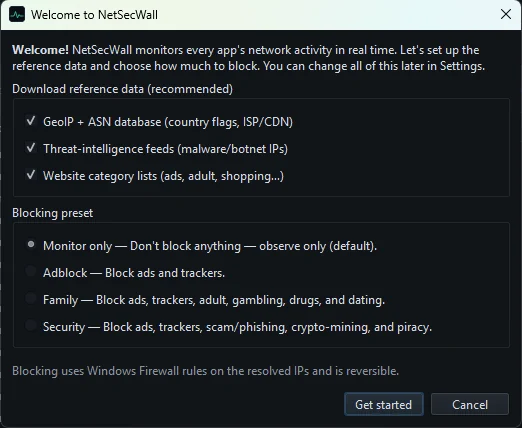
Download reference data (recommended)
Three boxes, all ticked:
- GeoIP + ASN database (country flags, ISP/CDN) fills in the country and network owner for each address.
- Threat-intelligence feeds (malware/botnet IPs) are the public lists NetSecWall checks every address against, on your PC.
- Website category lists (ads, adult, shopping…) are the domain lists behind the 13 content categories.
Leave them ticked. Without them the country column stays blank, nothing gets flagged and nothing is categorized until you update the lists from Tools ▸ Feeds. After the first download they refresh by themselves about once a day.
Blocking preset
- Monitor only blocks nothing. This is the default.
- Adblock blocks ads and trackers.
- Family blocks ads, trackers, adult, gambling, drugs and dating sites.
- Security blocks ads, trackers, scam and phishing, crypto-mining and piracy sites.
A preset switches content categories to Block. Category blocking is reactive and based on IP addresses: the first packets to a brand-new address can get through, and an address shared through a CDN can occasionally block something harmless. Every preset is reversible later from Protection ▸ Profile or Protection ▸ Content categories….
If you're unsure, keep Monitor only and watch for a few days first; your first week with NetSecWall suggests how. Click Get started to continue.
The NetSecWall setup wizard, page by page
1. Welcome to NetSecWall
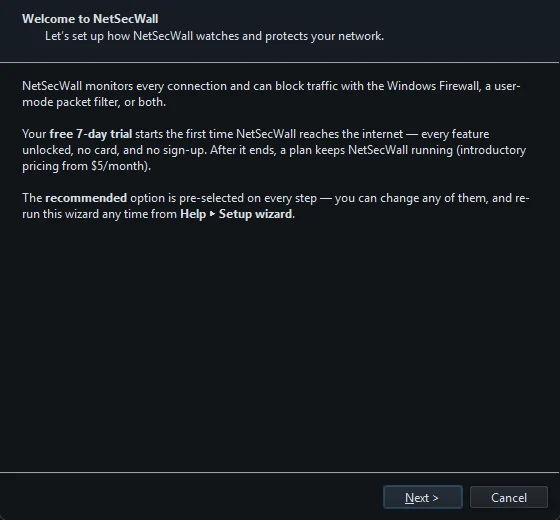
This page explains that NetSecWall can block with Windows Firewall, with its own packet filter, or both, and that the 7-day trial starts the first time it reaches the internet. Click Next.
2. Enforcement
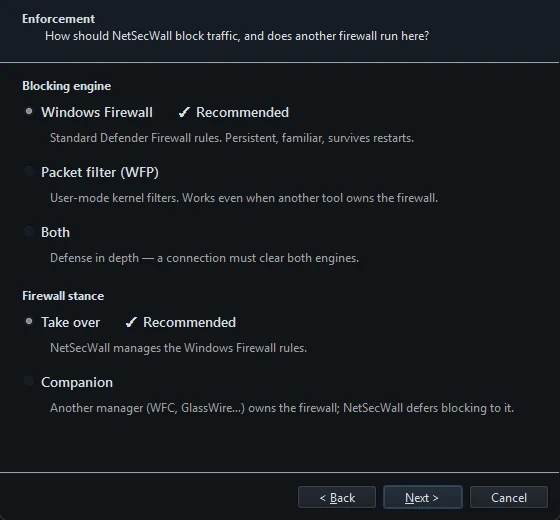
Blocking engine:
- Windows Firewall (recommended) writes standard Windows Defender Firewall rules.
- Packet filter (WFP) uses NetSecWall's own filters in the Windows Filtering Platform. It keeps working when another tool owns the firewall.
- Both means a connection has to clear both engines.
Firewall stance:
- Take over (recommended) lets NetSecWall manage the Windows Firewall rules.
- Companion is for PCs where another firewall manager is in charge. NetSecWall keeps monitoring and alerting but creates no Windows Firewall rules, so it only blocks if you also chose the Packet filter (WFP) engine.
The trade-offs are in Windows Firewall rules or the WFP packet filter.
3. Protection mode
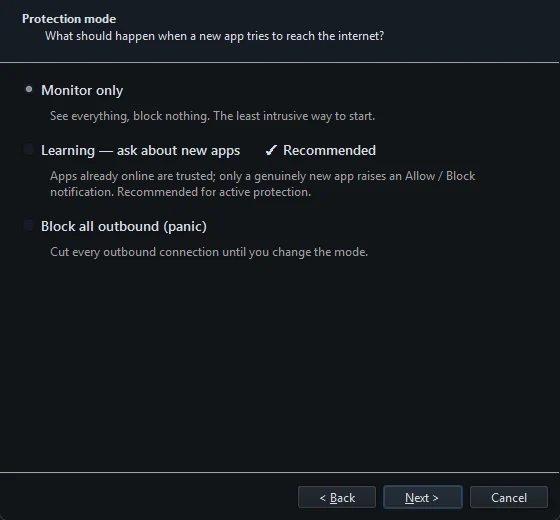
- Monitor only shows everything and blocks nothing new.
- Learning — ask about new apps (recommended) trusts the apps already online. A program that is genuinely new is held back until you answer a pop-up with Allow, Allow once or Block. If you don't answer within 30 seconds, it stays blocked for this session only and you are asked again later.
- Block all outbound (panic) cuts every outbound connection until you change the mode, including remote-desktop sessions.
If you'd rather not answer questions in the first days, choose Monitor only and switch later from Protection ▸ Filtering mode. Learning mode explains the pop-up in detail.
4. Running in the background
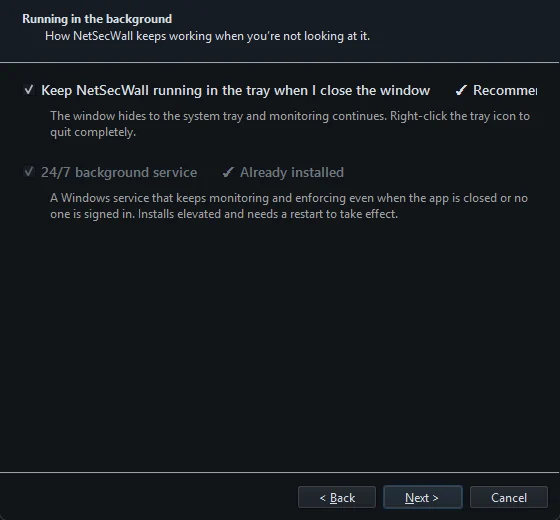
- Keep NetSecWall running in the tray when I close the window (recommended, ticked) hides the window instead of quitting.
- Install the 24/7 background service is optional. If you kept the installer's background protection option, this line reads Already installed. If you install it here, restart NetSecWall afterwards so the window connects to the service.
See the background service and the tray for what the service changes.
5. Threat feeds
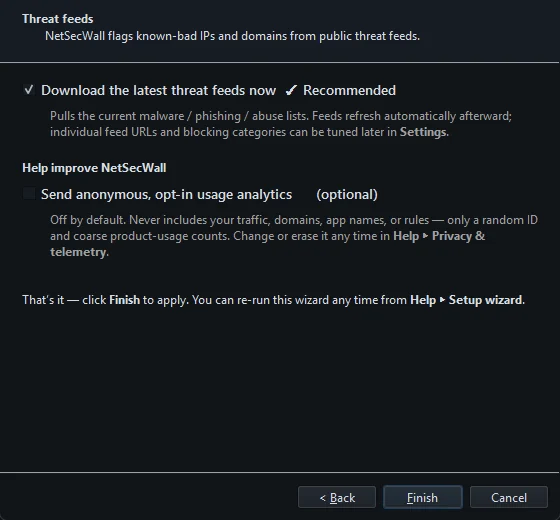
- Download the latest threat feeds now (recommended) fetches the current lists straight away.
- Send anonymous, opt-in usage analytics is off by default. It never includes your traffic, domains, app names or rules. You can change it later in Help ▸ Privacy & telemetry…, as described in turn analytics off, and export or delete your data.
Click Finish. Your choices apply immediately.
After the trial, blocking, Learning mode and the Windows Firewall engine need the Family or Pro plan, and the Packet filter (WFP) engine and Both need Pro.
Running the setup wizard again
Choose Help ▸ Setup wizard…. On a re-run, each page pre-selects your current settings rather than the recommendations. If you've set a settings password, NetSecWall asks for it first.
If you close the wizard without clicking Finish, nothing changes. On a first install, the wizard then opens again the next time you start NetSecWall. The Welcome dialog only ever appears once.
Frequently asked questions
Which options should I pick if I'm not sure?
The pre-selected ones: Windows Firewall, Take over, Learning, keep running in the tray, and download the threat feeds. The one exception worth considering is Monitor only instead of Learning if you want a few quiet days before any pop-ups.
I closed the Welcome dialog without choosing anything. How do I get it back?
It doesn't come back, but everything it does is available elsewhere. Download the lists from Tools ▸ Feeds, and apply a set of blocked categories from Protection ▸ Profile.
Will Learning mode block my browser?
No. Apps that are already online when Learning mode switches on are trusted automatically. Only a program NetSecWall hasn't seen connect before gets held back and raises the pop-up.
Why didn't my Packet filter (WFP) choice take effect?
After the trial, the Packet filter (WFP) engine and Both are part of the Pro plan. On other plans NetSecWall keeps its current engine, and Protection ▸ Enforcement engine shows the unavailable options greyed out.