A tour of NetSecWall's menus and keyboard shortcuts
NetSecWall has seven menus: File, View, Protection, Security, Reports, Tools and Help. Open each with Alt and its letter. Ctrl+Tab switches tabs, and Delete removes selected rules.
NetSecWall for WindowsOn this page
NetSecWall's menu bar has seven menus: File, View, Protection, Security, Reports, Tools and Help. Open any of them from the keyboard with Alt and the menu's first letter. Menu items have no shortcut keys of their own; the only other NetSecWall keyboard shortcuts are Ctrl+Tab to move between tabs and Delete to remove selected rules in the Rules tab.
NetSecWall keyboard shortcuts
| Keys | What they do |
|---|---|
| Alt+F | Open the File menu |
| Alt+V | Open the View menu |
| Alt+P | Open the Protection menu |
| Alt+S | Open the Security menu |
| Alt+R | Open the Reports menu |
| Alt+T | Open the Tools menu |
| Alt+H | Open the Help menu |
| Ctrl+Tab | Go to the next tab (Live, History, Threats and so on) |
| Ctrl+Shift+Tab | Go to the previous tab |
| Delete | In the Rules tab, delete the selected rules |
Hold Alt and the letters underline themselves. Inside an open menu, the arrow keys move between items and open submenus, Enter chooses and Esc closes.
File
Export settings… saves your content-category choices and custom domains to a JSON file. Import settings… loads such a file and replaces those choices. Minimize to tray hides the window, and Quit closes NetSecWall completely.
View
Dark theme (the default) and Light theme switch the look. Show rates in bits/s (Mbps) changes the rate columns from bytes per second to bits per second, the unit internet providers quote.
Protection
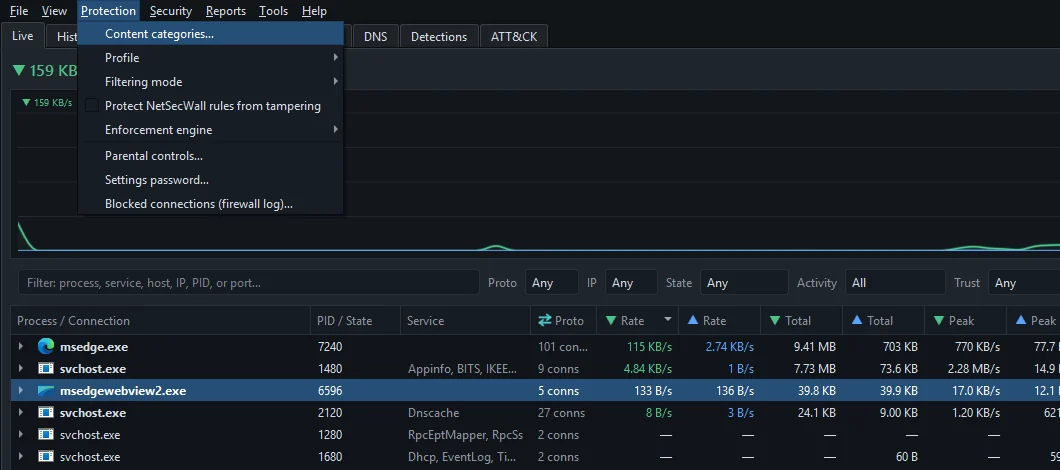
- Content categories… opens the window where each of the 13 website categories can be set to Monitor or Block, and where you add your own domains. See block website categories.
- Profile ▸ applies a preset set of blocked categories: Relaxed, Focus, Family, Security or Lockdown. A profile replaces your current category choices.
- Filtering mode ▸ chooses Monitor only (no blocking), Learning — ask when a new app connects or Block all outbound (panic), plus the Block-all: allow local (loopback) traffic option.
- Protect NetSecWall rules from tampering re-enables any NetSecWall rule another program switches off.
- Enforcement engine ▸ picks Windows Firewall (rules), Packet filter (WFP) or Both.
- Parental controls…, Settings password… and Blocked connections (firewall log)… round it off.
Filtering modes, profiles and the panic switch explains how the first three fit together.
Security
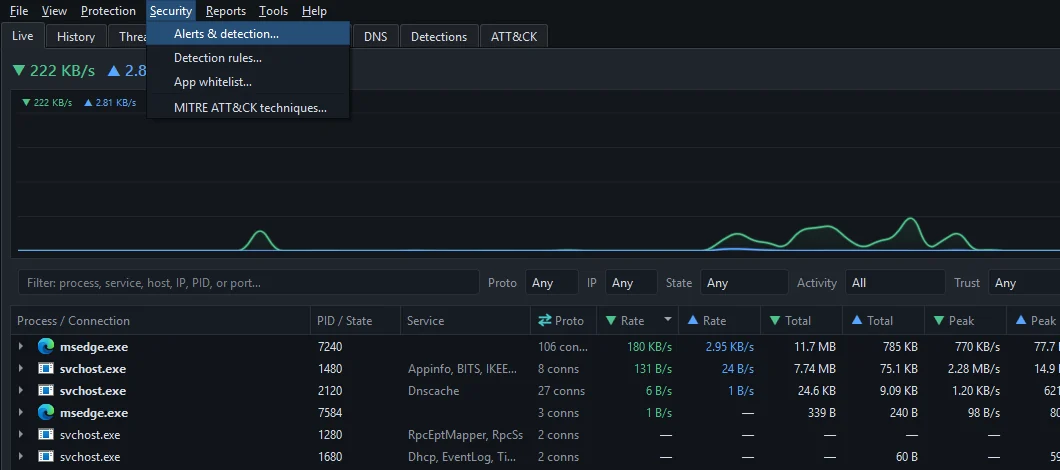
Alerts & detection…, Detection rules… and App whitelist… open the matching tabs of the Settings dialog. MITRE ATT&CK techniques… lists every technique NetSecWall's detection maps to; click a row to open it on the MITRE website.
Reports
Last 7 days…, Last 30 days… and Custom range… each build an HTML report from your local history and open it in your browser: data downloaded and uploaded, number of apps, alerts, threat endpoints, and the top apps and endpoints. See network activity reports.
Tools
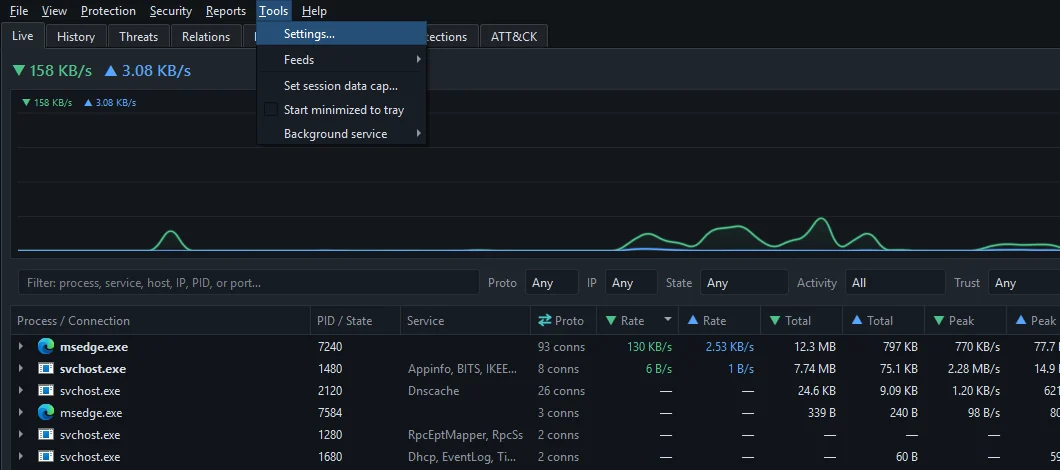
- Settings… opens the eight-tab Settings dialog.
- Feeds ▸ updates the GeoIP database, threat feeds or category lists on demand, switches Auto-update feeds daily on or off, and opens Feed sources… (URLs).
- Set session data cap… warns you when this session's traffic passes a number of megabytes. It alerts only; it doesn't block.
- Start minimized to tray starts NetSecWall hidden in the tray.
- Background service ▸ shows whether the 24/7 service is installed and running, with Install, Start, Stop and Uninstall.
Help
Sign in to NetSecWall… is where you sign in or enter a license key, described in sign in or activate a license key. Open my account in browser… opens your account on netsecwall.com without typing a password, once you have signed in to the app with your account. Setup wizard… runs the first-run wizard again, and Enroll in management… joins a PC to an organization's Management Server. Privacy & telemetry… holds the analytics switch and the export and delete buttons. Check for updates…, Update history… and About NetSecWall complete the menu.

If you set a settings password, many of these items ask for it first, including Settings…, Content categories…, Profile, Filtering mode, Enforcement engine, Parental controls…, Import settings…, Setup wizard… and Quit. See lock NetSecWall with a settings password.
Right-click menus
Many actions are quicker from a right-click. On a program in the Live tab you can open its app dashboard, block it (permanently, for 10 minutes or for 1 hour), copy its path or open its file location. On a connection you can open the IP dashboard, copy the address or host name, or look the address up on an investigation site. The tray icon's right-click menu has Show NetSecWall, Pause monitoring, Block ALL internet and Quit.
Frequently asked questions
Can I assign my own keyboard shortcuts in NetSecWall?
No. NetSecWall has no shortcut editor. Use Alt with the menu letter, then the arrow keys and Enter.
Why are some menu items greyed out?
Either your plan doesn't include that feature, or an organization's management policy has locked it. For example, the Packet filter (WFP) engine needs the Pro plan once the trial is over.
Where is the Content categories tab?
It isn't a tab. Open it from Protection ▸ Content categories…, which shows it in its own window.
How do I switch between light and dark mode?
Choose View ▸ Light theme or View ▸ Dark theme. NetSecWall remembers the choice.