How NetSecWall works: monitoring, blocking and the two engines
NetSecWall watches every connection on your PC by reading Windows' own network events, and blocks only when you ask, through Windows Firewall rules, its own WFP packet filter, or both.
NetSecWall for WindowsOn this page
NetSecWall does two separate jobs, and it helps to keep them apart because they fail in different ways. It watches every network connection your PC makes and ties each one to the program that made it. Separately, and only when you tell it to, it blocks traffic. Watching is passive and safe. Blocking changes how your machine behaves.
How NetSecWall sees per-app traffic
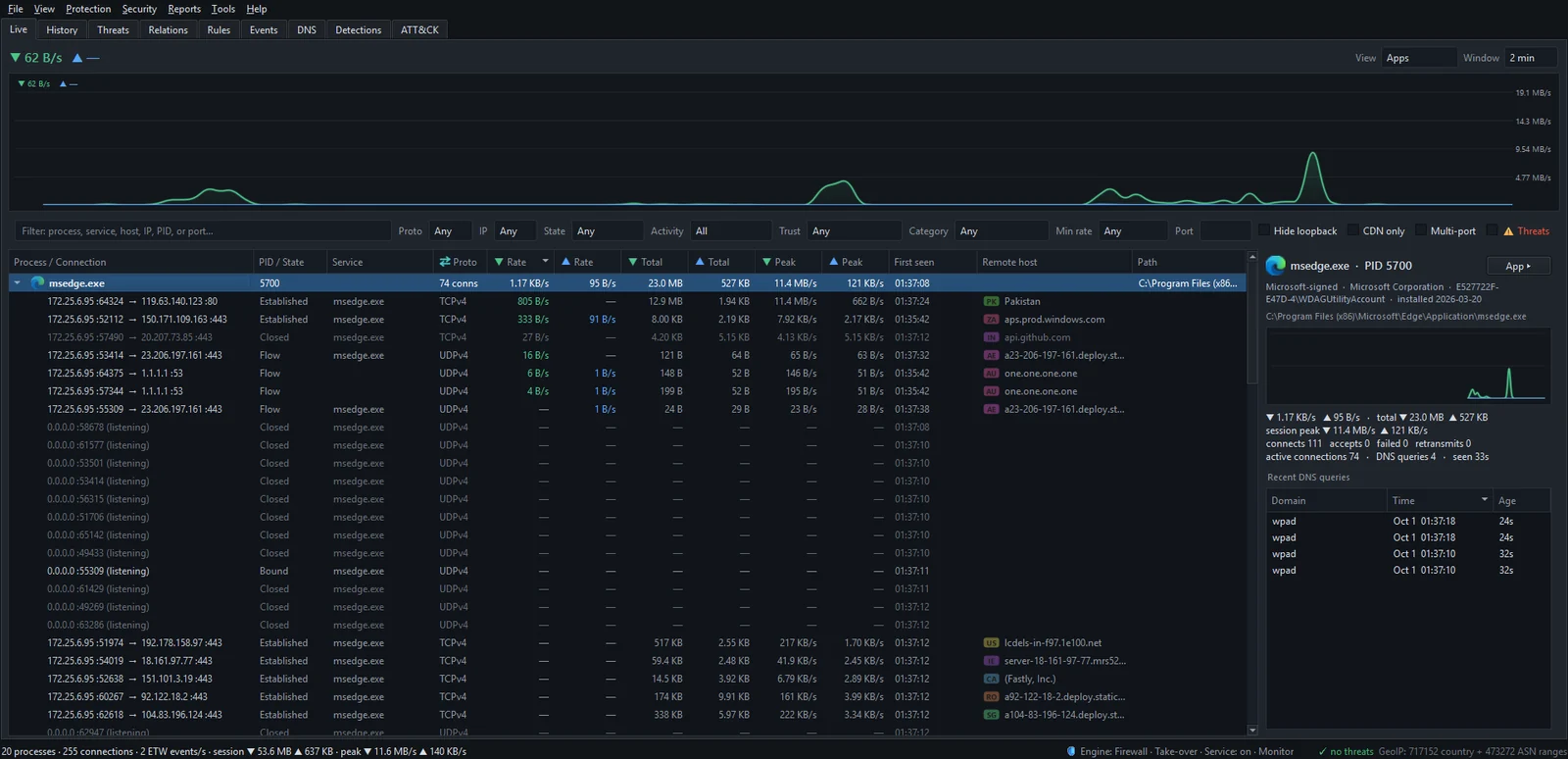
Windows already knows which process owns which connection. The trick is reading that continuously without slowing anything down. NetSecWall subscribes to Event Tracing for Windows (ETW): the kernel's network events for bytes sent and received, and the DNS client's events for the names each program looks up. Once a second it also reads Windows' TCP and UDP connection tables, which gives it connection states and anything that was already open when it started. For svchost.exe, it works out which Windows service inside the shared process owns each connection.
Three things follow from that design:
- It sits beside your traffic, not in the middle of it. Nothing is proxied, redirected or decrypted, and there is no kernel driver. Monitoring can't add latency or corrupt a download, because your packets never pass through NetSecWall.
- It needs administrator rights. Windows only gives per-process network events, and firewall changes, to elevated programs. That's why NetSecWall asks for elevation.
- It records metadata, not contents. Which program, which address and port, how many bytes, and when. It does not decrypt HTTPS or read what's inside a connection.
The two blocking engines
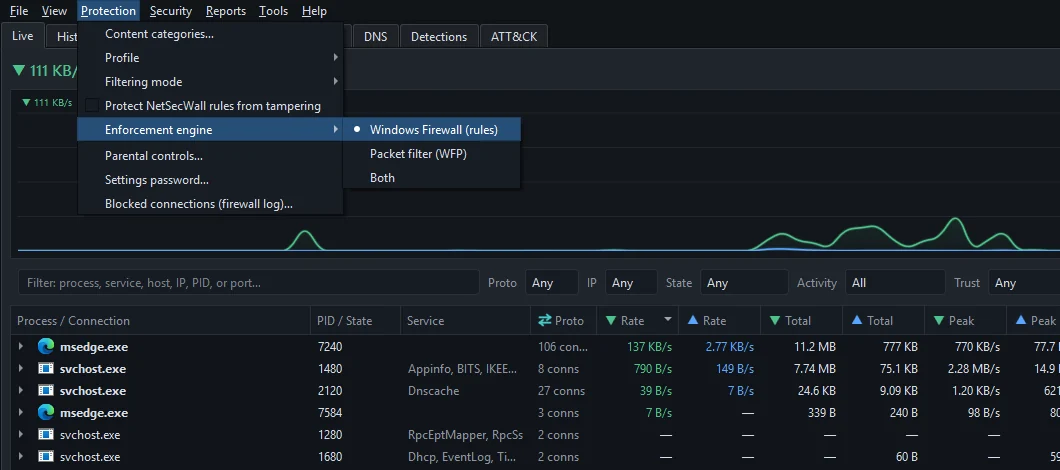
When you block something, NetSecWall enforces it one of two ways, or both. You choose under Protection ▸ Enforcement engine.
| Engine | How it blocks | Choose it when |
|---|---|---|
| Windows Firewall (rules) | Writes outbound block rules into the Windows Defender Firewall that ships with Windows. You can see them in wf.msc, named "NetLens …" in the rule group "NetLens". |
The default. Nothing else manages your firewall. |
| Packet filter (WFP) | Adds its own filters through the Windows Filtering Platform, the layer Windows Firewall itself is built on. No driver. | Another program owns Windows Firewall and keeps overwriting rules. |
| Both | A connection has to clear both engines. | You want defense in depth. |
The Windows Firewall engine is part of the Family and Pro plans; the packet filter and Both are Pro. All three work during the trial. Which engine to use goes into the trade-offs.
NetSecWall's blocks are enforced while NetSecWall is running. It removes its own firewall rules when it (or its background service) stops, and puts them back when it starts. Only rules you create yourself with New rule… in the Rules tab stay in Windows Firewall on their own.
Take over or Companion
If another firewall manager is running, NetSecWall shows an amber banner and offers two stances. Take over means NetSecWall manages the Windows Firewall rules. Companion mode means it keeps monitoring, detecting and alerting but creates no Windows Firewall rules, and leaves blocking to the other tool. In Companion mode NetSecWall only blocks on its own if you've chosen the Packet filter (WFP) or Both engine. More in using NetSecWall alongside another firewall.
What runs, and when
NetSecWall is one program that can run three ways:
- Standalone. The window does everything. It monitors and enforces while the app is running. Closing the window hides it to the tray, so it keeps going.
- Background service. A Windows service called "NetSecWall Network Monitor" starts at boot and keeps monitoring, recording history and enforcing blocks with the window closed or nobody signed in. The installer sets it up by default.
- Thin client. With the service installed, the window is a view onto the service.
The window itself doesn't open at sign-in; start it from the Start menu when you want to look. The status bar always shows the current engine, stance, service state and filtering mode, for example "Engine: Firewall · Take-over · Service: on · Monitor". See the background service and the tray.
Where your data lives
Connection history, the DNS log, rules, detections and settings stay on the PC, in a local database. None of it is uploaded. NetSecWall does contact netsecwall.com for a few things: the license check, downloading threat, GeoIP and category lists, the update check, and an occasional one-click "Verify this PC" check in your browser. Anonymous analytics are off unless you switch them on. Exactly what NetSecWall sends lists every connection, and your data and your privacy explains where everything is stored.
Frequently asked questions
Does NetSecWall install a driver?
No. Monitoring uses Windows' built-in event tracing and connection tables, and the packet filter uses the Windows Filtering Platform from user mode. No kernel driver is installed.
Can NetSecWall see what I type or download?
No. It records which program connected where, how much data moved and when. It doesn't capture packets or decrypt HTTPS, so the contents of pages, messages and files never reach it.
Do my blocks still apply if I quit NetSecWall?
NetSecWall's own blocks don't: it removes its rules when it stops and re-applies them when it starts. With the background service installed, they're back from boot, before anyone signs in. Custom rules made with New rule… stay either way.
Why does NetSecWall need administrator rights?
Windows only exposes per-process network events and firewall changes to elevated programs. Without elevation, NetSecWall can't show live transfer rates or block anything.