Create a custom firewall rule for a port, address or inbound traffic
In the Rules tab, click New rule… and set the direction, action, protocol, program, ports and addresses. The result is an ordinary Windows Firewall rule that stays whether NetSecWall runs or not.
NetSecWall for WindowsOn this page
To create a custom firewall rule, open the Rules tab and click New rule…. Choose the direction, action, protocol, program, ports, remote addresses and network profiles, then save. This is how you block a specific IP address, address range or port, and the only way to make an inbound rule in NetSecWall. The result is an ordinary Windows Firewall rule with the name you give it, and it stays in place whether NetSecWall is running or not.
First: is the background service running?
New rule…, Edit… and Duplicate… don't work while the NetSecWall background service is running. NetSecWall tells you so: "Creating and editing firewall rules isn't available while the NetSecWall background service is running. Use Windows Defender Firewall for custom rules, or stop the service to manage them here."
You have two options:
- Use Windows Defender Firewall. Press Win+R, type
wf.msc, and create the rule under Inbound Rules or Outbound Rules. It then shows in NetSecWall's Rules tab like any other rule, where you can still enable, disable or delete it. - Stop the service. Choose Tools ▸ Background service ▸ Stop, then quit and reopen NetSecWall so it runs on its own, and create the rule. Afterwards, choose Tools ▸ Background service ▸ Start and restart NetSecWall once more. While the service is stopped, NetSecWall only protects the PC while its window or tray icon is running.
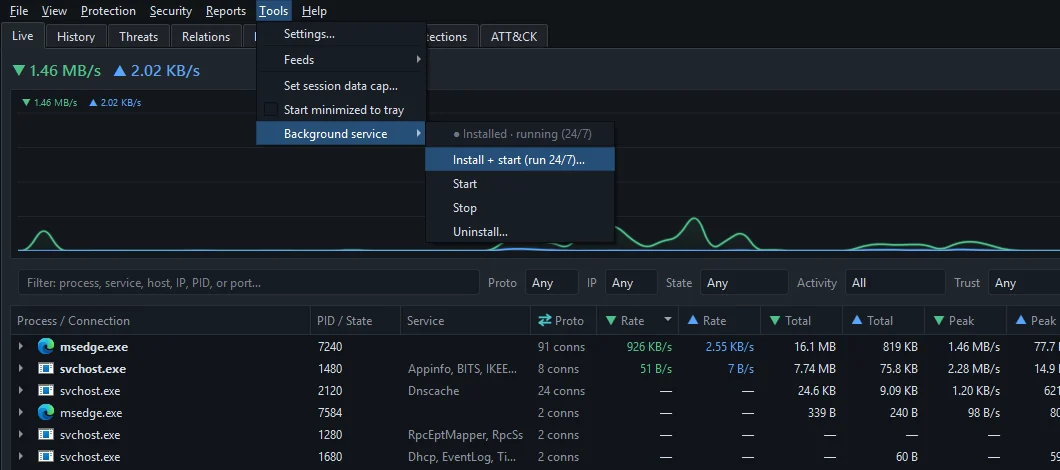
Create a custom firewall rule
- Open the Rules tab.
- Click New rule…. The New firewall rule dialog opens.
- Fill in the fields described below. Name is required.
- Click OK.
If Windows rejects the program, address or port list, NetSecWall doesn't create the rule at all rather than make a broader one. If a new rule doesn't appear in the list, check those entries and try again.
The fields
| Field | What to enter |
|---|---|
| Name | Any name you'll recognize later. It starts as "My rule". |
| Direction | Outbound for connections this PC makes, Inbound for connections coming in. |
| Action | Block or Allow. |
| Protocol | Any, TCP or UDP. |
| Program | The program the rule applies to; use … to pick an .exe. Leave it empty for "(any program)". |
| Local ports | Ports on this PC, such as 80,443, or * for any. |
| Remote ports | Ports on the other end, such as 443, or * for any. |
| Remote addresses | Addresses on the other end: single IPs, lists and ranges such as 1.2.3.4,10.0.0.0/8, or * for any. |
| Profiles | Domain, Private and/or Public — the network types the rule applies on. |
| Enabled | Untick to save the rule switched off. |
Ports apply to TCP and UDP only, so pick one of those protocols when you fill in a port. What is a port? explains the common numbers.
Examples
Block one address range for every program. Direction Outbound, Action Block, Protocol Any, Program empty, Remote addresses 203.0.113.0/24.
Keep one app off one port. Direction Outbound, Action Block, Protocol TCP, Program the app's .exe, Remote ports 25.
Refuse incoming Remote Desktop. Direction Inbound, Action Block, Protocol TCP, Local ports 3389. If you use Remote Desktop to reach this PC, this rule locks you out.
Inbound rules
Every block NetSecWall makes on its own — app, country, category, Block all — is outbound. For anything inbound, a custom rule is the tool. Windows Firewall already turns away unsolicited incoming connections unless a rule allows them, so inbound Block rules are mostly for closing something that Windows or a program deliberately opened. Inbound vs outbound connections covers the difference.
An Allow rule doesn't override a block. In Windows Firewall a Block rule wins over an Allow rule, so you can't use Allow to punch a hole in a NetSecWall block. Remove the block instead — see unblock an app.
Find, edit or remove your rule later
Custom rules aren't NetSecWall's own, so they don't appear in the default view. In the Rules tab, set Show: to All Windows Firewall rules and type the rule's name in the filter box. Their Owner reads Windows / other.
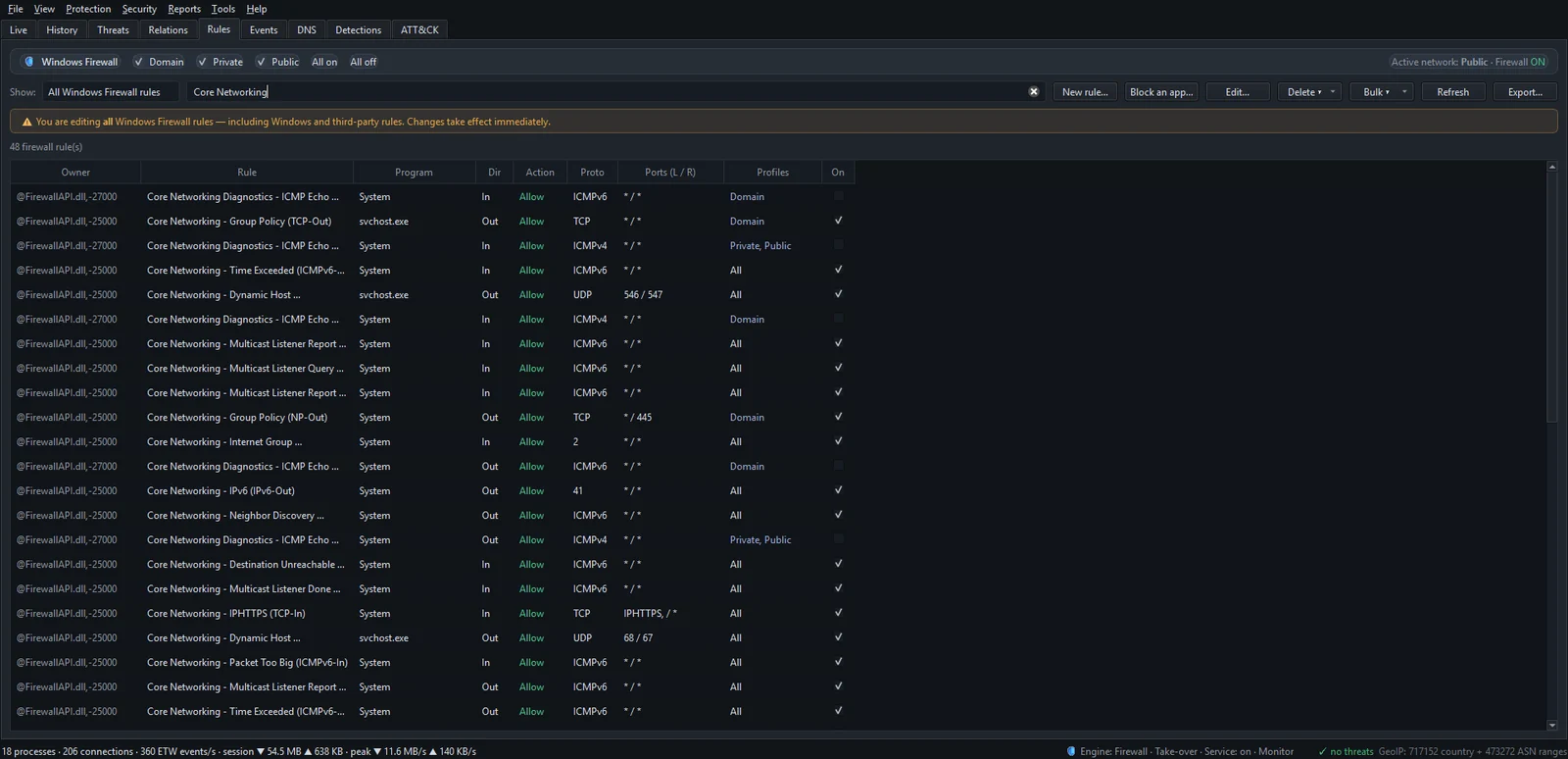
Because NetSecWall doesn't count them as its own, Edit… asks "… was created by Windows or another program. Edit it anyway?" — answer Yes. Duplicate… on the right-click menu copies a rule as a starting point for a similar one.
Custom rules stay in Windows Firewall until you delete them. NetSecWall doesn't remove them when it stops, so delete the ones you no longer need. Manage every Windows Firewall rule from the Rules tab covers the rest of the tab.
Frequently asked questions
How do I block a single IP address?
Create an Outbound rule with Action Block, Protocol Any, no program, and the address in Remote addresses. Add more addresses separated by commas, or a range in CIDR form such as 203.0.113.0/24.
Why is New rule… not working?
The NetSecWall background service is running, and rule editing only works without it. Create the rule in Windows Defender Firewall (wf.msc) instead, or stop the service and restart NetSecWall.
Do custom rules keep working when NetSecWall is closed?
Yes. They are ordinary Windows Firewall rules, enforced by Windows whether or not NetSecWall is running.
Can I block a website with a custom rule?
Only by its IP addresses, which many sites change often and share with others. Adding the domain to a blocked content category usually works better; see block a specific domain.