Find endpoints shared by several apps with the Relations graph
The Relations tab draws your apps and the servers they talk to as a graph. Endpoints used by two or more apps turn orange, and connections to threat-feed addresses turn red.
NetSecWall for WindowsOn this page
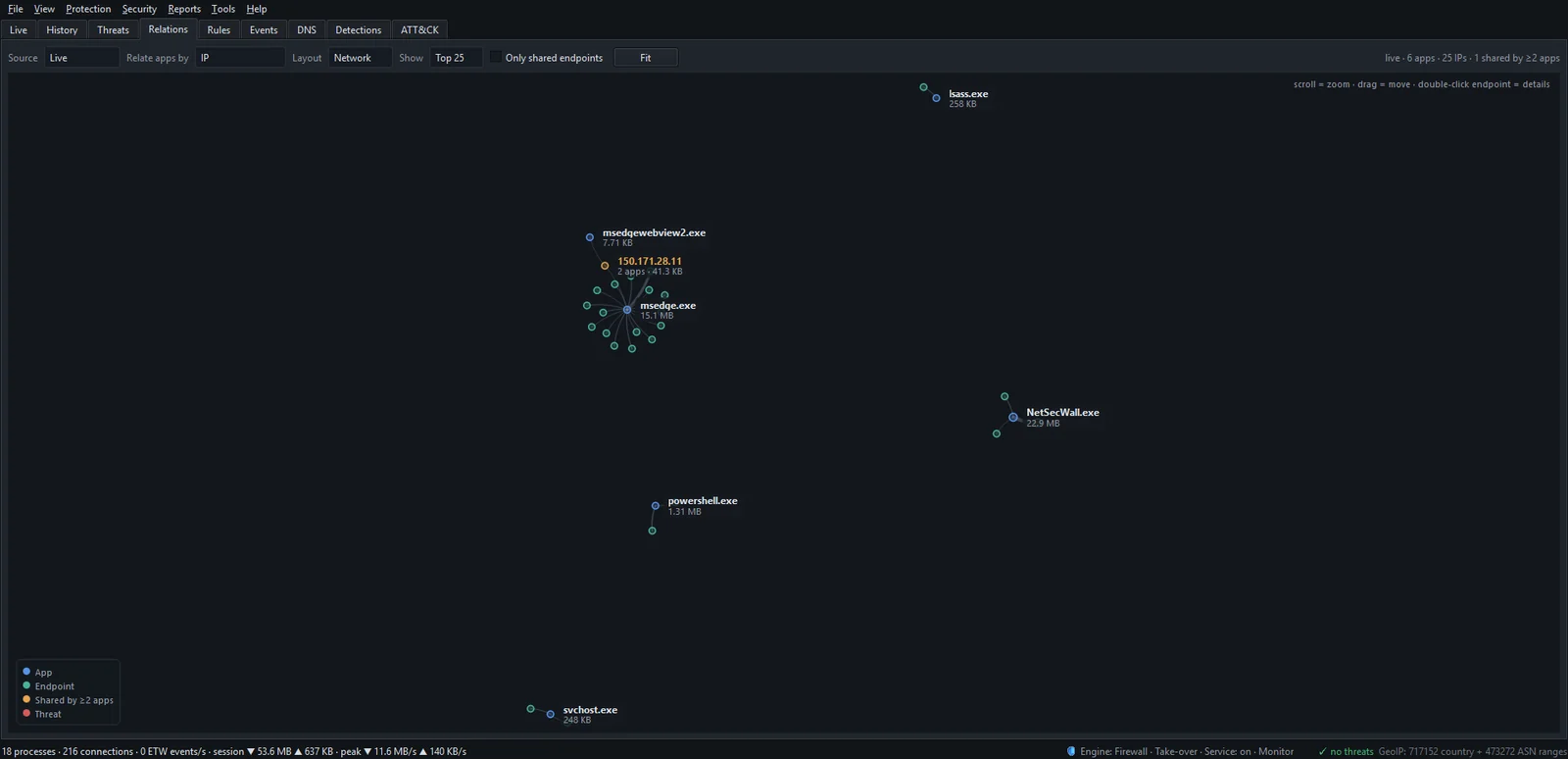
The Relations tab draws your programs and the places they connect to as a graph, so you can see at a glance which apps are connecting to the same IP, domain, network or country. Apps are blue dots, endpoints are teal, an endpoint used by two or more apps turns orange, and anything touching a threat-feed address is red. It works on live traffic or on any stretch of your history.
The controls
| Control | Options | What it does |
|---|---|---|
| Source | Live · Today · Last 7 days · Last 30 days · All time | Draw what is connected now, or what is in your history for that range. |
| Relate apps by | IP · Domain · ASN / Network · Country | What counts as the same endpoint. |
| Layout | Network · Columns | Network is a free-moving map; Columns puts apps on the left and endpoints on the right. |
| Show | Top 15 · Top 25 · Top 40 · Top 60 | How many apps and endpoints to draw (25 by default). |
| Only shared endpoints | checkbox | Hide endpoints that only one app talks to. |
| Fit | button | Reset the zoom and center the graph. |
A line at the right end of the controls sums it up, in the form "live · N apps · N IPs · N shared by ≥2 apps".
Reading the graph
- Blue nodes are programs; teal nodes are endpoints.
- Orange endpoints are shared: two or more apps talk to them.
- Red nodes and lines involve an address on a threat-intelligence feed (Plus, Family and Pro plans).
- Bigger nodes and thicker lines mean more data.
- A legend sits in the bottom-left corner.
Scroll to zoom, drag a node to move it, and hover over a node to highlight its connections and fade the rest. Double-click an endpoint to open its IP dashboard.
When the graph has to be trimmed to the Top N, shared endpoints are kept first. Live mode leaves out loopback traffic and connections that haven't moved any data, so the picture isn't cluttered with idle sockets.
Find apps connecting to the same IP
- Open the Relations tab.
- Set Source to Live for right now, or a range such as Last 7 days.
- Set Relate apps by to IP.
- Tick Only shared endpoints.
- Click Fit, then hover over each orange node to see which apps share it.
- Double-click a node for the address's dashboard, with totals per app.
If the result is mostly big cloud and CDN addresses, switch Relate apps by to Domain. That usually gives a cleaner picture of which services are actually shared.
What questions it answers
- Do these programs share a backend? Several apps from one vendor, such as an office suite and its updater, usually meet at the same domains.
- Is an unfamiliar program talking to the same place as a known one? An unknown helper that shares a domain with your backup software often belongs to the same product. One that shares nothing with anything you recognize is worth a look in its app dashboard.
- Where does most of my traffic go? Relate by ASN / Network or Country to see traffic collapse onto a handful of providers or countries.
- Did a flagged address reach more than one app? Red lines to one node from several programs deserve attention. Check what the feed says about it in Threat intelligence and detection.
Shared is not the same as suspicious. Big CDNs and cloud providers host a large share of the internet, so when you relate by ASN / Network or Country, almost every endpoint will be shared. Why every app connects to Cloudflare, Akamai and Amazon explains why.
In Live, each running process is its own node, so two copies of the same program appear twice. With a date range, NetSecWall combines them by program path.
Frequently asked questions
Why does the graph say "No relationships in range"?
Nothing in the chosen source has moved any data, or Only shared endpoints is ticked and no endpoint is shared. With Live, wait until programs are active or pick a date range; with a range, check that NetSecWall was running during it.
Why do the nodes keep moving?
The Network layout keeps nudging nodes apart until they settle, and in Live the graph is rebuilt as traffic changes. Switch Layout to Columns for a steady view.
Can I export the graph?
No. For the numbers behind it, use Export… on the History tab, which writes CSV or JSON.
Does a red node mean I'm infected?
No. It means an app exchanged data with an address that a public threat list includes. Look at which app it is and whether that connection makes sense for it before deciding anything.