Group live traffic by IP, domain, country or category
On the Live tab, change View from Apps to By IP, By Domain, By Country or By Category. Traffic is then totalled per destination, with the apps talking to each one listed underneath.
NetSecWall for WindowsOn this page
The Live tab normally lists programs. Switch its View to By IP, By Domain, By Country or By Category and the list turns inside out: one row per destination, its traffic added up across every program, with the programs talking to it listed underneath. It is the quickest way to see your live traffic by domain or country instead of by app.
Switch the view
- Open the Live tab.
- At the top right, above the graph, open the View list.
- Choose Apps, By IP, By Domain, By Country or By Category.
- Click the arrow next to a row to see which apps make up its traffic. Select one of those apps to show it in the details pane.
The rows are sorted by download rate, and every column header sorts. The filter bar still works, although only some of its controls apply to these views; see Filter the Live tab to find a process, port or threat.
What the columns mean
| Column | Meaning |
|---|---|
| Remote IP, Domain, Country or Category | The destination the row adds up. |
| Domain (By IP) or Members (other views) | By IP: the host name for that address. By Domain: the address, or "N IPs" when the name points at several. By Country and By Category: "N IPs · N apps". |
| Network / CDN | Who owns the network the busiest address sits in. "CDN · owner" marks a CDN or cloud edge, such as Cloudflare or Akamai. |
| Ports | How many different remote ports are in use. |
| Conns · Apps | Open connections, and how many programs own them. |
| ↓ Rate / ↑ Rate | Download and upload speed right now. |
| ↓ Total / ↑ Total | Data moved on the connections that are open now. |
| ↓ Peak / ↑ Peak | The highest rate the row has reached since it appeared. |
| First seen | When NetSecWall first saw any of these addresses, from its history. |
A row exists only while at least one connection to that destination is open; when the last one closes, the row goes. For totals over a day or a month, use the History tab, which groups by Apps, IPs, Domains or Countries over any range (History, search and reports).
By IP: one row per address
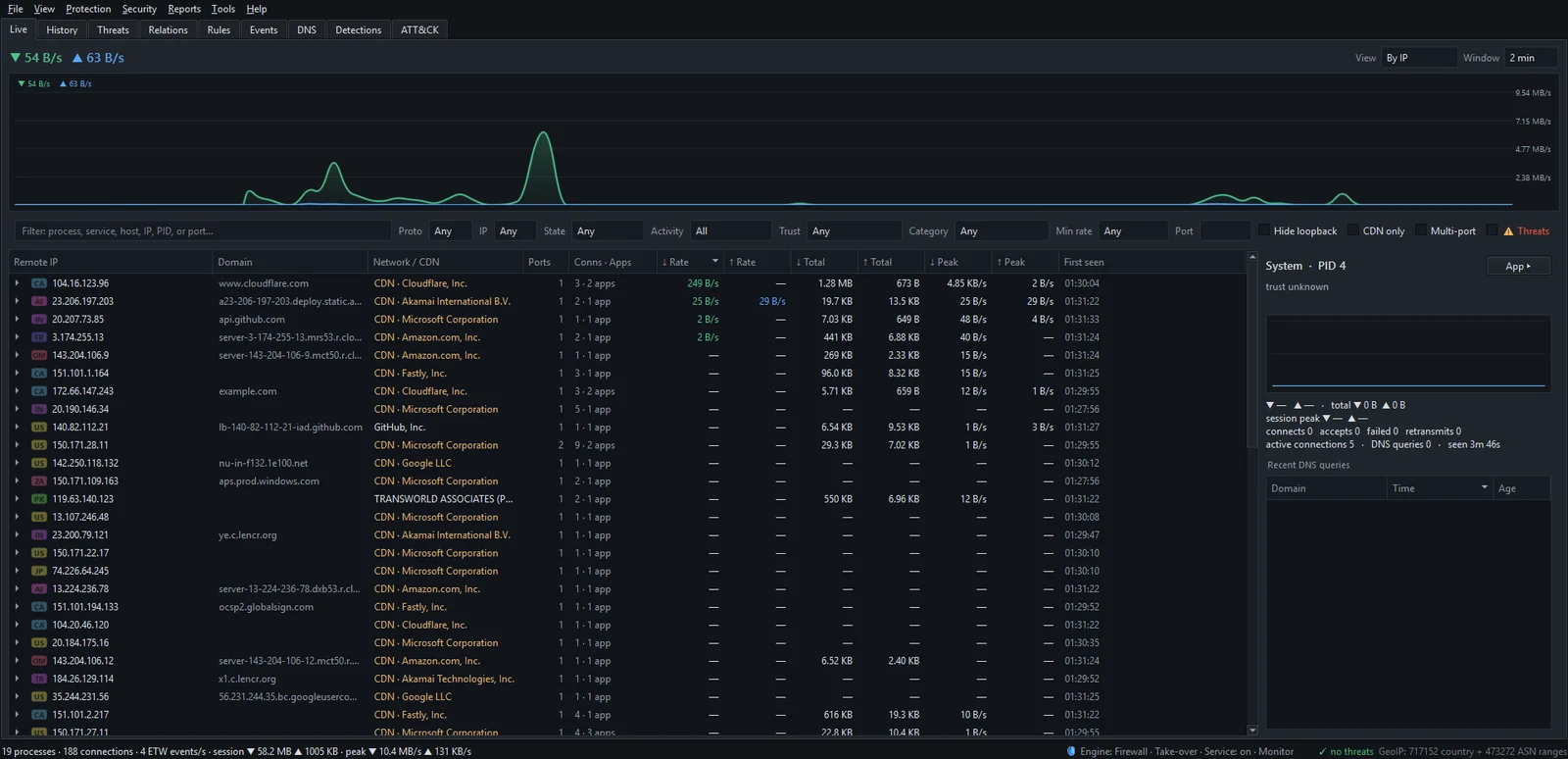
Use it when a single address matters: to see which programs share it, or to copy it. Right-click a row for Open IP dashboard, Copy and Investigate IP ▸, which opens VirusTotal, AbuseIPDB, IPinfo / WHOIS or Shodan in your browser. Double-clicking opens the IP dashboard.
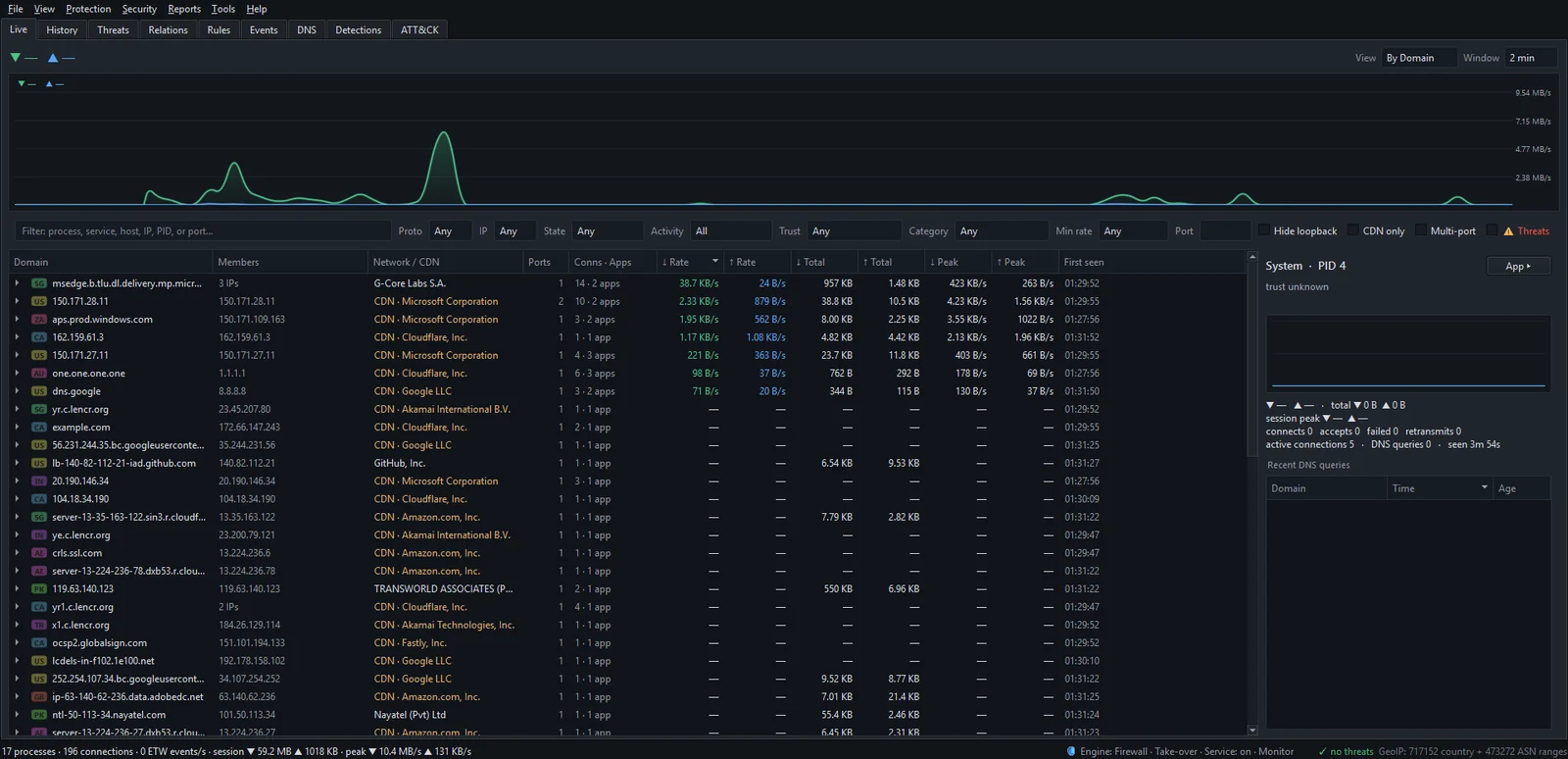
By Domain: which services your PC talks to
Rows are named by the host name NetSecWall learned from the DNS answer, or from reverse DNS when there was no lookup to see. An address with no known name appears as the bare IP. This is the easiest view to read, because you see github.com and login.microsoftonline.com rather than a wall of numbers. A domain with several IPs in Members is spread across servers, which is normal for large services.
By Country: where the servers are
Each row shows the country code and name, with a flag if you installed a flag pack and a two-letter badge otherwise. Addresses GeoIP can't place, such as devices on your own network, are grouped as "Unknown / private". The country is where GeoIP places the server's address, not where the company is based: a US company's content often arrives from a CDN node in your own country, and the reverse.
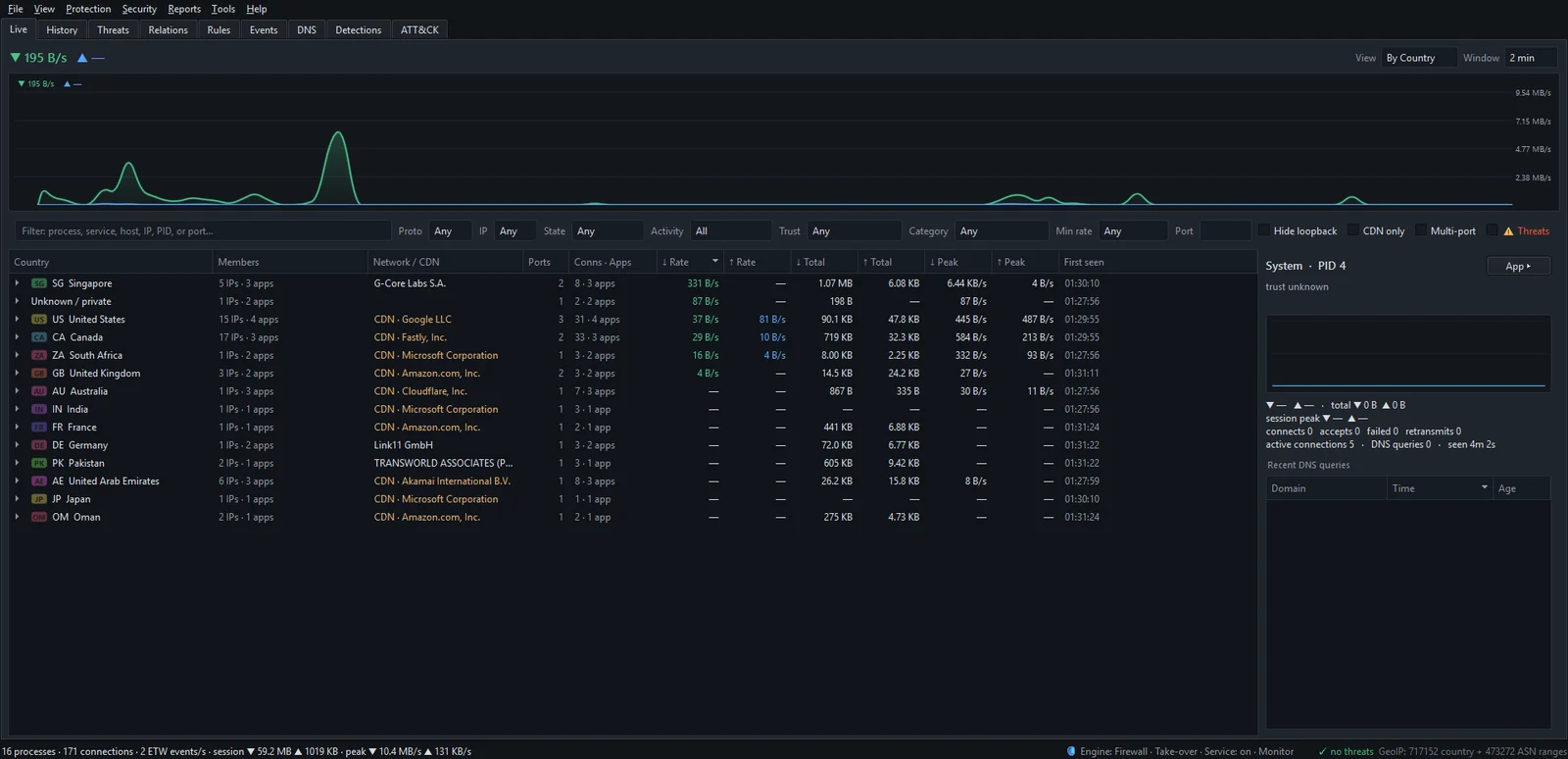
You can block a whole country from this view: right-click it and choose ⛔ Block all IP ranges of CC. See Block a country's IP ranges before you do.
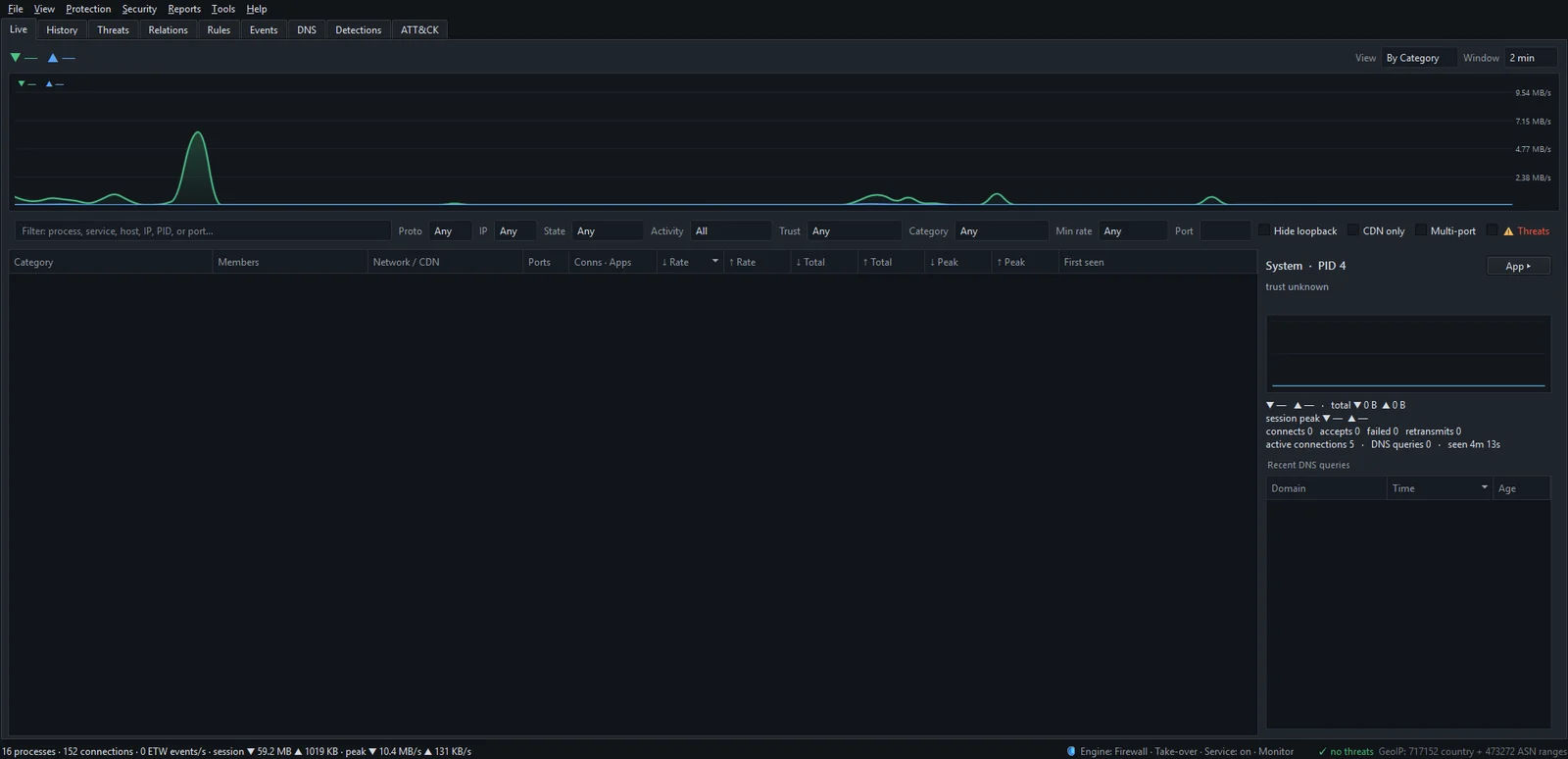
By Category: ads, trackers and social media
This view only shows traffic whose domain is on a content-category list NetSecWall is using. Ads, Tracking and Social media are monitored by default; turn on others, such as Gambling, Shopping or Games, under Protection ▸ Content categories…. Traffic outside those lists is left out, so a short list here is normal. Monitoring a category only labels its traffic; nothing is blocked unless you set that category to Block.
Which view to use: traffic by domain, country, IP or category
| You want to know | Use |
|---|---|
| Which programs are online and how busy they are | Apps |
| Which services and websites the PC is talking to | By Domain |
| Which countries the servers are in | By Country |
| Whether several programs share one server | By IP |
| How much traffic goes to ads, trackers or social media | By Category |
Window, next to View, sets how much time the throughput graph covers: 60 s, 2 min (the default), 5 min or 10 min. It changes the graph only; the rows always show what is open now.
Frequently asked questions
Why does By Country show a country I didn't expect?
CDNs and cloud providers serve content from wherever they have servers, and geolocation databases are approximate. Check the Network / CDN column before reading anything into a country.
Why is a website listed as an IP address in By Domain?
NetSecWall had no name for that address. That happens when the program used encrypted DNS, when the lookup happened before NetSecWall started, or when reverse DNS has no entry for the address.
Can I see these views for yesterday or last week?
Not on the Live tab, which only shows open connections. The History tab groups by IPs, Domains or Countries for any range, including custom dates.
Does the By Category view block anything?
No. It only groups traffic that is already labeled. Blocking a category is a separate choice under Protection ▸ Content categories… or Protection ▸ Profile.